OBS-PlaylistDock Playlists

Your media. One playlist dock.

Control native OBS VLC sources with search, ordering, and playback in one compact dock.

Version
1.2.0
OBS
32.0.4
Platforms
Windows x64 · Apple silicon Mac
Languages
Simplified Chinese · Traditional Chinese · English
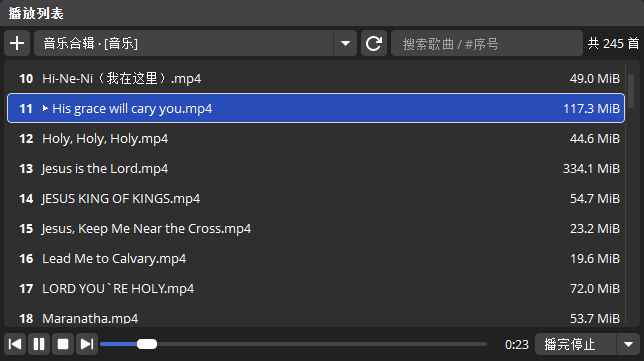
OBS-PlaylistDock with VLC source selection, search, numbered tracks, file sizes, and playback controls

Playlists and playback

Mixed media
Uses the native VLC playlist order and supports audio and video. Click or drag the progress bar to seek.
Search and navigation
Search by filename or # and a track number; press Enter to play the first match.
List management
Drop files, drag to reorder, remove multiple selections, and undo. Switching VLC sources preserves selection and scroll position.
File details
Aligned track numbers and file sizes. Hover over a size to see its folder on one line, or open the folder and select the file from the context menu. Missing files are flagged on load or refresh.
Per-source playback
Each VLC source keeps its own stop-after-track, next-track, or repeat-one setting. Stop-after-track is the default.
Scene linking
Double-click or press Enter to play and switch to the uniquely matched scene. In Studio Mode, the preview scene changes.
Playlist saving
Custom ordering is saved with OBS. Restore the full native VLC playlist and its original settings from the context menu.
Compact layout
Search moves to a new row in narrow docks, and icons follow the OBS theme. Playback controls stay together at the bottom to leave more room for the playlist.

Playlists inside OBS

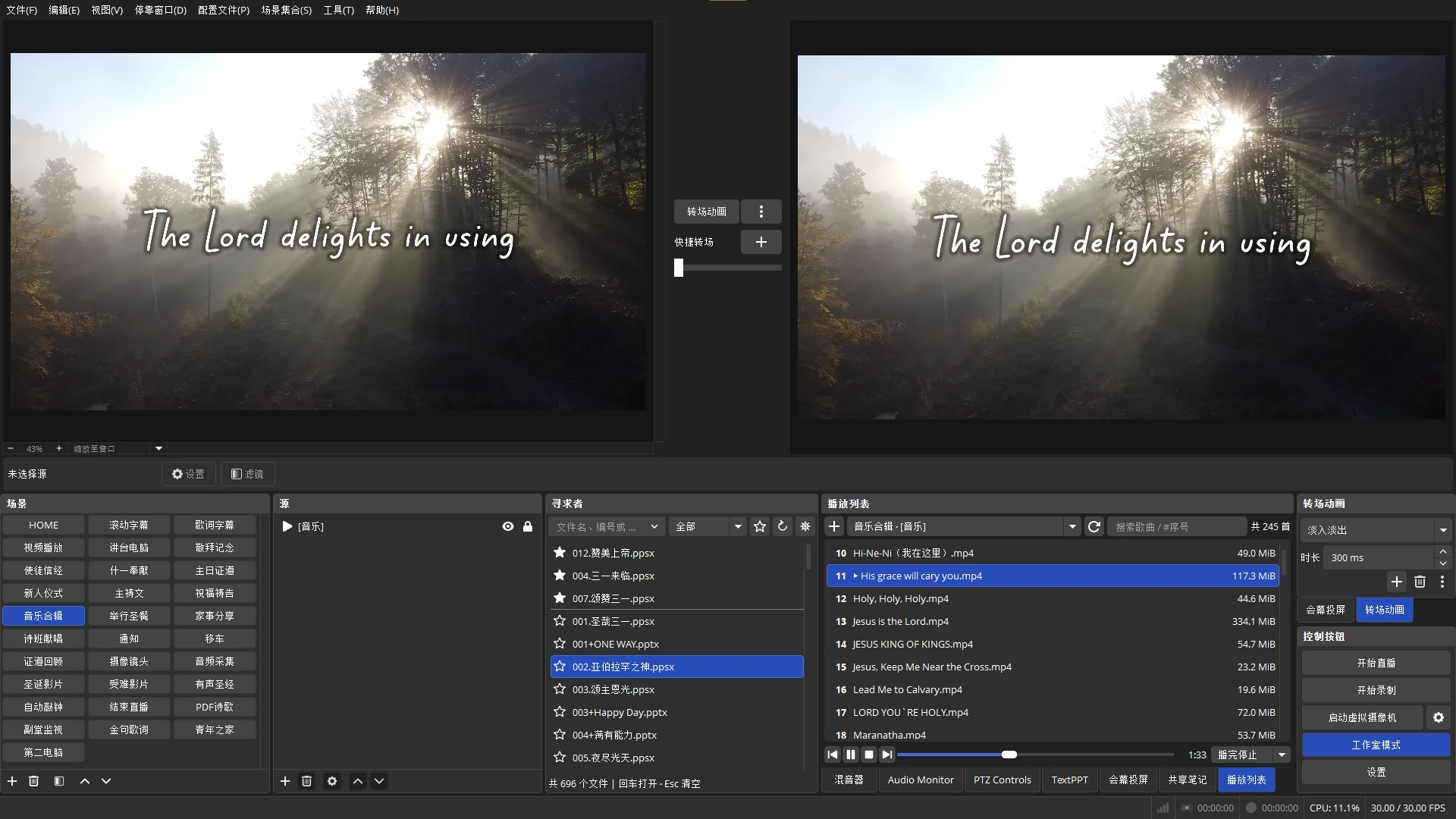
OBS Studio Mode with preview and program displays above a dock containing a VLC playlist and playback controls

Start in three steps

  1. Install the plugin

    Close OBS, fully extract the ZIP, and run the installation script.

  2. Choose a source

    Open Docks → Playlist and choose an existing VLC Video Source.

  3. Start playback

    Double-click a track, or search and press Enter. Right-click to manage the list.

Choose your platform

Requires OBS Studio 32.0.4 and VLC. Close OBS and fully extract the ZIP before installing.

Windows x64

Windows ZIP ↓

Run install_OBS-PlaylistDock.bat and grant administrator permission when prompted.

Installs in the system OBS plugin folder.

macOS Apple silicon · ARM64

Mac ZIP ↓

Open a terminal in the extracted folder and run:

bash ./install_OBS-PlaylistDock.sh

Installs in the current user's OBS plugin folder and removes quarantine attributes.