OBS-ScenePad Scene scripts

Edit and prompt.
Follow every scene.

Keep a separate script for each scene. Edit and prompt in OBS, or read on a computer or phone over your LAN.

Version
3.0.0
OBS
32.0.4
Platforms
Windows x64 · Apple silicon Mac
Languages
Simplified Chinese · Traditional Chinese · English
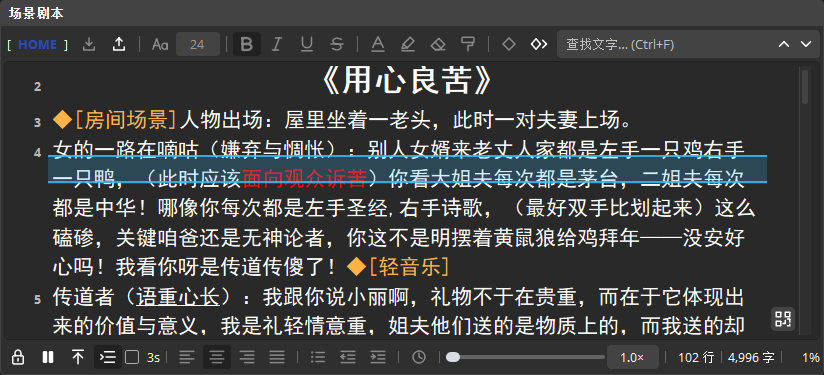
OBS-ScenePad dock with rich-text tools, orange note marks, and teleprompter controls

Write, navigate, and prompt

Separate scripts
Each OBS scene keeps its own script, loaded automatically when you switch. Up to 200,000 characters per script, with line counts, total and selected characters, and reading progress.
Rich-text editing
Fonts, sizes, colors, strikethrough, and paragraph formatting. Use the format painter in the dock or browser to apply the same text style quickly.
Prompter controls
Adjust speed, a start countdown, and the reading guide. Desktop wheel and arrow keys move smoothly without stopping auto-scroll; search and navigation jump directly.
Search and navigation
Highlighted search and inline jumps by line or percentage. The dock keeps the original reading position across repeated jumps; return with one click. Edits or scene changes clear it.
Mark notes
Insert an orange mark at the cursor and type its note directly. Navigate backward or forward and delete a whole mark group to organize cues, transitions, and service steps.
Import and export
Import Word, HTML, or plain text, and export HTML or TXT. HTML keeps text formatting; plain text is convenient for editing and sharing.
Browser access
Connect over your LAN with a link or QR code. Computers and phones can follow scenes, edit remotely, or prompt independently. Locking in OBS makes the browser read-only.
Backup and clearing
Back up the current script or all scenes and restore as needed. Automatic clearing is off by default; choose the age and scene scope, while active scenes are skipped.
Editing lock
OBS controls editing permissions, and browsers follow its lock state. Alt-click the dock's text area to toggle the lock; use Option on Mac.
Quick actions
OBS global hotkeys are unbound by default and can be configured. Alt-Shift-click to insert a mark on desktop; use Option instead of Alt on Mac.
Single-use painter
Select the source text, click the format painter, then select the target text. It exits after applying the style; select a source again to reuse it.
Continuous painter
Double-click the painter on desktop to style multiple selections. Click it again or press Esc to exit, in either the dock or browser.

Part of your OBS workspace

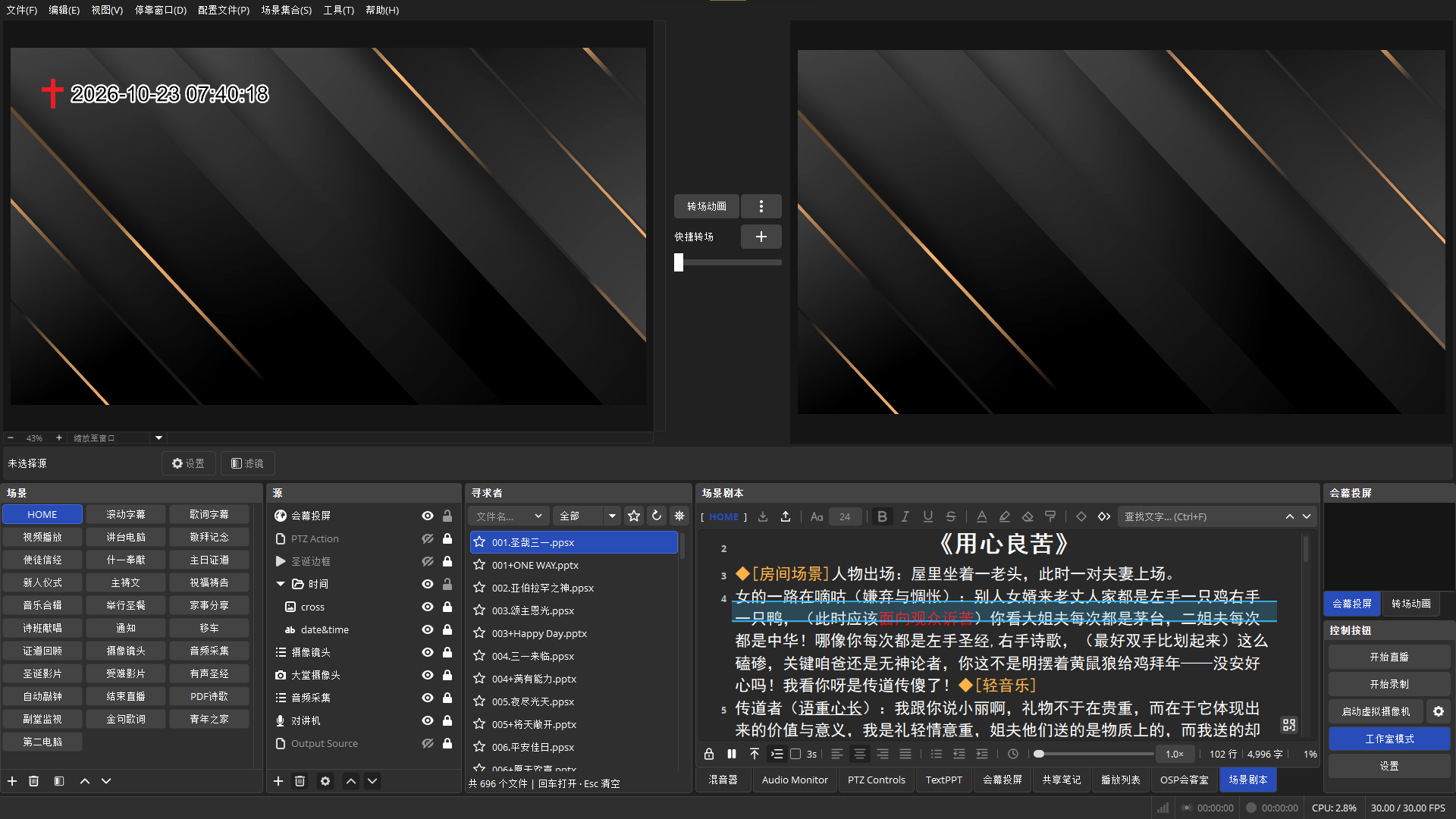
OBS Studio Mode with ScenePad docked below, beside scenes, sources, and a playlist
Dock scripts in the OBS workspace and switch scenes to see the matching content.

One script. Computer or phone.

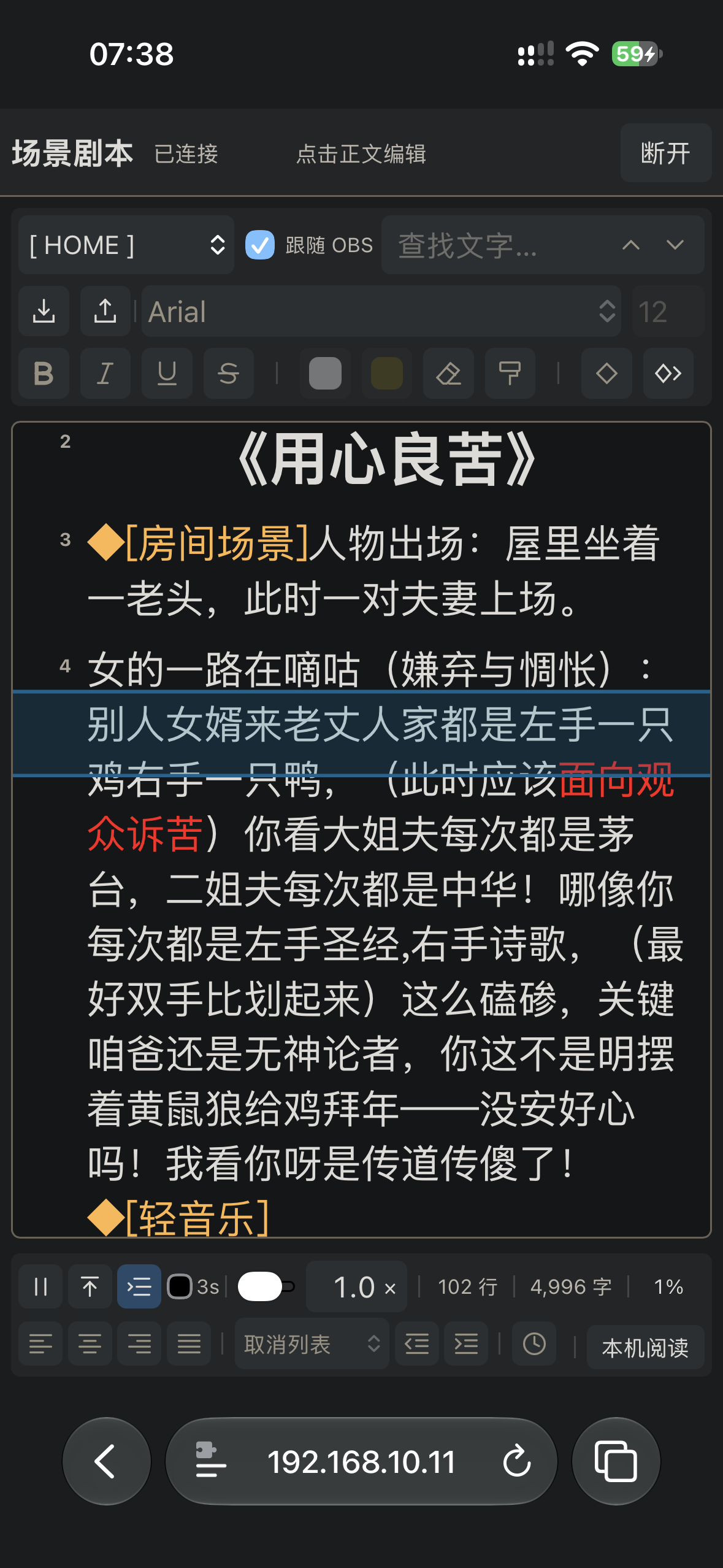
Connect on the same LAN with a link or QR code. Follow OBS scenes, edit rich text, use the painter, or prompt independently. Select text for a character count; OBS locking makes the browser read-only.
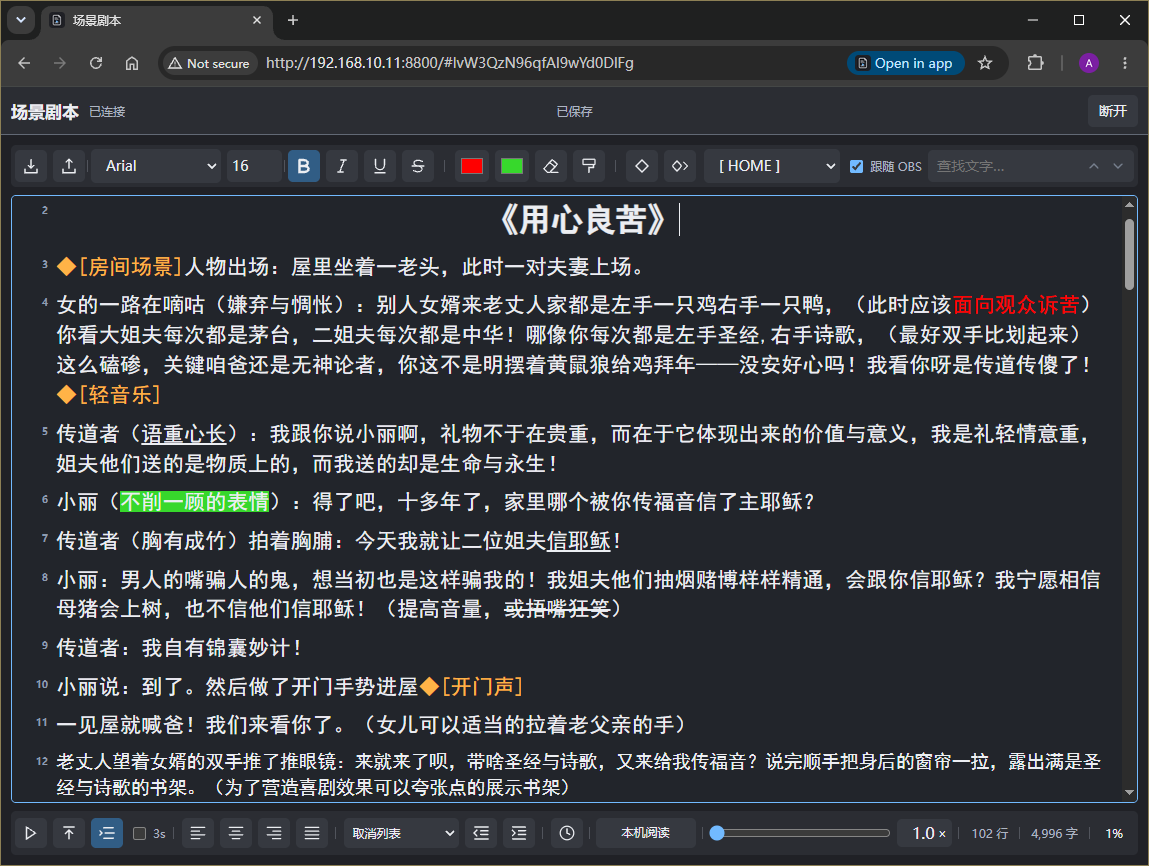
Desktop browser with scene scripts, text formatting, mark navigation, and teleprompter controls
Desktop browser: edit remotely or read independently.
Portrait phone browser with a script and teleprompter controls at the bottom
Phone browser: portrait reading and prompting.

Start in three steps

  1. Install the plugin

    Close OBS, fully extract the ZIP, run your platform's installation script, and restart OBS.

  2. Edit your script

    Open Docks → ScenePad, unlock it, and write or import your script. Enable auto-scroll as needed.

  3. Connect a browser

    Enable OBS WebSocket password authentication, then turn on LAN access under “Remote access” in the plugin's context menu. Click the QR icon at the lower right of the text area to copy the link, or scan the code.

Choose your platform

For OBS Studio 32.0.4. Close OBS and fully extract the ZIP before installing.

Windows x64

Windows ZIP ↓

Run install_OBS-ScenePad.bat and follow the installation prompts.

macOS Apple silicon · ARM64

Mac ZIP ↓

Open a terminal in the extracted folder and run:

bash ./install_OBS-ScenePad.sh