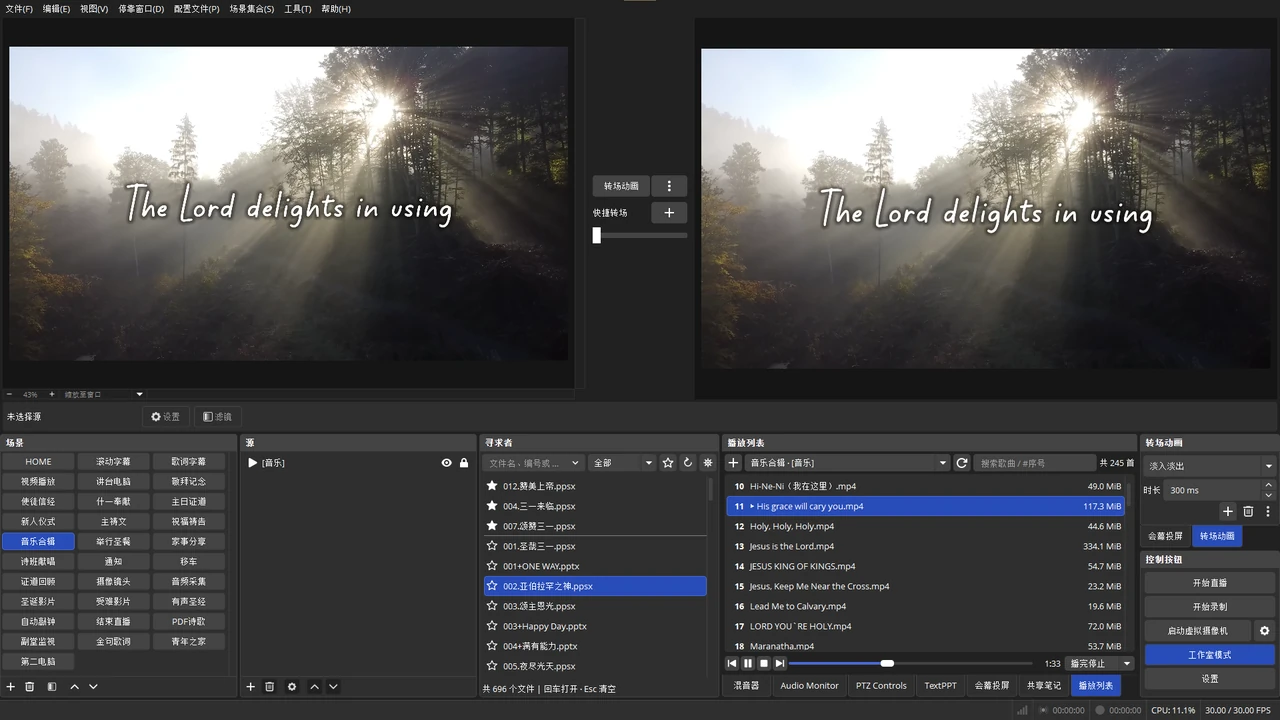
Quick favorites
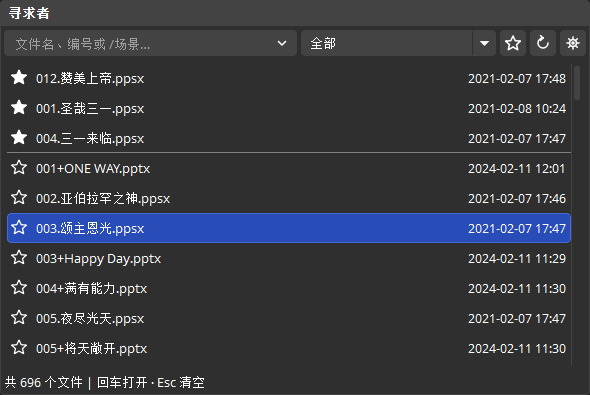
After entering a filename or number, press * or click the star beside a file to add or remove it from favorites.
Using the asterisk clears the search while keeping the file selected; press Enter to open it directly.
Favorites appear first by default. Click the top star for “Favorites only,” or hover to see the total.
“Favorites only” supports batch removal. Clear the search and choose “All” locations, then right-click one favorite to move it to the top, up, down, or to the bottom.
Favorites follow the order added. Restarting OBS clears favorites and their order.
Keyboard controls
- Focus search
- Windows PauseMac F13
- Toggle favorite
- *Numeric keypad; within the dock
- Open selected file
- EnterMain or keypad Enter
- Clear search
- EscKeeps the original file selected
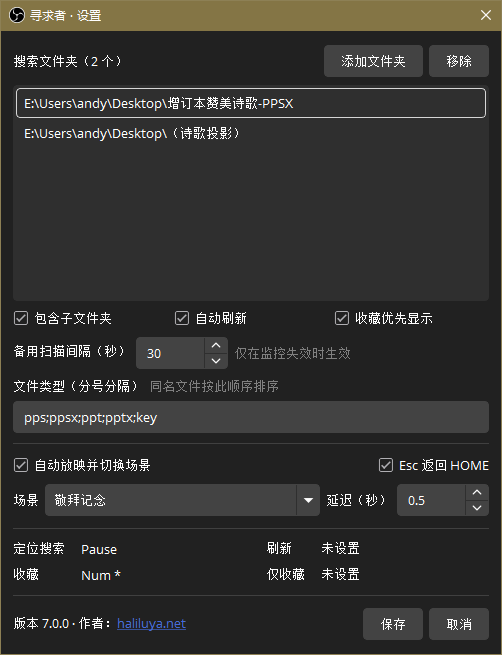
Configure hotkeys under OBS Settings → Hotkeys.
Favorite ordering
Move a favorite to the top, up, down, or to the bottom while preserving the rest of the order.
Batch removal
Use Ctrl / Command for multiple selections,Shift for a range, and remove favorites together.
Numbered search
Matching numbers take priority, with leading-zero and filename matching support.
Scene search
Enter / to list all scenes, or/主日 to search names with partial matches and multiple keywords.
Scene number
Enter /3 Selects the third scene first; press Enter to switch. Numbers follow the OBS list order and stay unchanged when filtering.
Search history
View or clear searches from the current session.
Automatic refresh
Watches file changes automatically. If watching fails, periodic scans run every 30 seconds by default.
Compact list
Full-row selection and hover highlighting. Times align right, and hovering shows the folder path. Narrow docks hide times automatically.
Automatic slideshow and transition
Supports PowerPoint and newer Mac Keynote versions, automatically starting a slideshow and switching to a chosen scene after a delay. Enabled by default.
Windows includes PowerPoint preloading.
Esc returns HOME
Returns to the HOME scene, then exits the foreground PowerPoint or Keynote fullscreen slideshow after a delay. Enabled by default.
Fullscreen projector protection
Prevents Esc from closing OBS fullscreen projectors. Right-click still closes them.
File statistics
Shows total files, matches, and favorites, with per-folder counts.