Permissions by content type
Activation codes can separately enable hymns, numbered notation, and sermons. Permission for a type allows searching and uploading that content.
Free projection software
Scripture & Hymn Control for OBS
Present scripture, hymns, sermons, and galleries for worship and live broadcasts. Includes OBS scene switching, service plans, screen sharing, and phone or tablet control. Desktop editions work offline; the cloud edition runs in your browser. Available in English, Simplified Chinese, and Traditional Chinese.
Multiple OBS Studio themes (OBS Studio 32.0.4 or later)
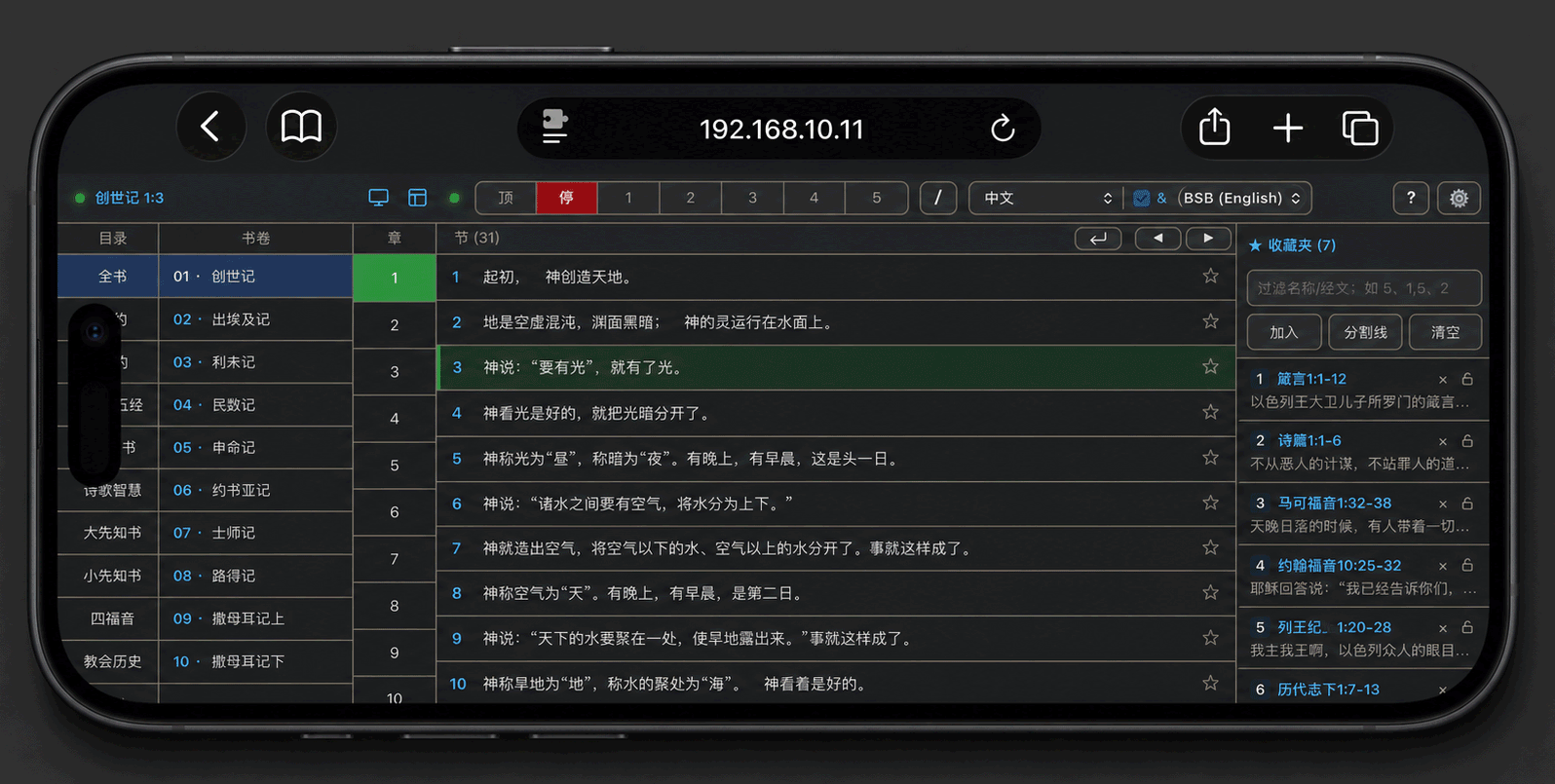
Find books, chapters, and verse ranges, with favorites, Bible versions, and display controls.
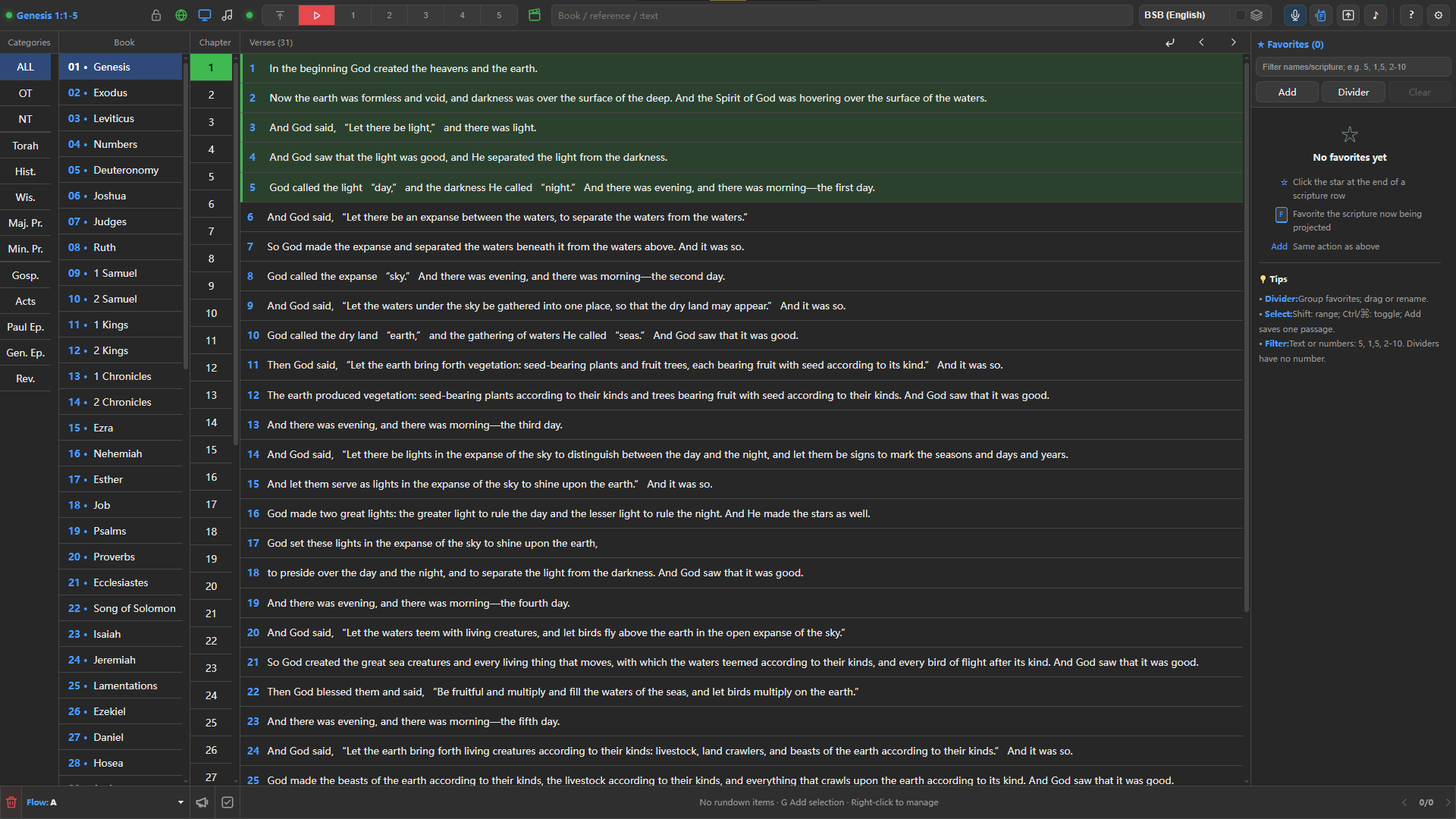
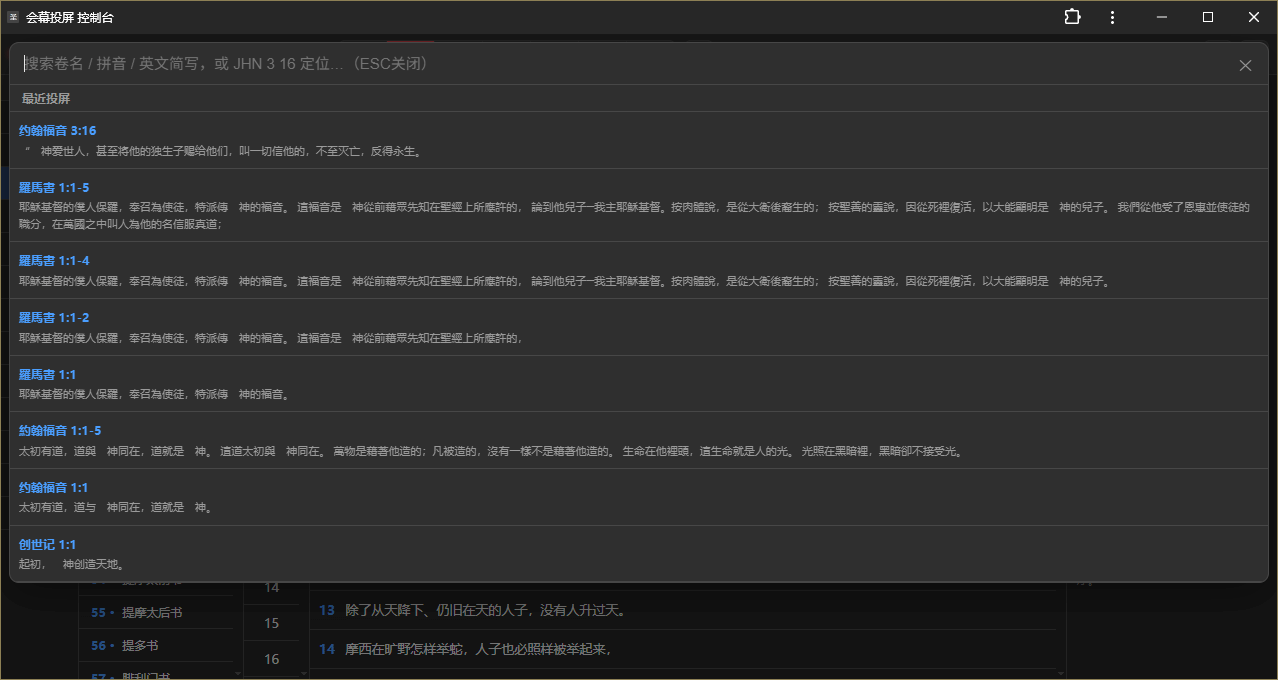
Press Tab or / to search scripture.
Use book names, pinyin, or abbreviations, such as “John 3:16” or “JHN 3 16.”
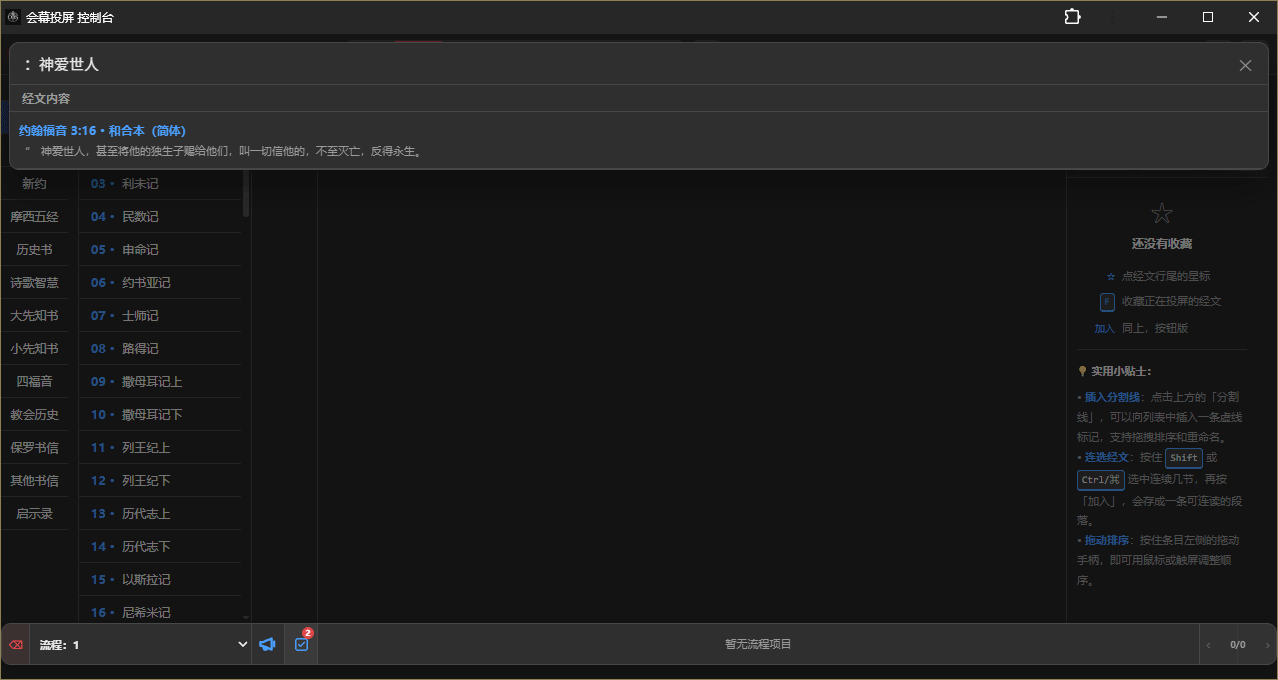
Start a search with “:” or “:” to search the full text;
a full-width colon prioritizes Chinese, and a standard colon prioritizes English. Click a result to open its verse.
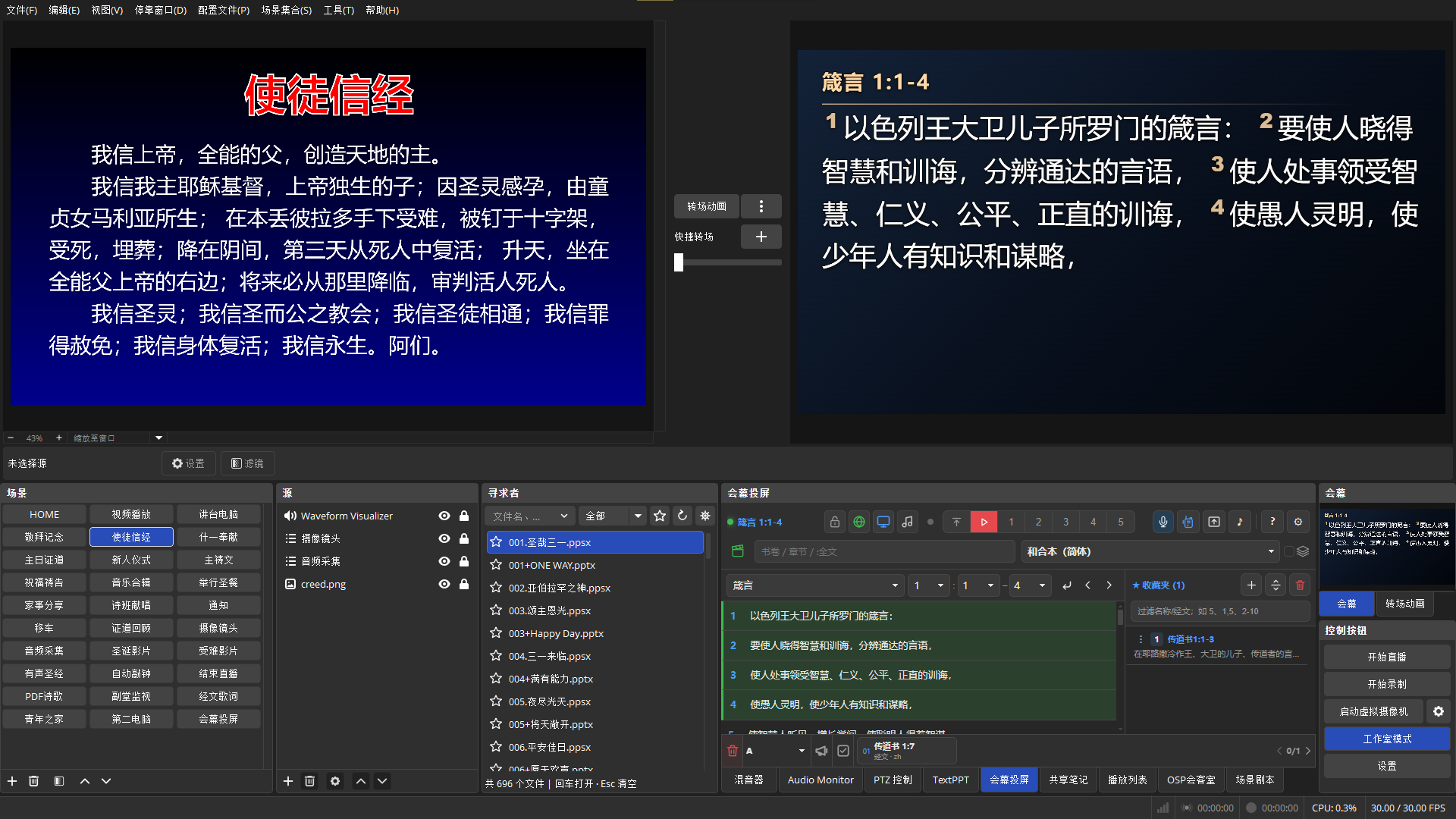
The scripture console adapts to OBS docks, with scene switching and browser source visibility controls.
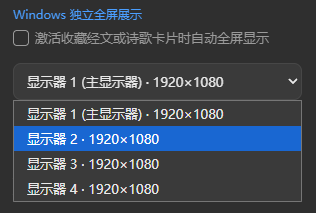
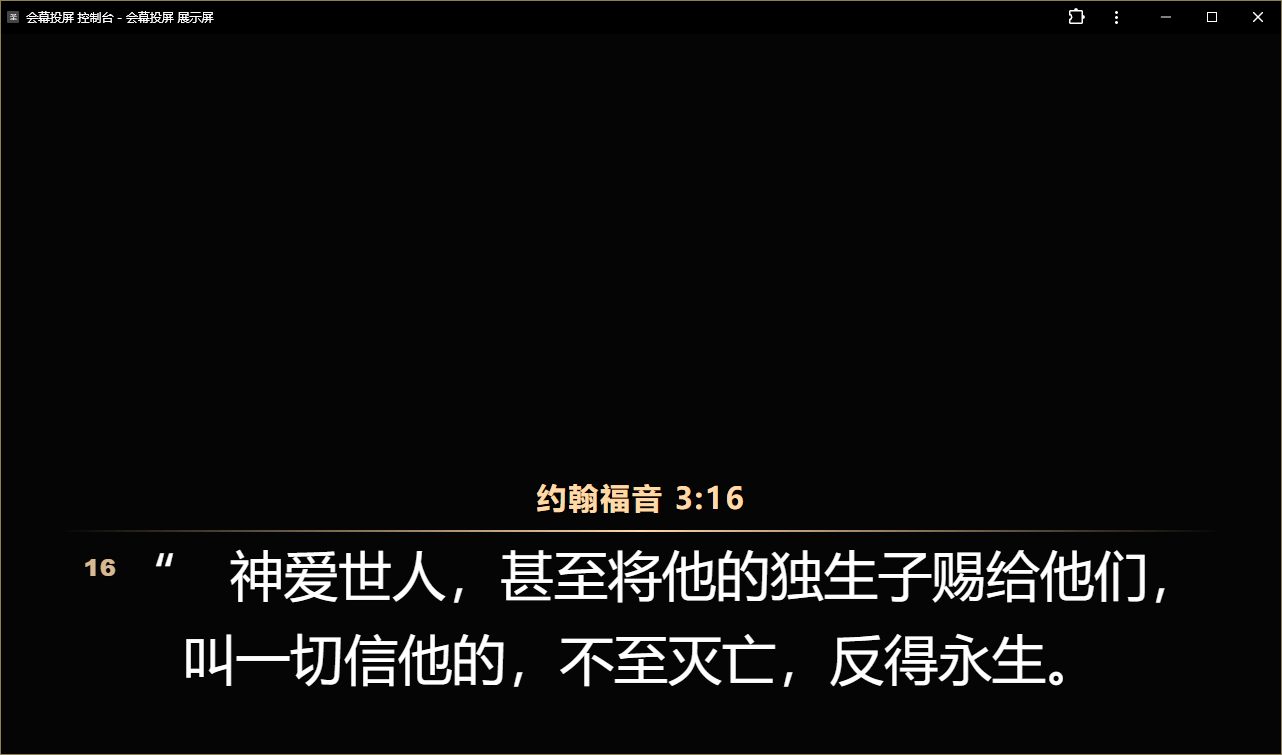
Windows standalone display
On Windows, choose a monitor and open a fullscreen display automatically when projecting scripture or hymns.Requirements:Windows 10+. Fullscreen output requires Microsoft Edge. Only PPTX-to-gallery conversion requires PowerPoint.
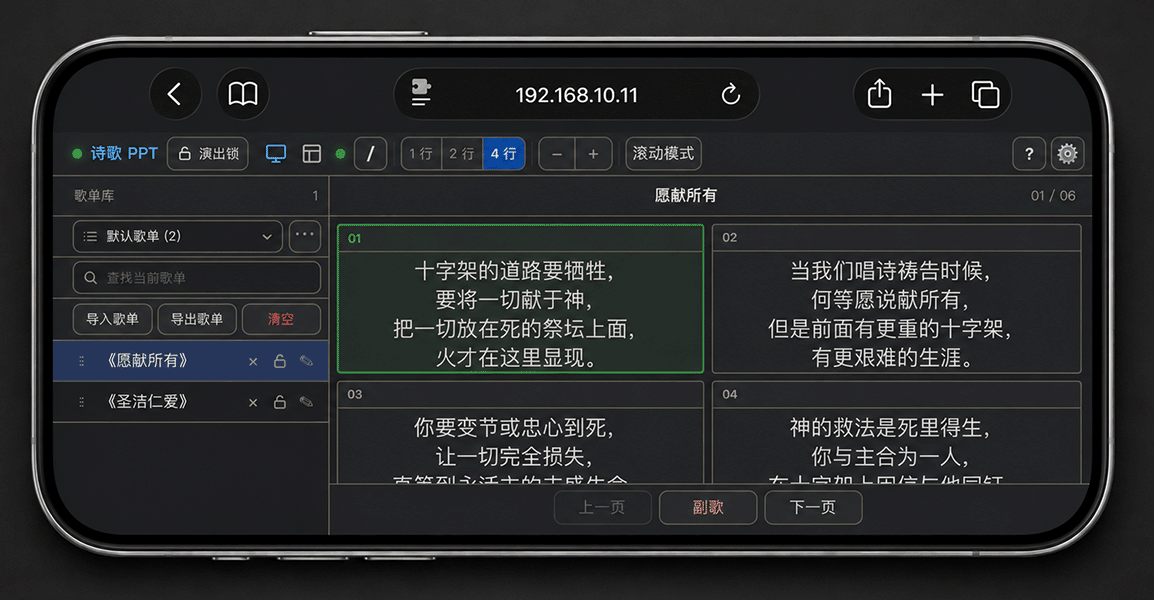
Hymn control
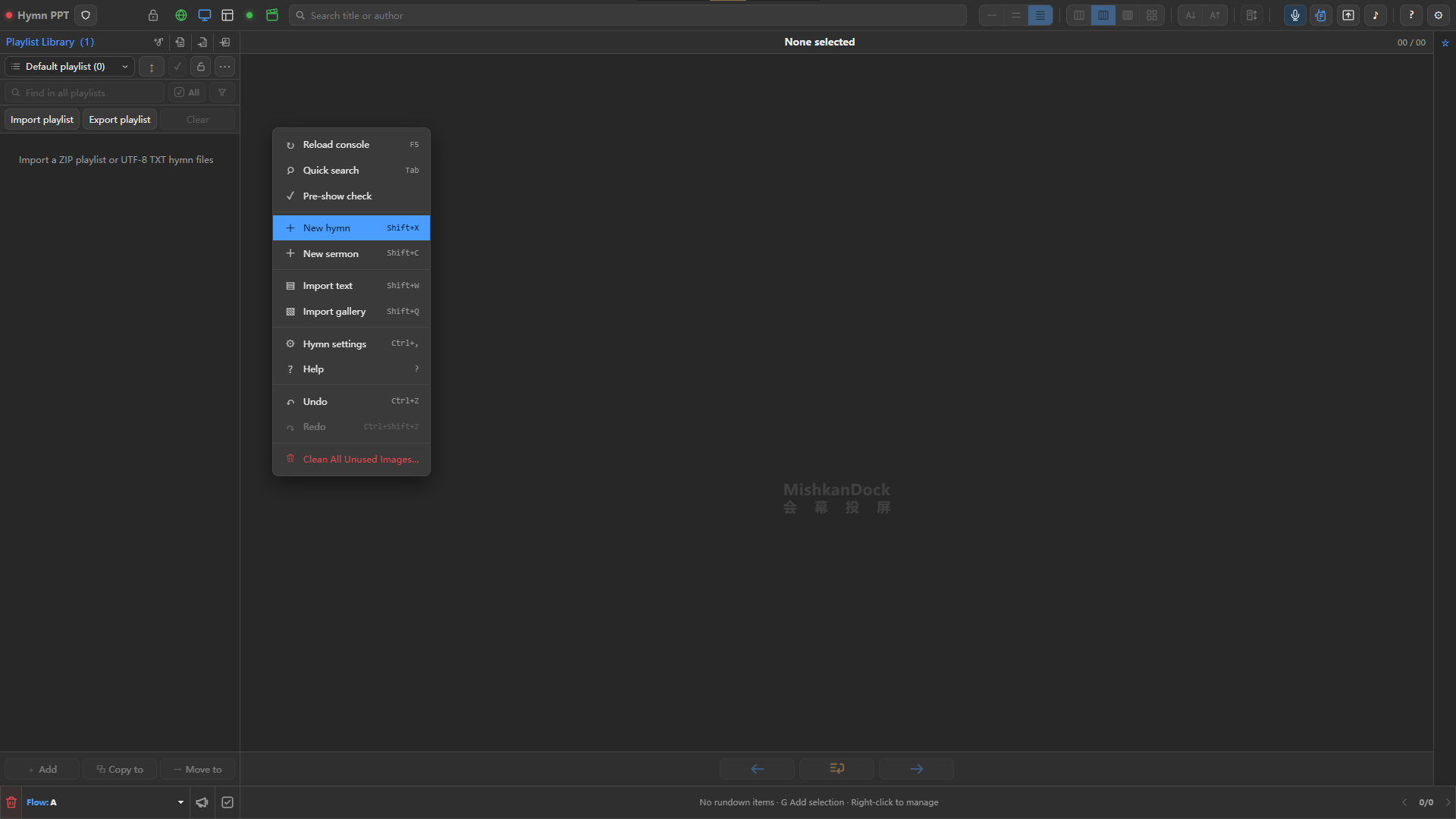
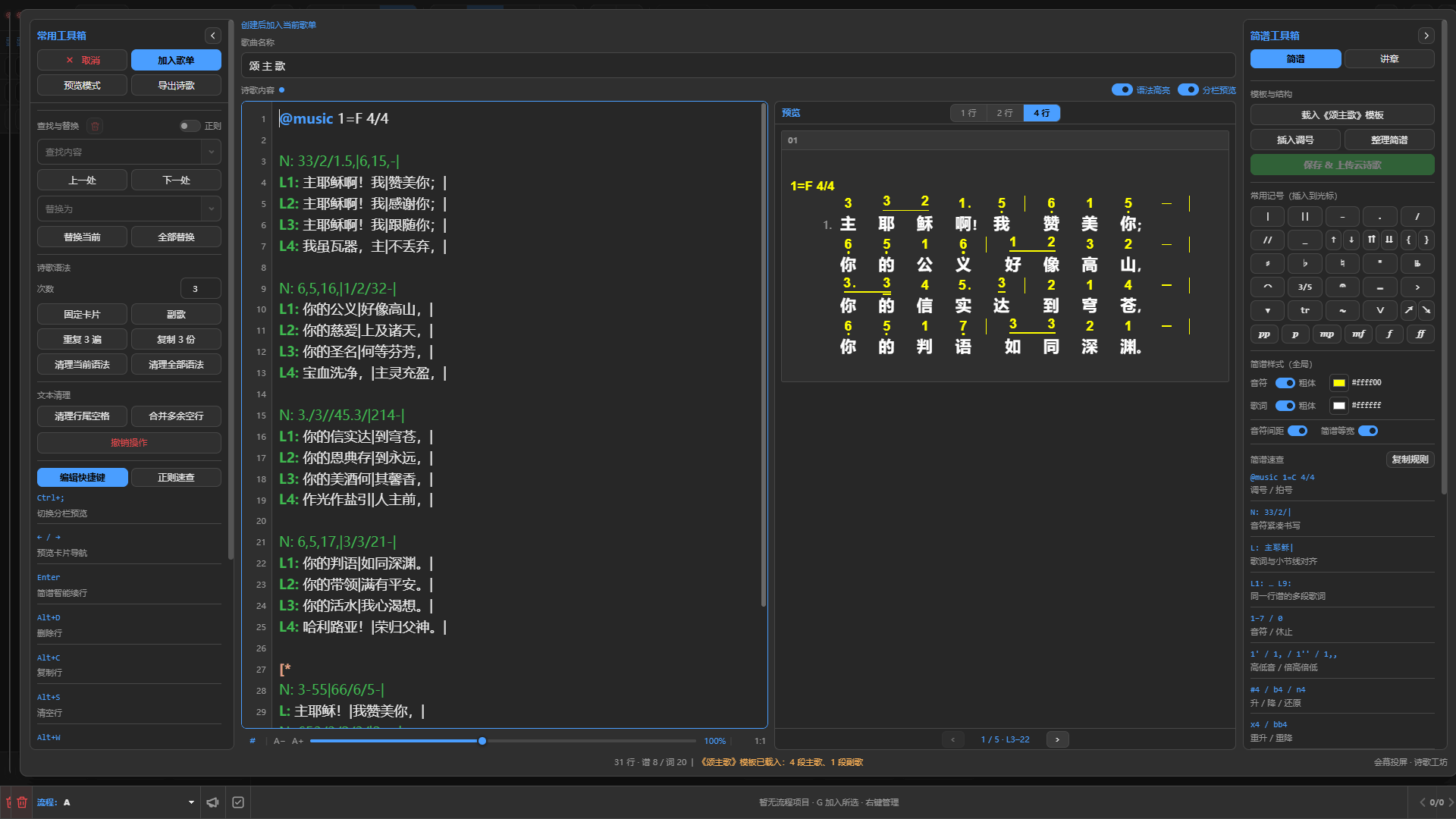
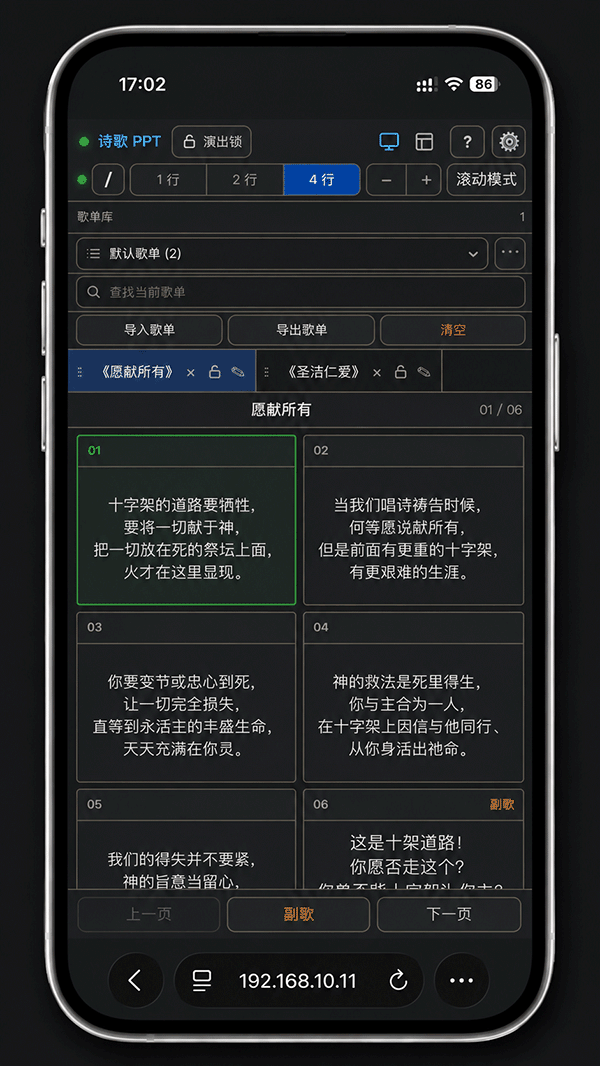
Cloud hymns
Cloud Hymns is a separate online library activated by a cloud hymn code. It is not included in the Store edition.
Activation codes can separately enable hymns, numbered notation, and sermons. Permission for a type allows searching and uploading that content.
Uploads enter a review queue and appear in cloud search only after approval. Reviewers and administrators can view all content types.
Local playlists and hymn libraries remain available when cloud access is unavailable or inactive. Local content is not uploaded automatically.
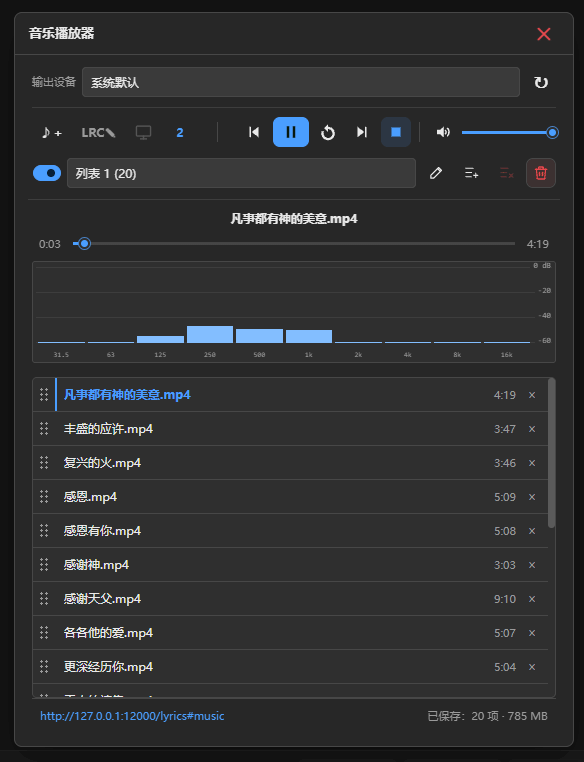
Music playback and synchronized lyrics
Open the music player from the hymn page to add local audio, video, or LRC files, create playlists, and control playback from other devices. Media files stay in the playback browser and are not uploaded to the server.
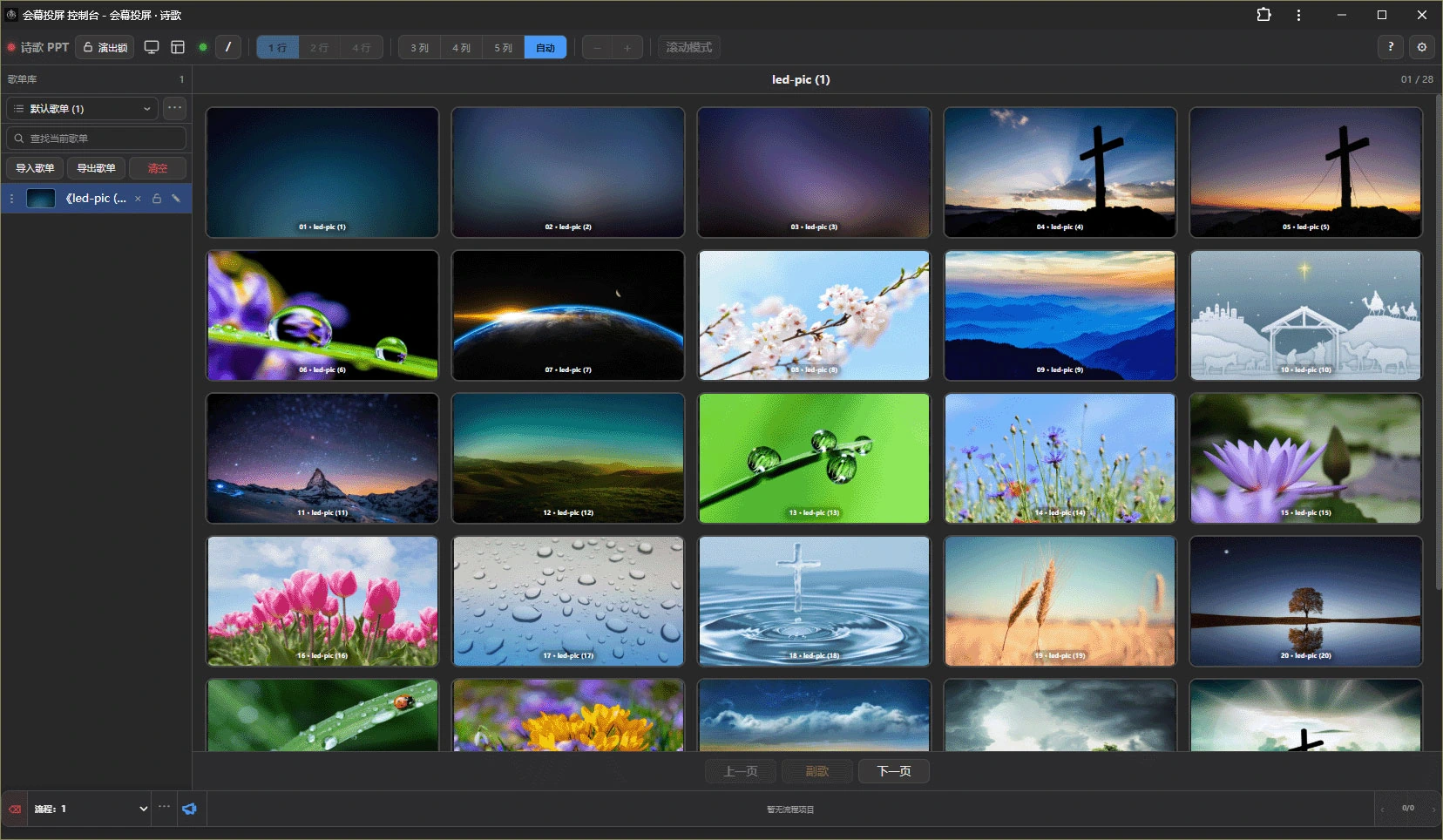
Image galleries
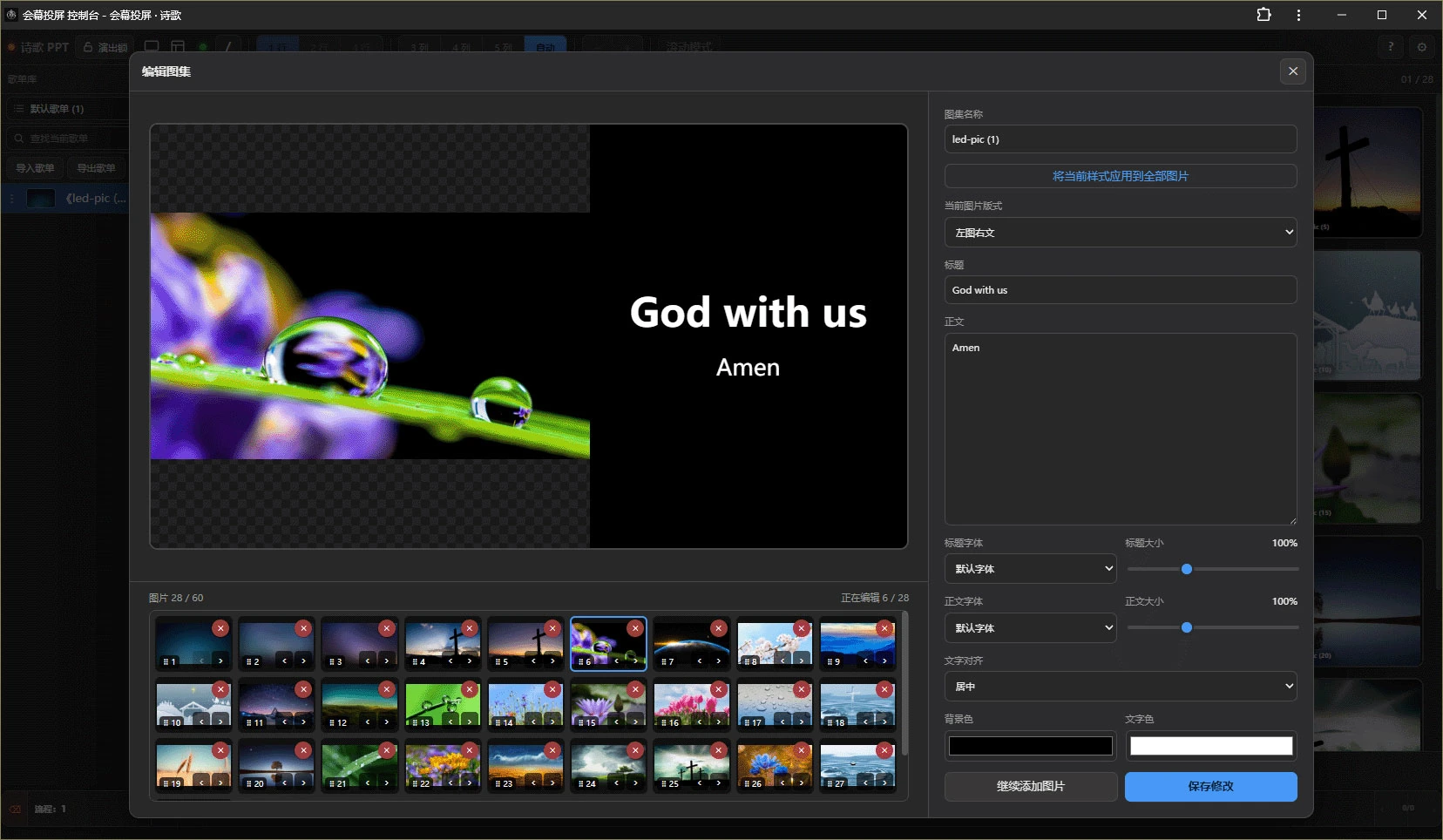
Choose “Import gallery” from an empty playlist area to add multiple JPG, PNG, or WebP images at once.
Galleries use the same page, projection, and rundown controls as playlists, making them suitable for service photos, notices, scripture quotations, and illustrated slides.
Import, backup, and migration
File conversion, playlist saving, and rundown backups run locally. Imported content is ready to add to playlists and rundowns.
Windows and cloud editions can import PDF files as JPG galleries, one image per page. Encrypted files prompt for a password.
Windows can import PPTX. Converting slides to a gallery requires Microsoft PowerPoint; extracting text does not.
Import up to 240 pages or images at once, with a maximum of 8 MB per image and 128 MB total. Press Esc to stop a conversion.
Playlist ZIPs include hymns, sermons, galleries, and images. Load them by playlist name, and skip, rename, or replace duplicate items.
Playlists and content indexes save to the current instance. Store and portable editions keep separate data; use backups to migrate.
Rundown ZIPs include items, notes, tasks, and referenced hymns, sermons, galleries, and images, ready to load on another device.
Set separate backup and load folders. Repeat backups update the matching ZIP, and a matching rundown can load automatically at startup.
Local backup ZIPs include settings, favorites, rundowns, all playlists, and appearance images. Restoring preserves the current access password and cloud authorization.
Notice drafts and display styles stay in the current browser. Recent notices clear on refresh, and active notices clear when the program restarts. They are not included in backups.
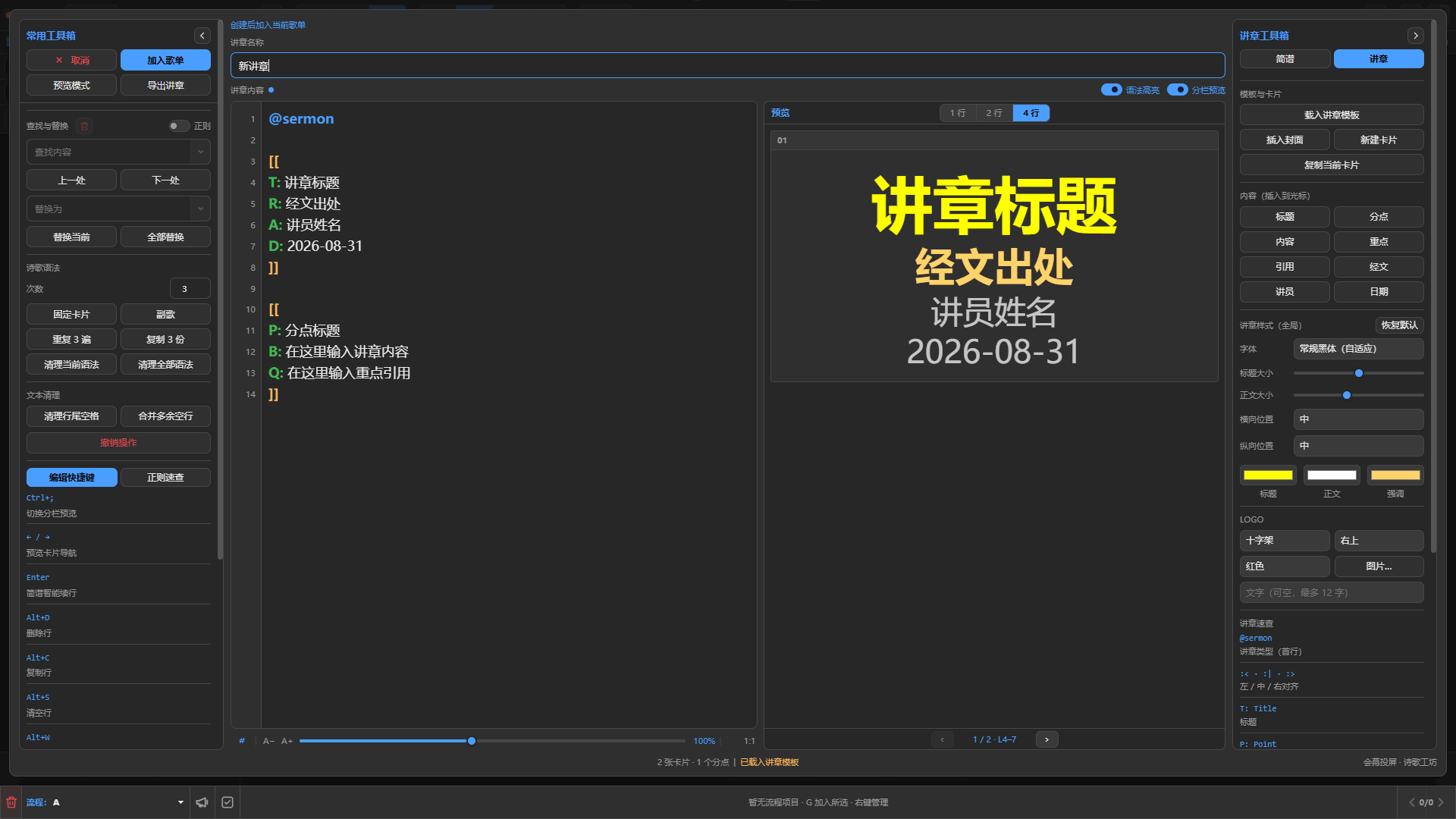
Sermon cards


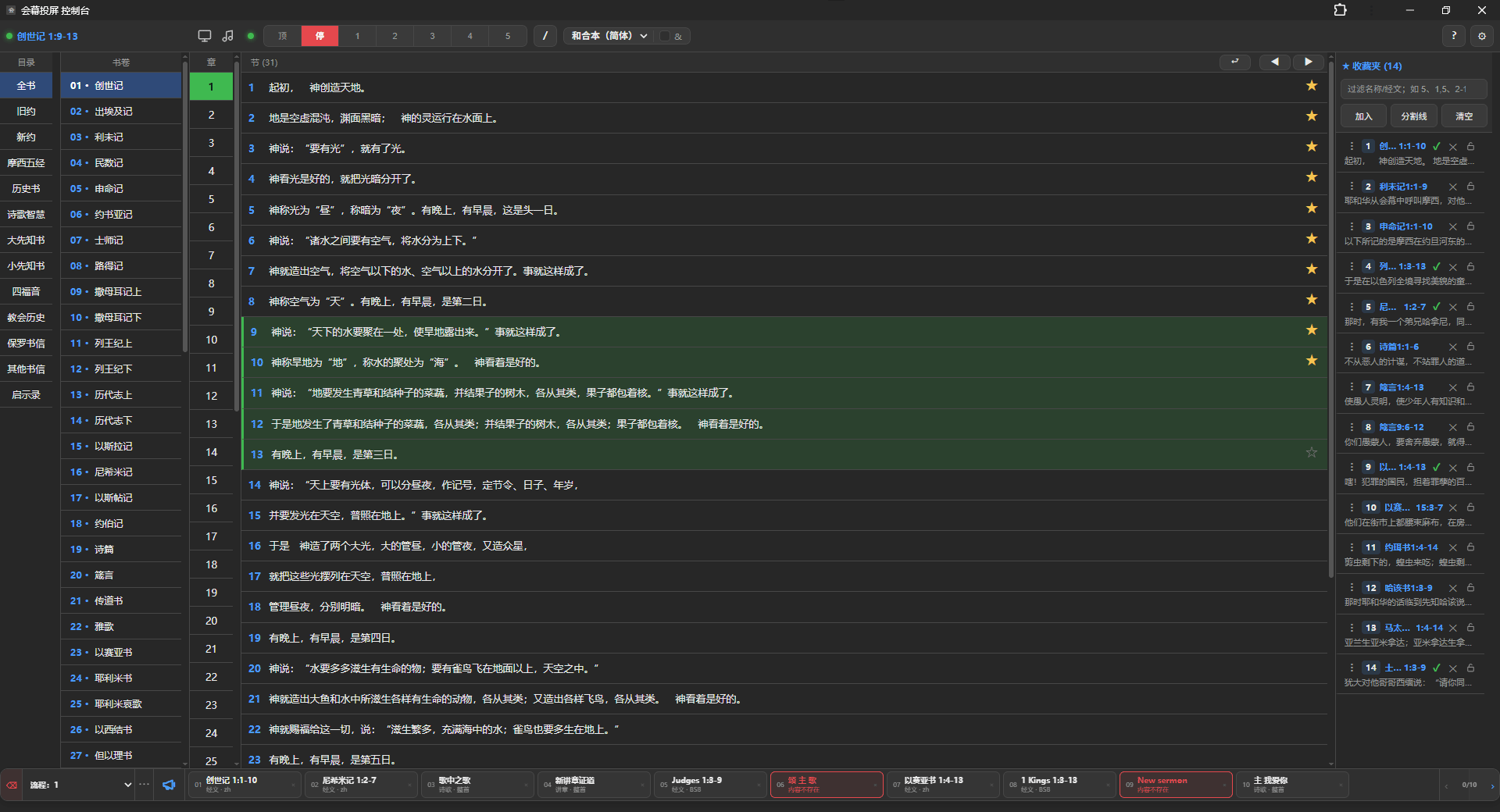
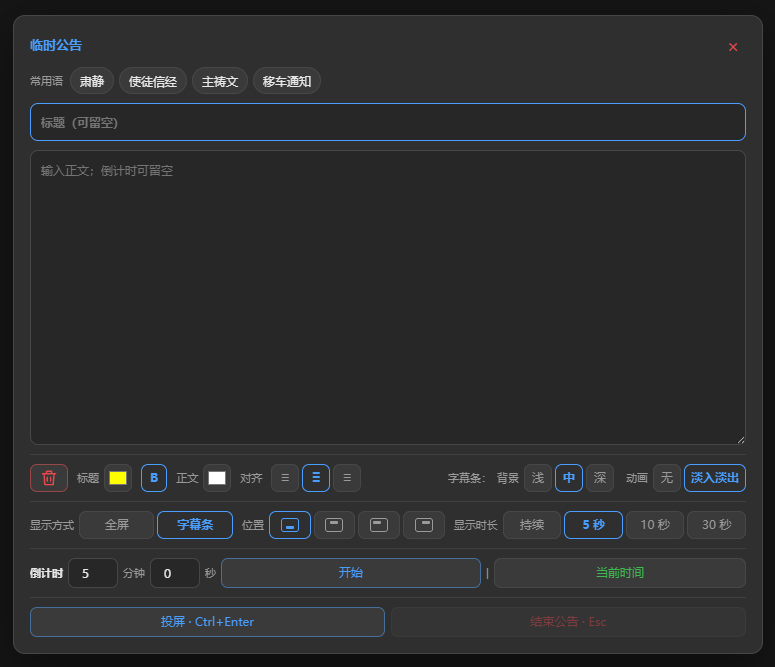
Service rundown
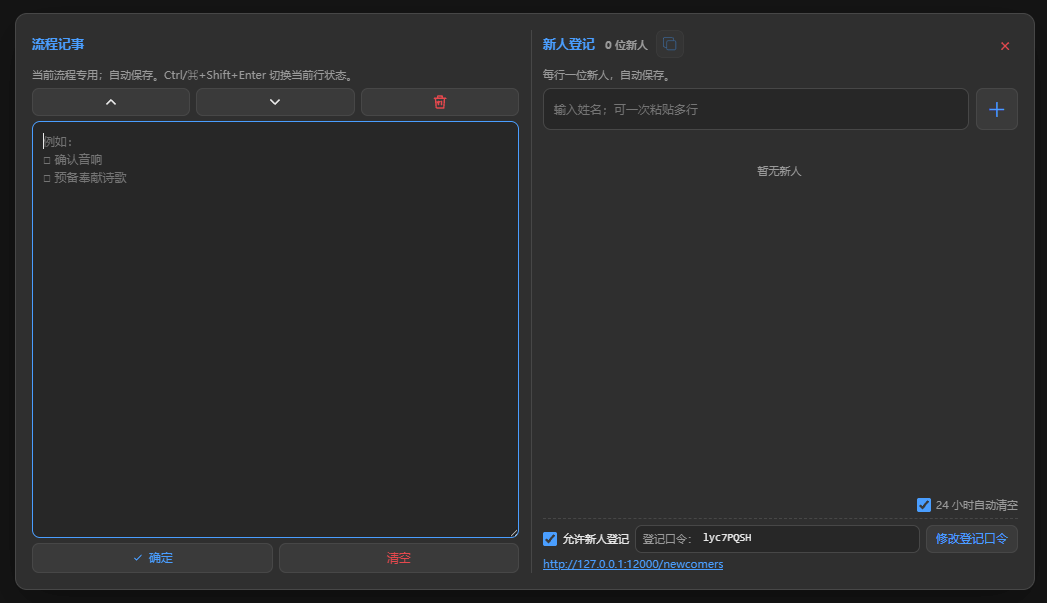
Newcomer registration
Enable newcomer registration and set its own password to copy the dedicated link or show a QR code. Newcomers register in a phone browser without an app; volunteers can also manage names in the rundown notes panel.
Feature overview
Search by book, chapter, or keyword, then display a verse or passage.
Prepare passages with ordering, locks, notes, and separators.
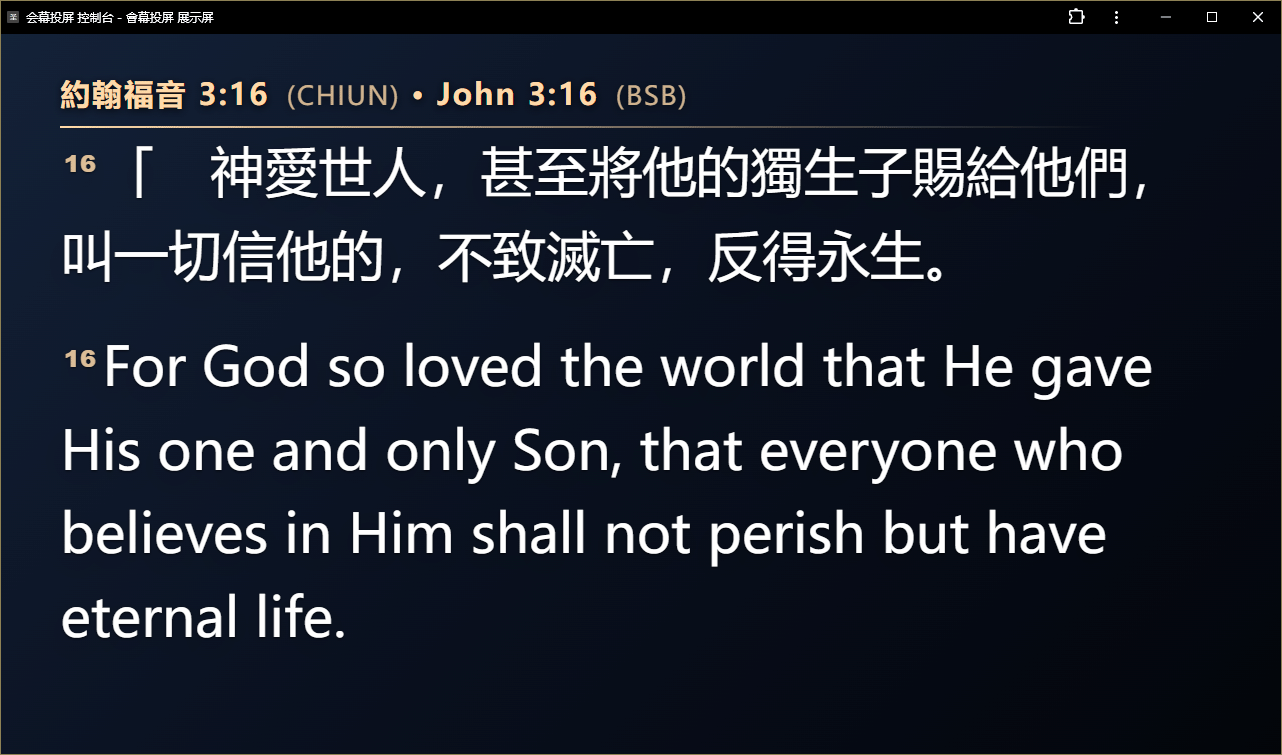
Switch local Bible translations and display Chinese, English, or bilingual passages.
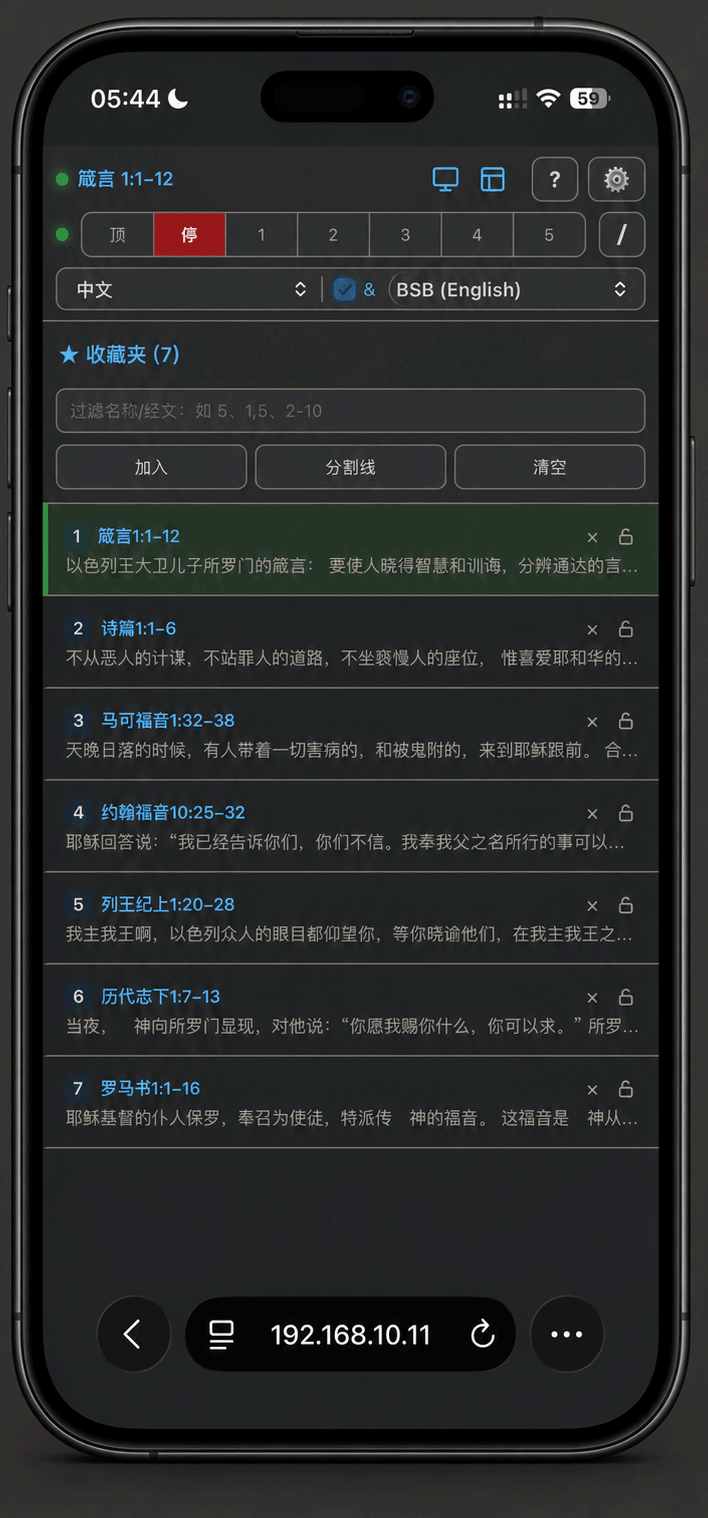
Control from phones, tablets, and computers, with access passwords and an exclusive console lock.
Scroll, stop, show multiple lines, black out, clear, and move backward or forward during a service.
Desktop editions work locally and offline. Access the cloud edition through its dedicated URL.
Project hymns as pages or scrolling lyrics, with independent rows, columns, font size, and appearance for each song.
Reorder, edit, and switch songs; append UTF-8 TXT files and import or export complete playlists with galleries as ZIPs.
Switch to preview or program when the console activates. Click the clapperboard or press Alt+X to switch manually.
Read the guideShare video and browser-supported audio, with mute and volume controls.
Use push-to-talk to coordinate with the sound booth.
Tab toggles local search and clears the query. Cloud hymns use a separate entry.
Privacy
No user tracking or analytics. Desktop data stays on your device; cloud data is stored per instance.
Desktop and cloud data stay separate, with imports, exports, and backups.
No advertising, user tracking, or third-party behavior analytics.
The portable edition contacts the website for update checks. Microsoft Store manages Store updates; that edition excludes cloud hymns. The cloud edition runs on its deployment server.
Display and remote control
Guides
A paid annual service for church teams. Prepare content, share resources, and control projection in your browser, with a dedicated address and OBS support.
Service rundownArrange scripture, hymns, sermons, and galleries for live projection, with temporary notices and countdowns whenever needed.
Numbered notationEnter numbered music notation with lyrics, check note-to-word alignment, and display it clearly from the Mishkan Dock console.