Permissions by content type
Activation codes can separately enable hymns, numbered notation, and sermons. Permission for a type allows searching and uploading that content.
Free portable software
Scripture & Hymn Control for OBS
A free, compact, portable tool for scripture and hymn control in OBS Studio. Available in Simplified Chinese, Traditional Chinese, and English for worship services, sermons, live streams, and recordings.
Multiple OBS Studio themes (OBS Studio 32.0.4 or later)
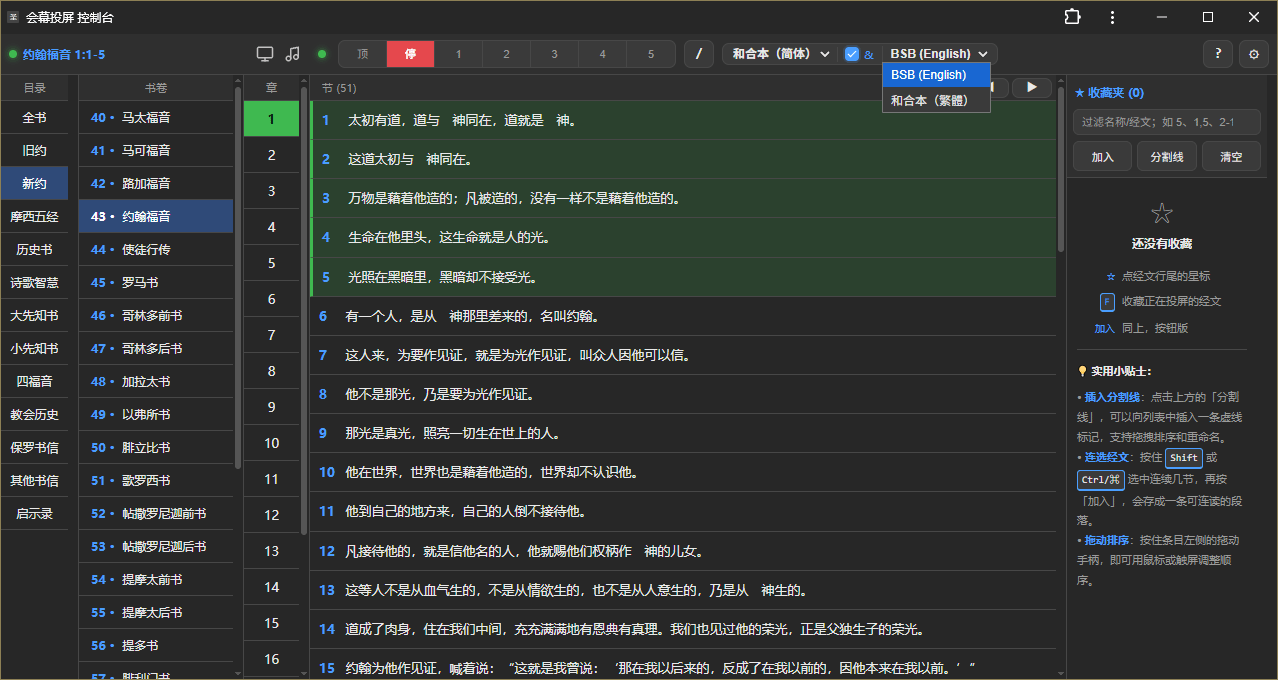
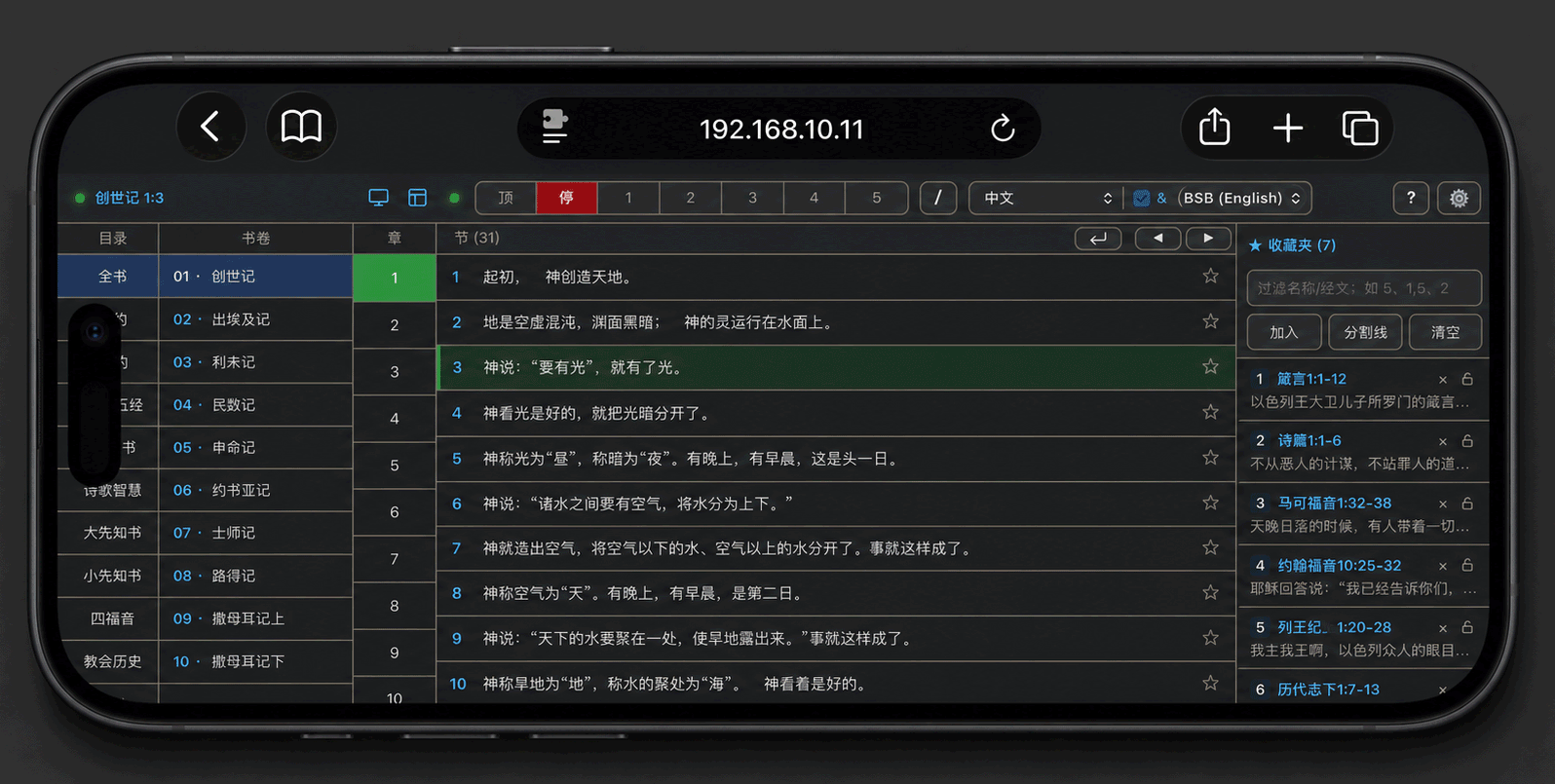
Browse and search by book, chapter, and verse. Save favorites, reorder items, add separators, review history, switch translations, and control the display.
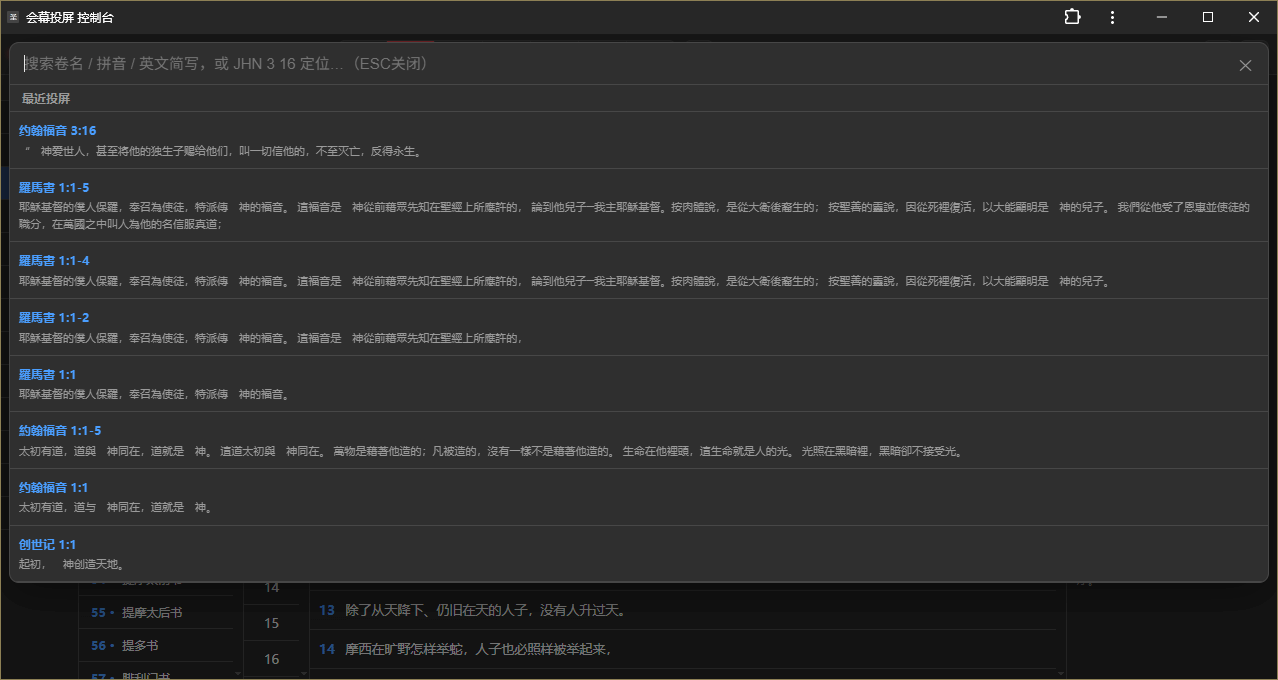
Press Tab or / to open quick search:
Search by book name, pinyin, or English abbreviation. Enter references such as “John 3:16”, “JHN 3 16”, or “43 3 16” to jump directly to a passage.
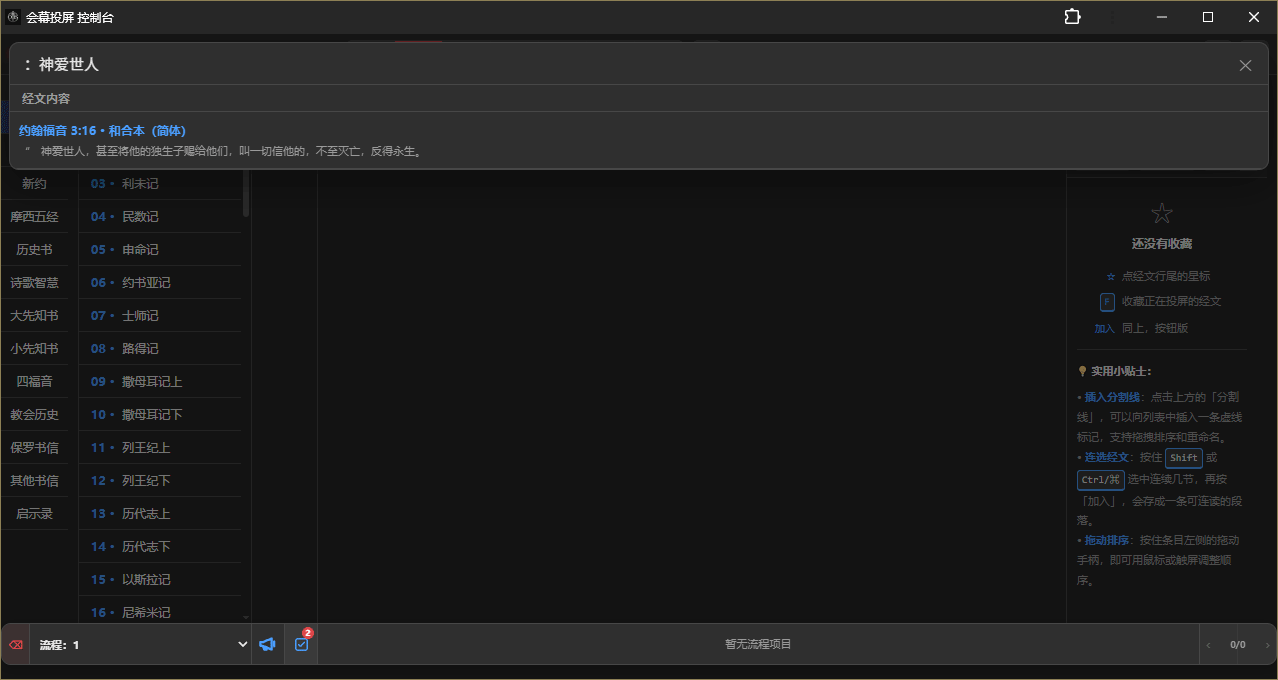
Start a search with “:” or “:” to search the full text;
a full-width colon prioritizes Chinese, and a standard colon prioritizes English. Click a result to open its verse.
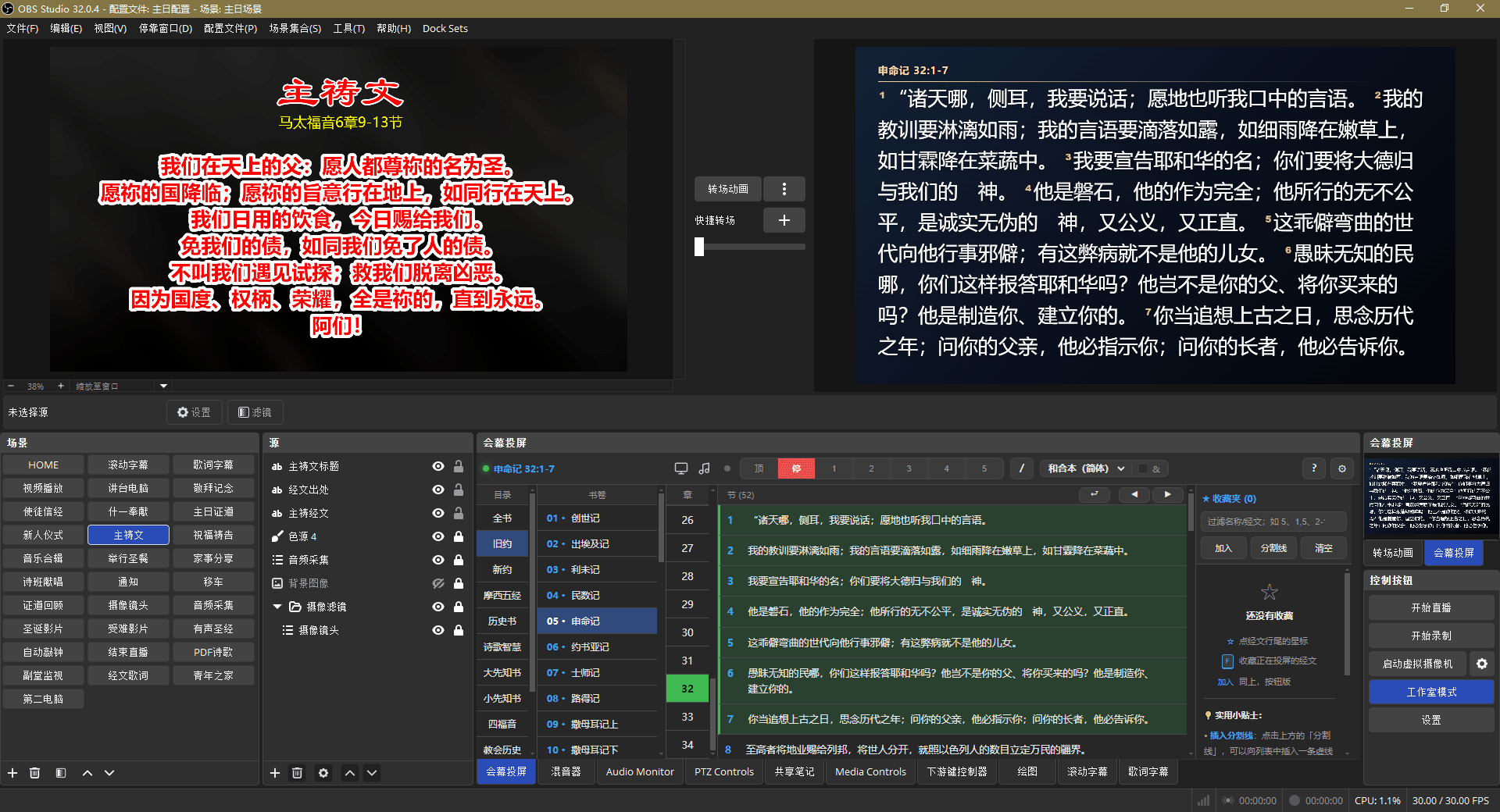
Add the display as an OBS browser source and the console as a dock. Use pinyin initials, English abbreviations, or numbers to select passages quickly.
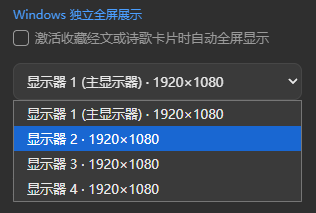
Windows standalone display
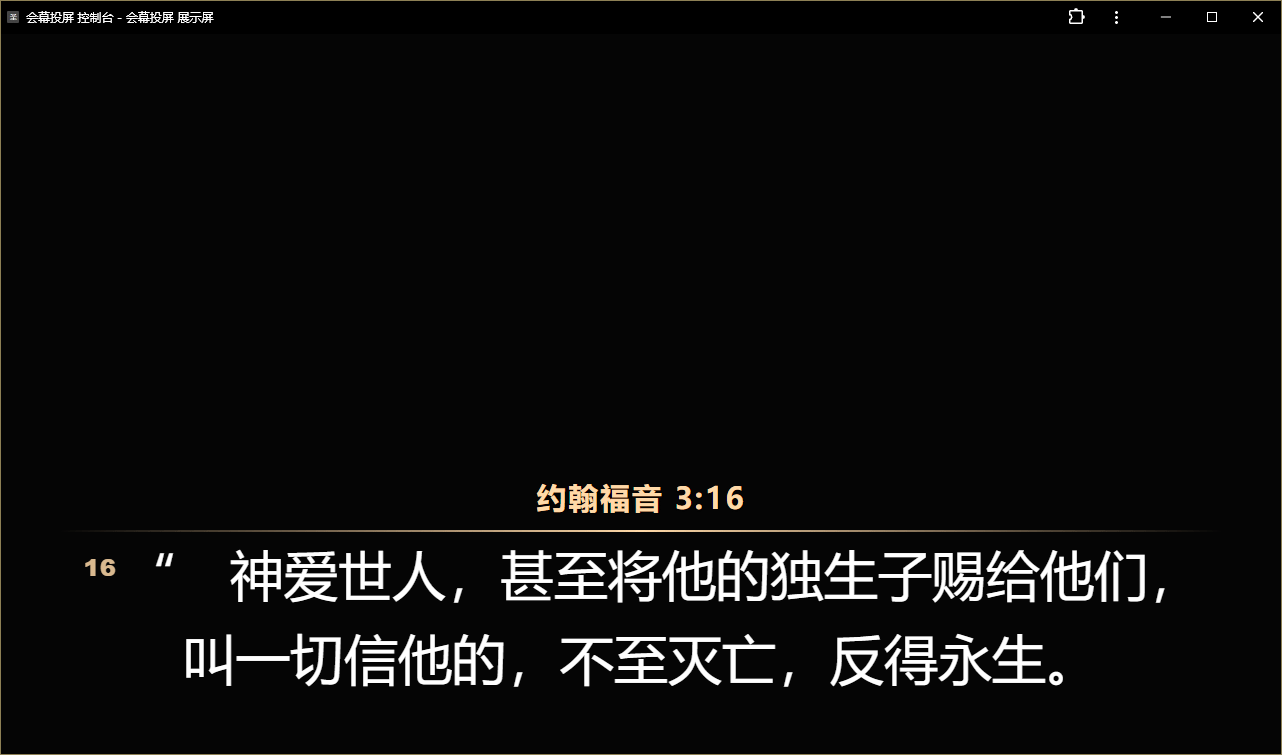
Enable the standalone display in Windows and select a monitor. Activating a favorite passage or hymn card opens the display fullscreen, ready for a projector or second screen. OBS browser sources continue to work normally.Requirements:Windows 10 or later; no installation required. Standalone fullscreen uses Microsoft Edge. Converting PPTX to an image gallery also requires Microsoft PowerPoint; other projection features do not. OBS Studio 32.0.4 or later is recommended.
Hymn control
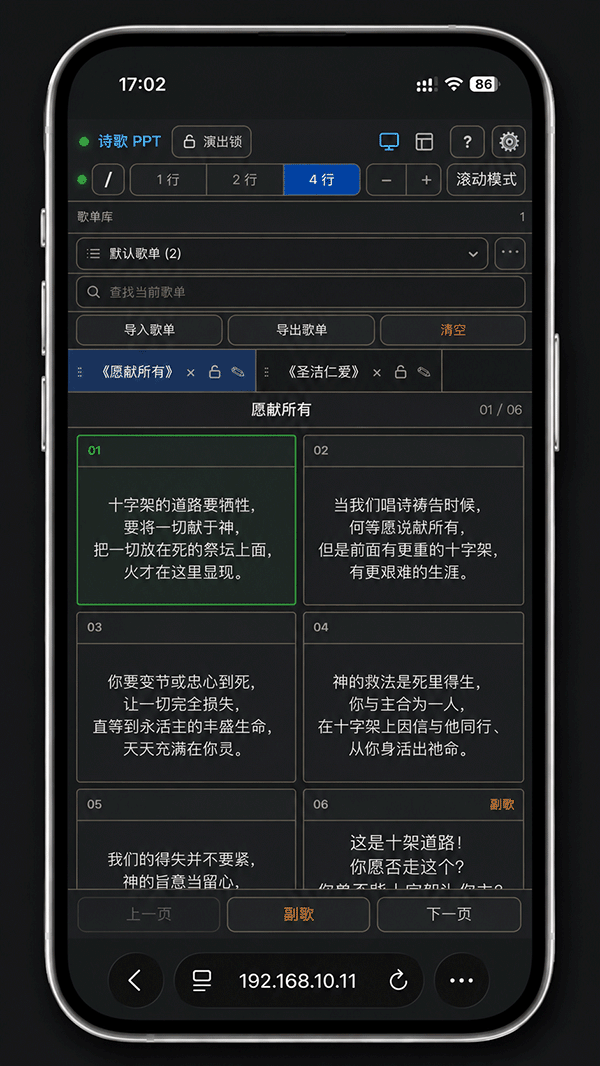
Cloud hymns
Cloud hymns are an optional online library. When enabled on the server, activate access in the hymn console with a cloud content code.
Activation codes can separately enable hymns, numbered notation, and sermons. Permission for a type allows searching and uploading that content.
Uploads enter a review queue and appear in cloud search only after approval. Reviewers and administrators can view all content types.
Local playlists and hymn libraries remain available when cloud access is unavailable or inactive. Local content is not uploaded automatically.
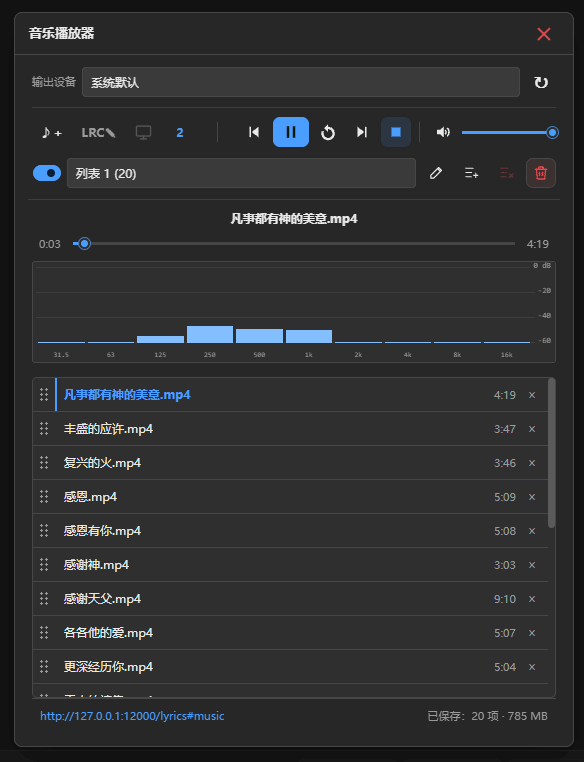
Music playback and synchronized lyrics
Open the music player from the hymn page to add local audio, video, or LRC files, create playlists, and control playback from other devices. Media files stay in the playback browser and are not uploaded to the server.
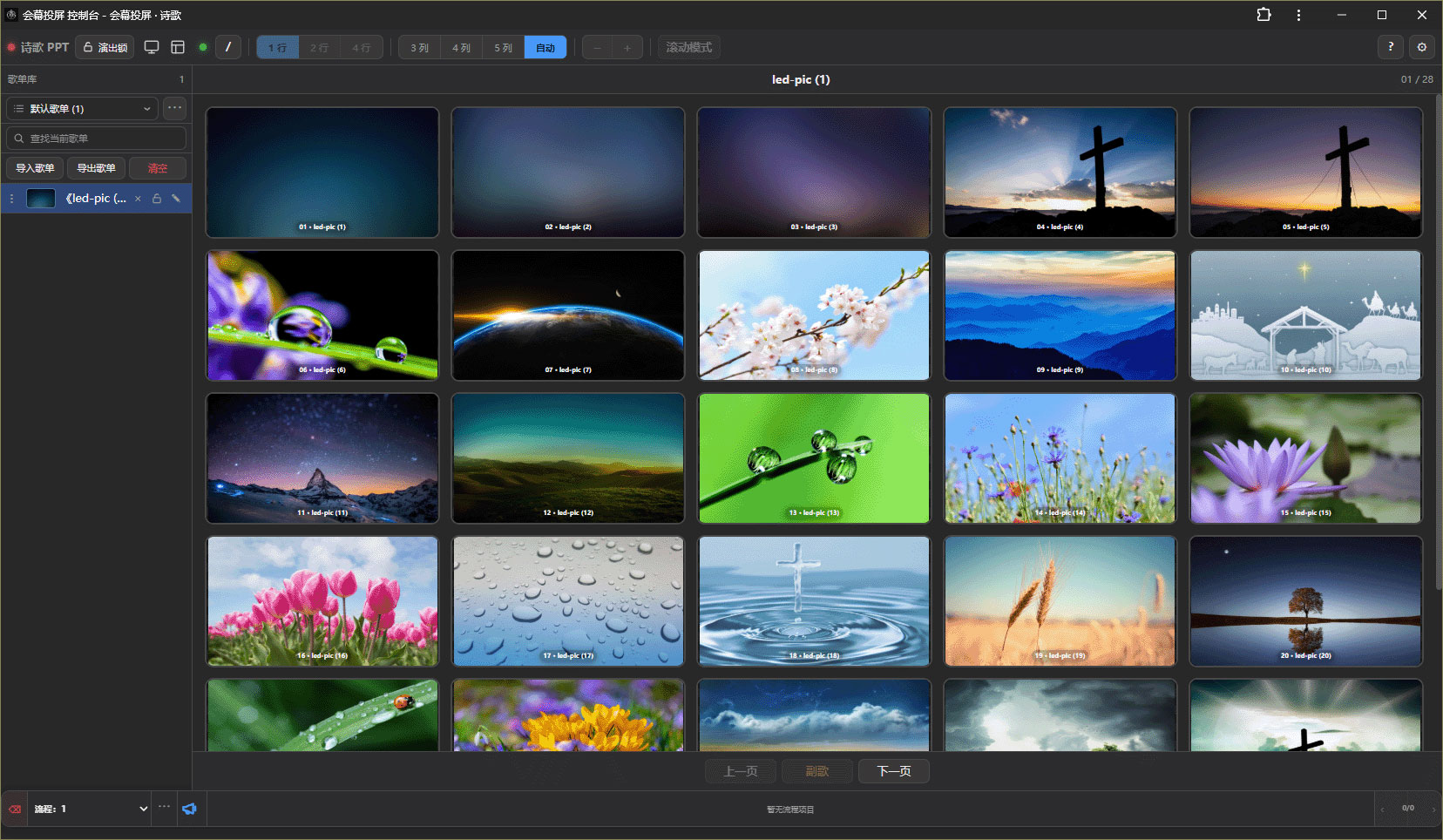
Image galleries
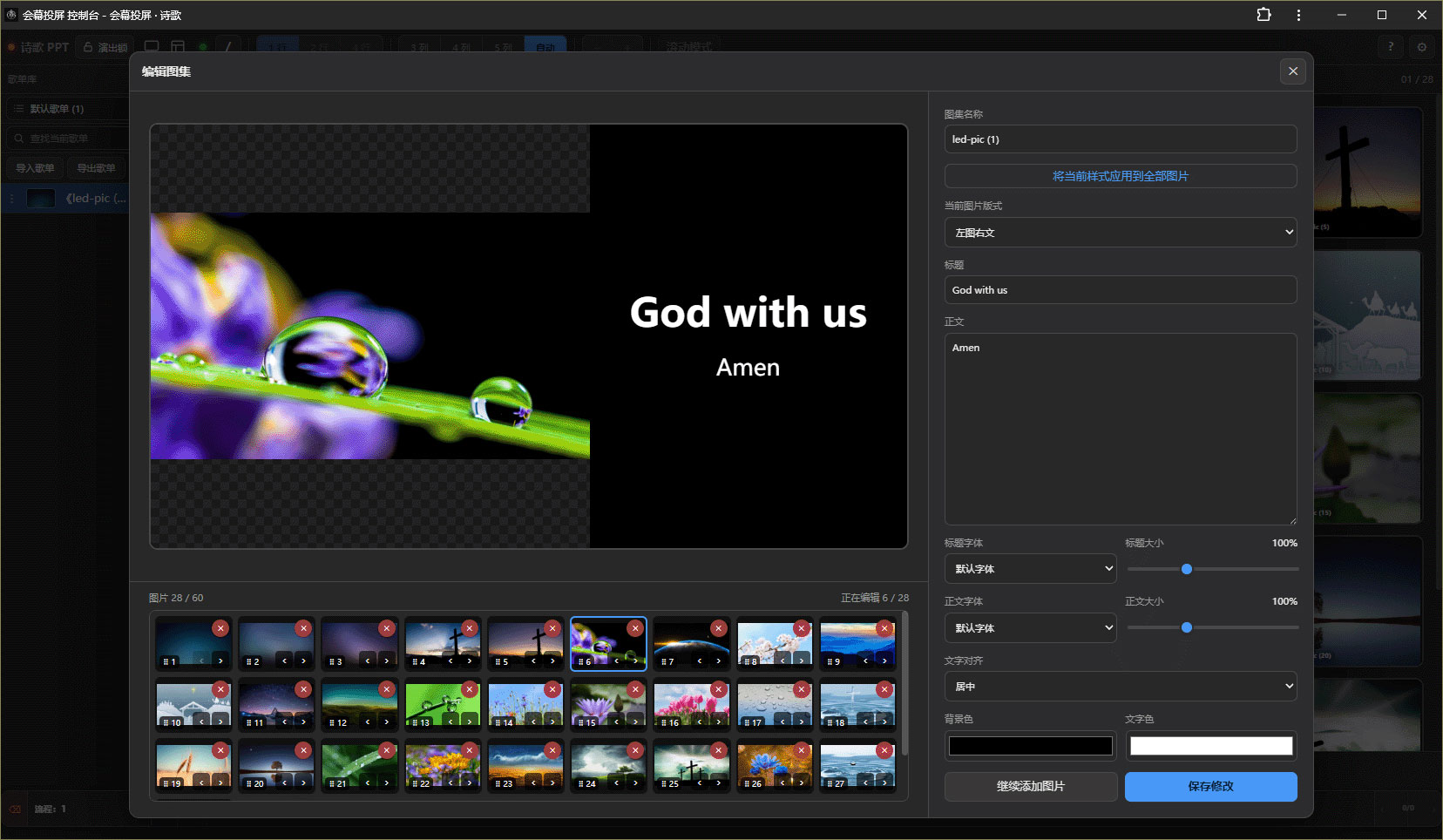
Choose “Import gallery” from an empty playlist area to add multiple JPG, PNG, or WebP images at once.
Galleries use the same page, projection, and rundown controls as playlists, making them suitable for service photos, notices, scripture quotations, and illustrated slides.
Import, backup, and migration
File conversion, playlist saving, and rundown backups run locally. Imported content is ready to add to playlists and rundowns.
Windows and cloud editions can import PDF files as JPG galleries, one image per page. Encrypted files prompt for a password.
Windows can import PPTX. Converting slides to a gallery requires Microsoft PowerPoint; extracting text does not.
Import up to 240 pages or images at once, with a maximum of 8 MB per image and 128 MB total. Press Esc to stop a conversion.
Playlist ZIPs include hymns, sermons, galleries, and images. Load them by playlist name, and skip, rename, or replace duplicate items.
Playlist, hymn, sermon, and gallery indexes are saved in the current instance. Windows normally uses the program folder, falling back to local app data when that folder is not writable.
Rundown ZIPs include items, notes, tasks, and referenced hymns, sermons, galleries, and images, ready to load on another device.
Set separate backup and load folders. Repeat backups update the matching ZIP, and a matching rundown can load automatically at startup.
Local backup ZIPs include settings, favorites, rundowns, all playlists, and appearance images. Restoring preserves the current access password and cloud authorization.
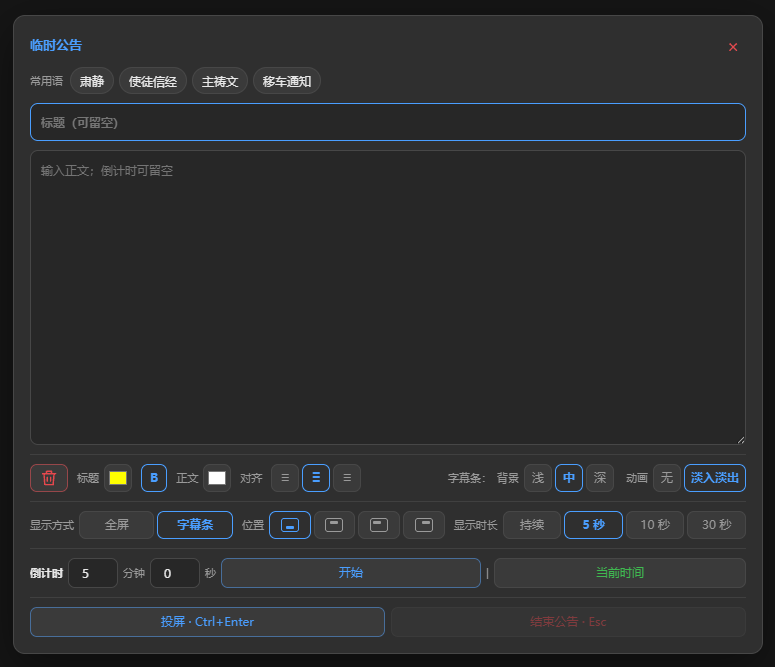
Notice drafts and display styles stay in the current browser. Recent notices clear on refresh, and active notices clear when the program restarts. They are not included in backups.
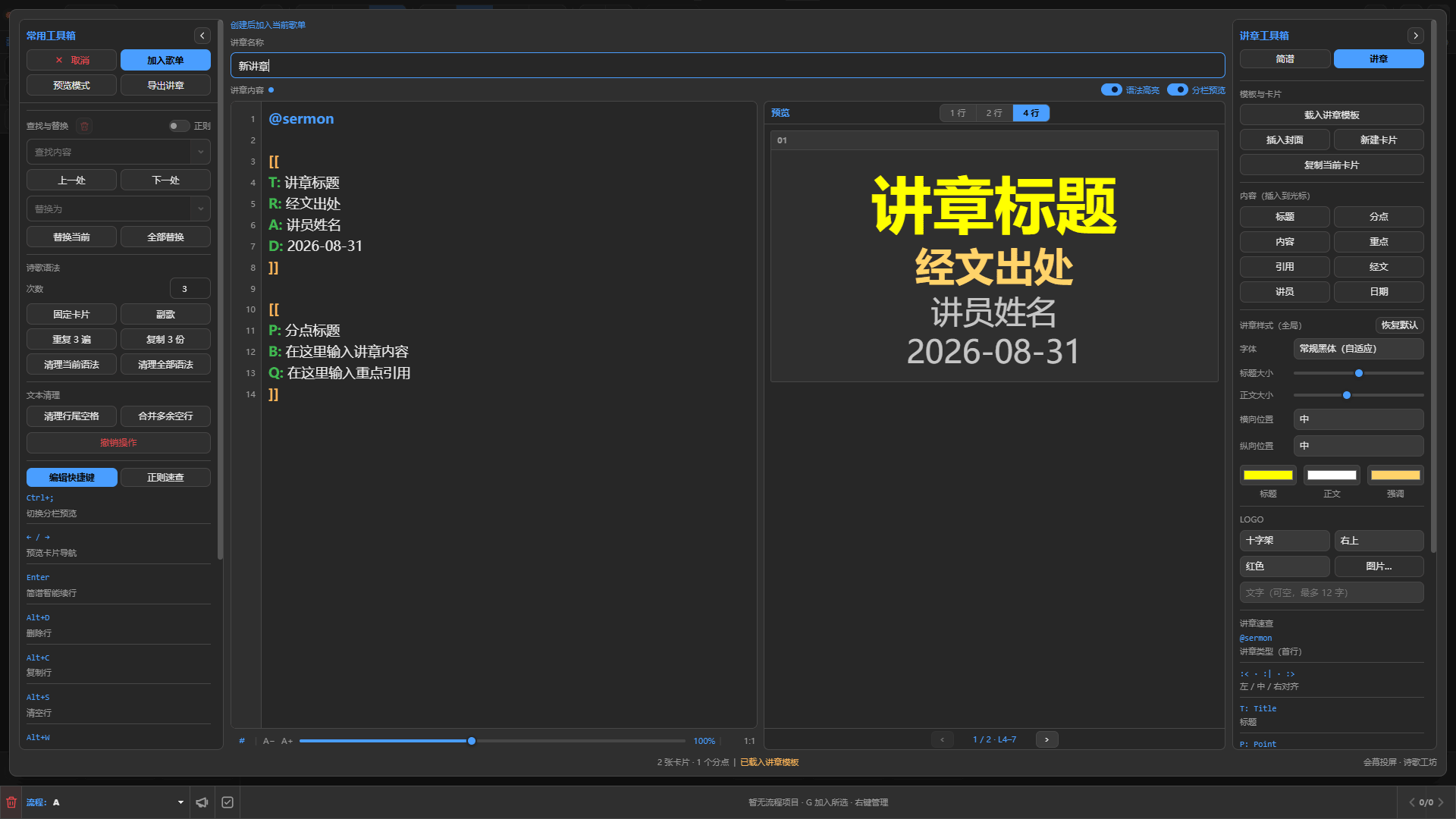
Sermon cards


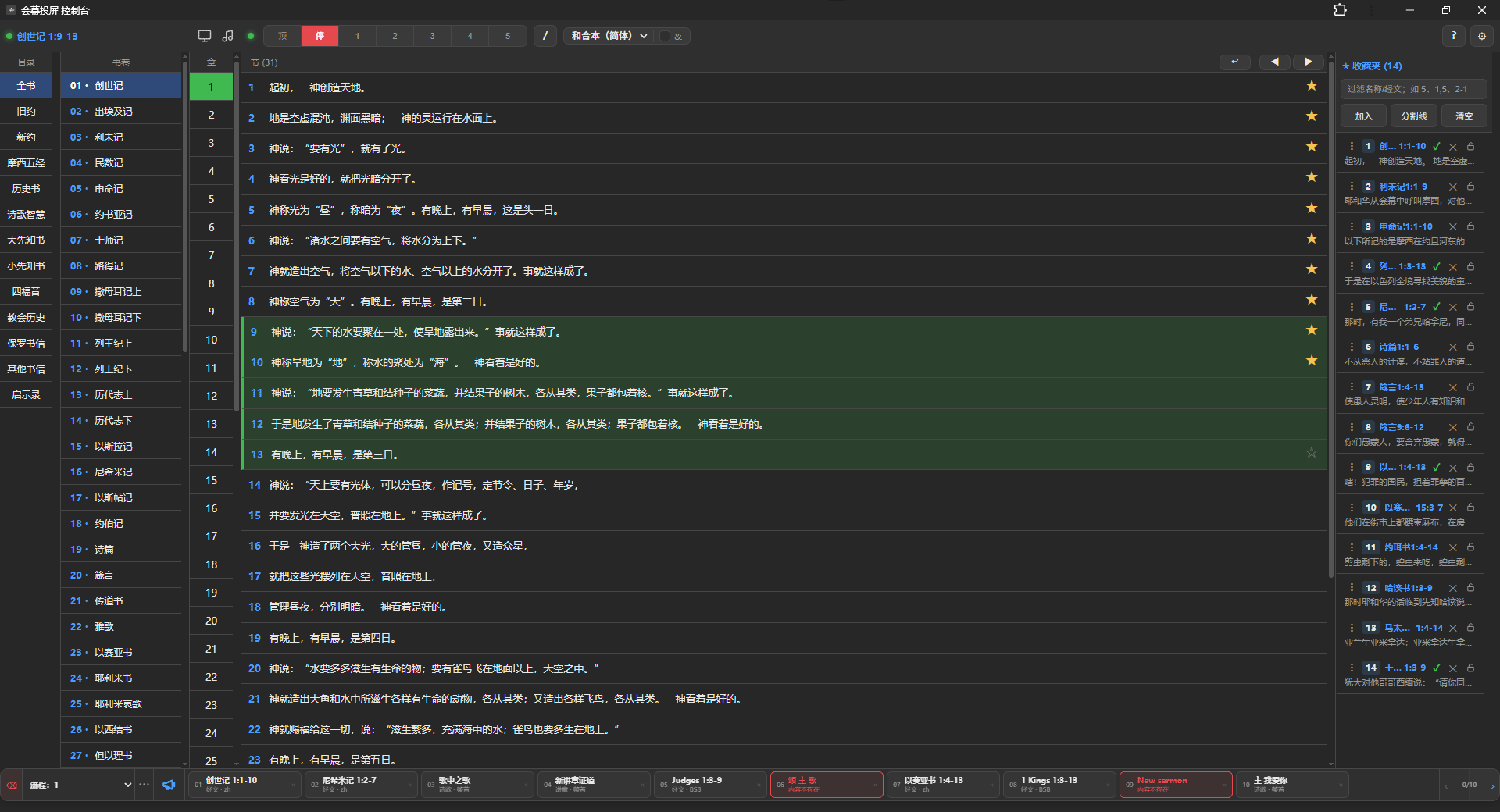
Service rundown
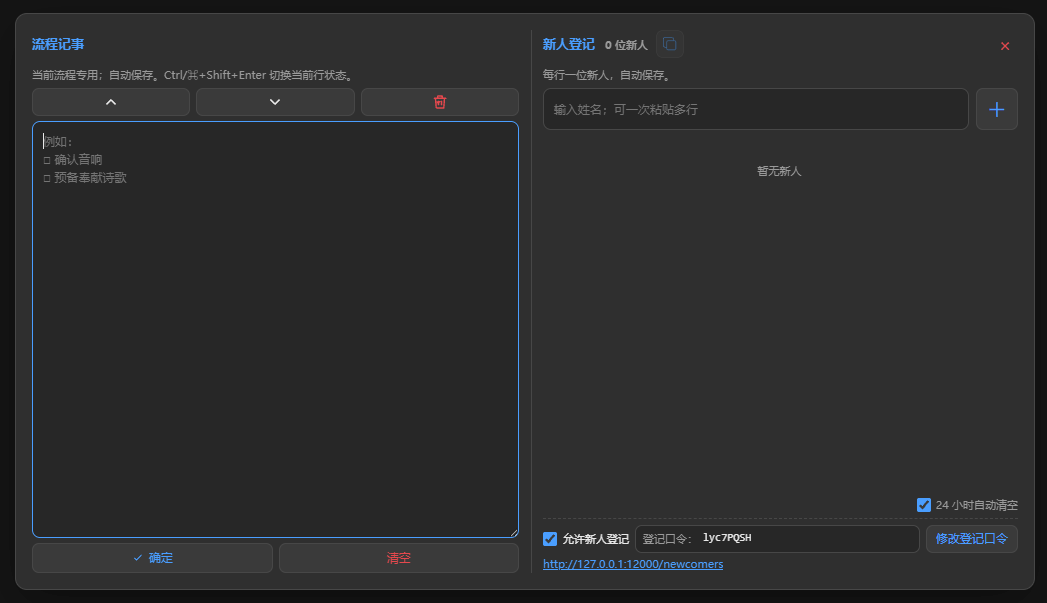
Newcomer registration
Enable newcomer registration and set its own password to copy the dedicated link or show a QR code. Newcomers register in a phone browser without an app; volunteers can also manage names in the rundown notes panel.
Feature overview
Press Tab or / to select a book, chapter, and verse quickly, or enter a passage range to project it.
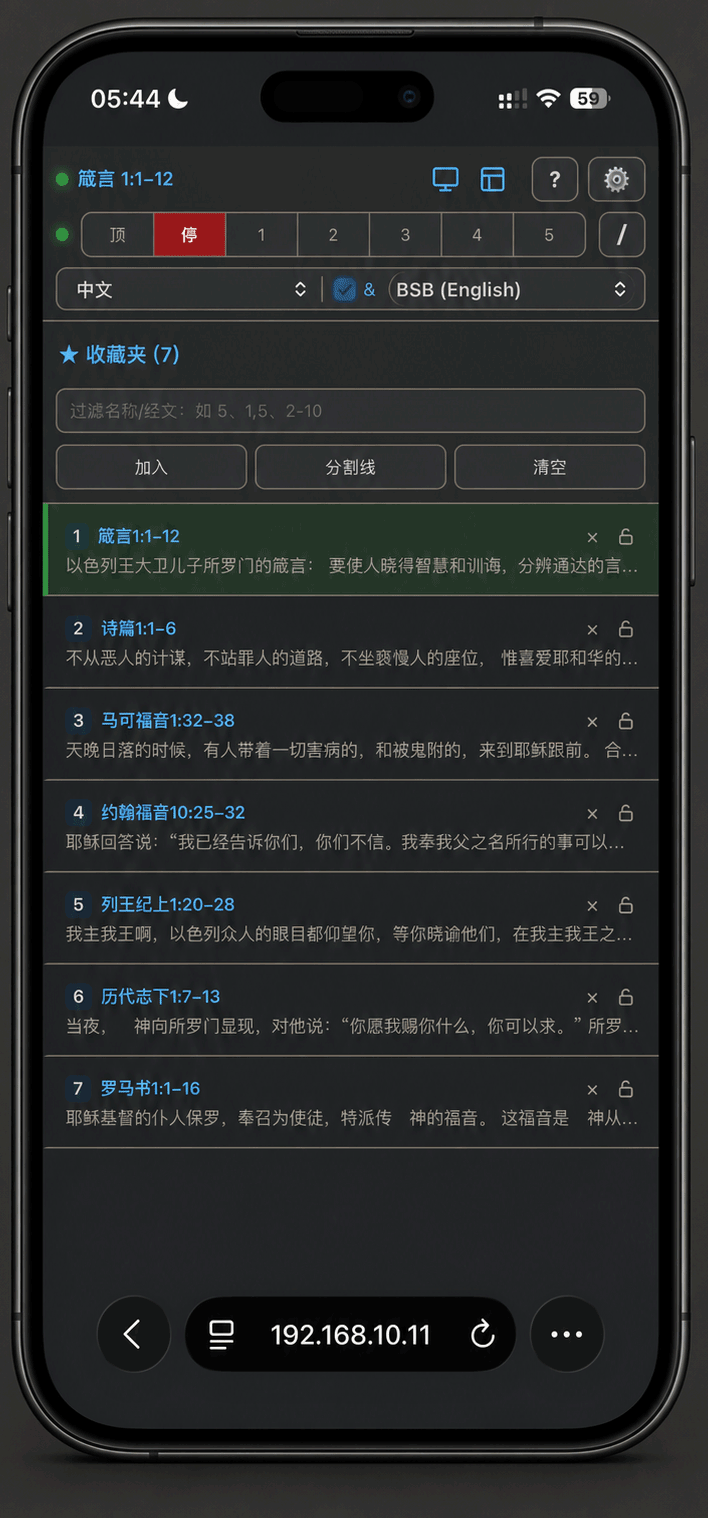
Prepare scripture in advance with ordering, locking, deletion, notes, and separators.
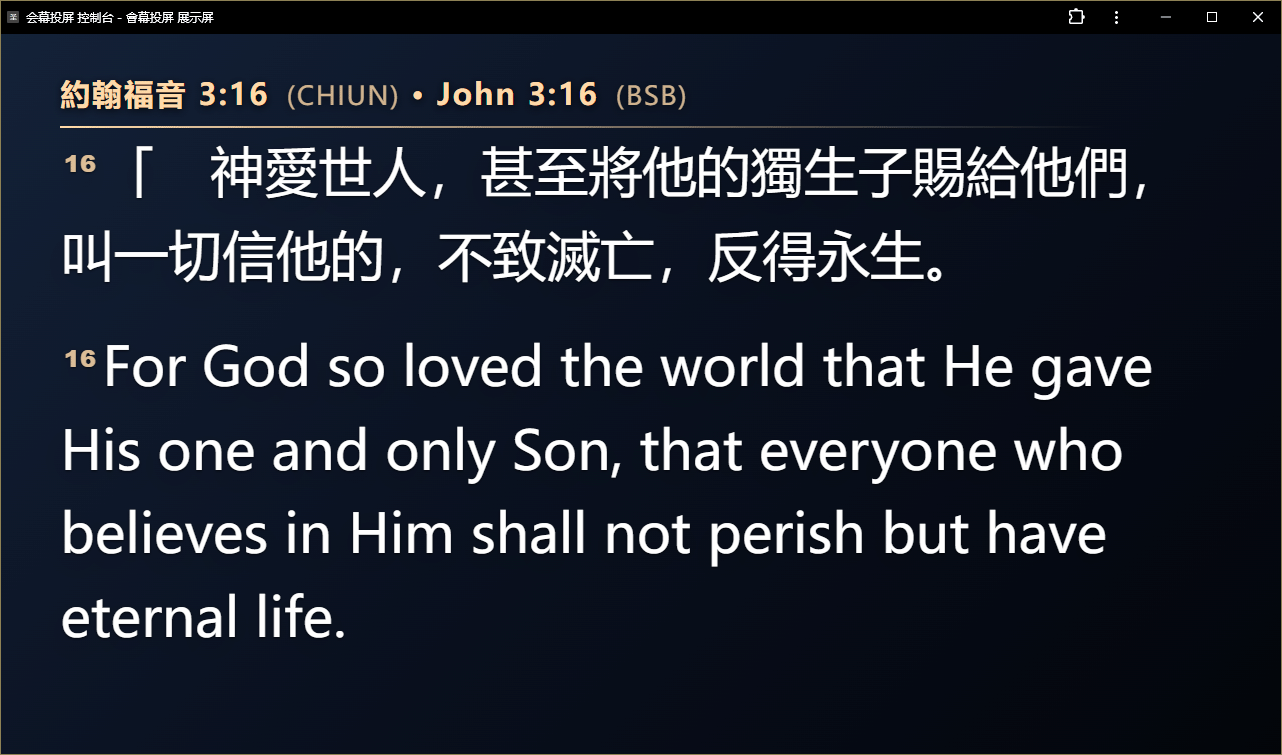
Switch local Bible translations and display Chinese, English, or bilingual passages.
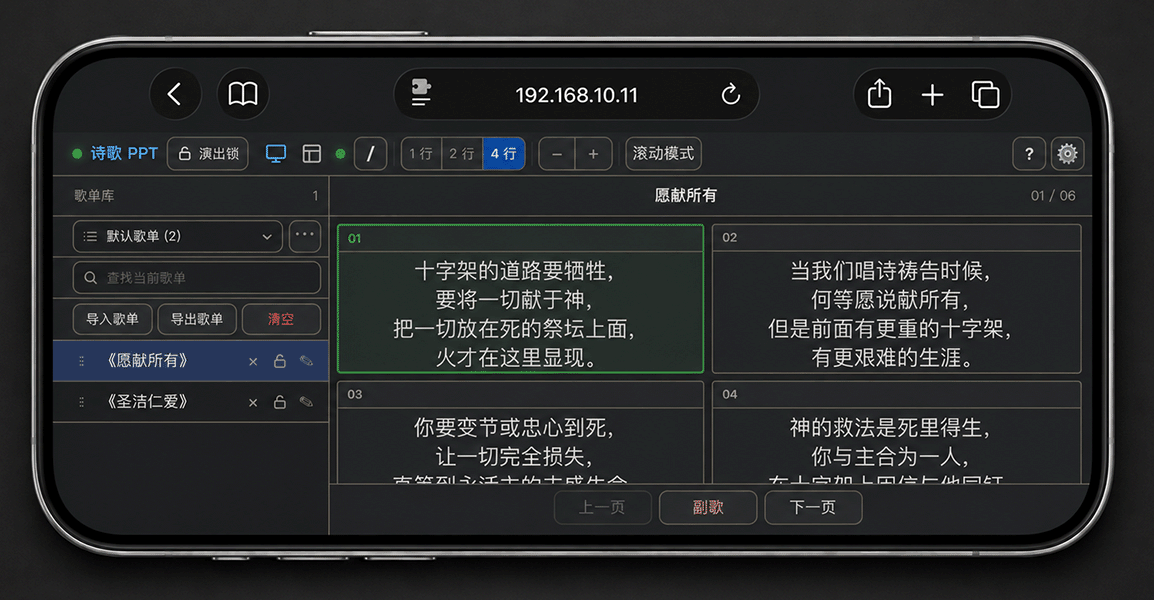
Control from a phone or tablet browser on the same LAN, with no additional app.
Scroll, stop, show multiple lines, black out, clear, and move backward or forward during a service.
Run the Windows edition locally offline, or use the cloud edition online in a browser.
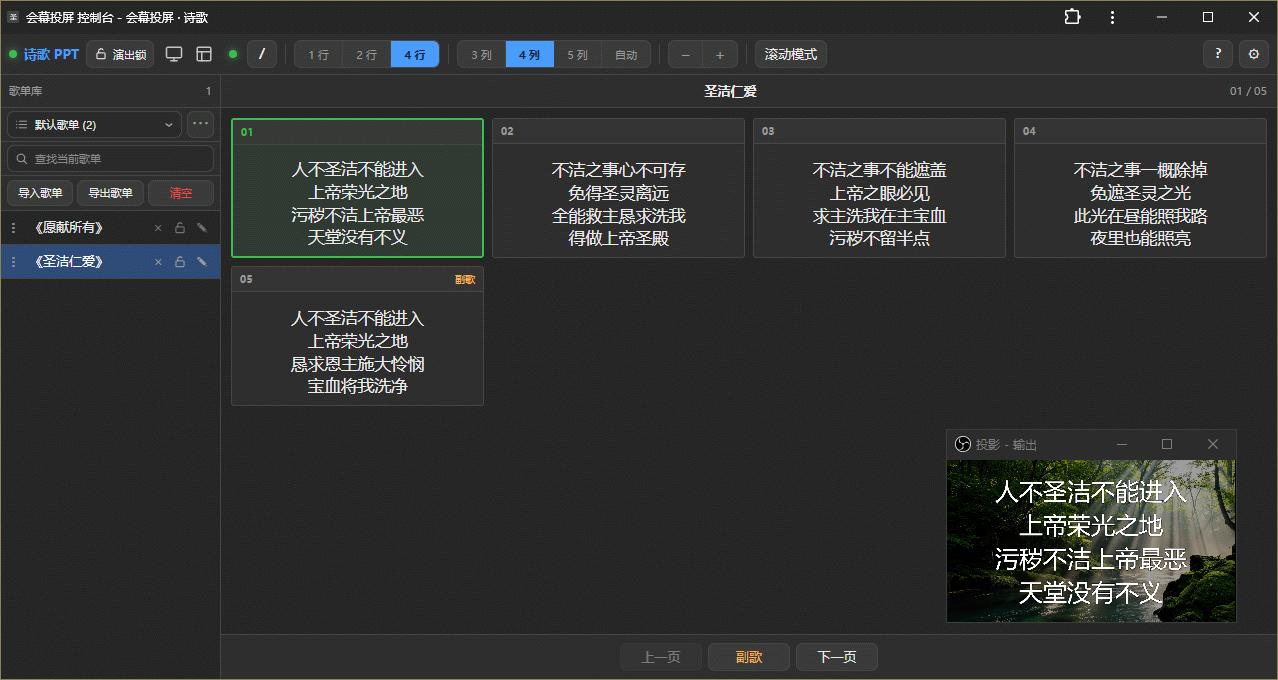
Project hymns as pages or scrolling lyrics, with independent rows, columns, font size, and appearance for each song.
Reorder, edit, and switch songs; append UTF-8 TXT files and import or export complete playlists with galleries as ZIPs.
Search local hymns by title or author, preview them, add them to playlists, or export individual songs.
Privacy
Mishkan Dock has no user tracking or behavior analytics. Windows data stays on the device; cloud data stays in its own instance. Choose offline or online use as needed.
Windows data is stored on the current device. Cloud data belongs to its own separate instance.
No advertising, user tracking, or third-party behavior analytics.
The portable edition contacts the website for update checks. Microsoft Store manages Store updates; that edition excludes cloud hymns. The cloud edition runs on its deployment server.
Display and remote control
Guides
Prepare content, control projection from computers, phones, and tablets, and send the display to OBS through your dedicated address.
Service rundownArrange scripture, hymns, sermons, and galleries for live projection, with temporary notices and countdowns whenever needed.
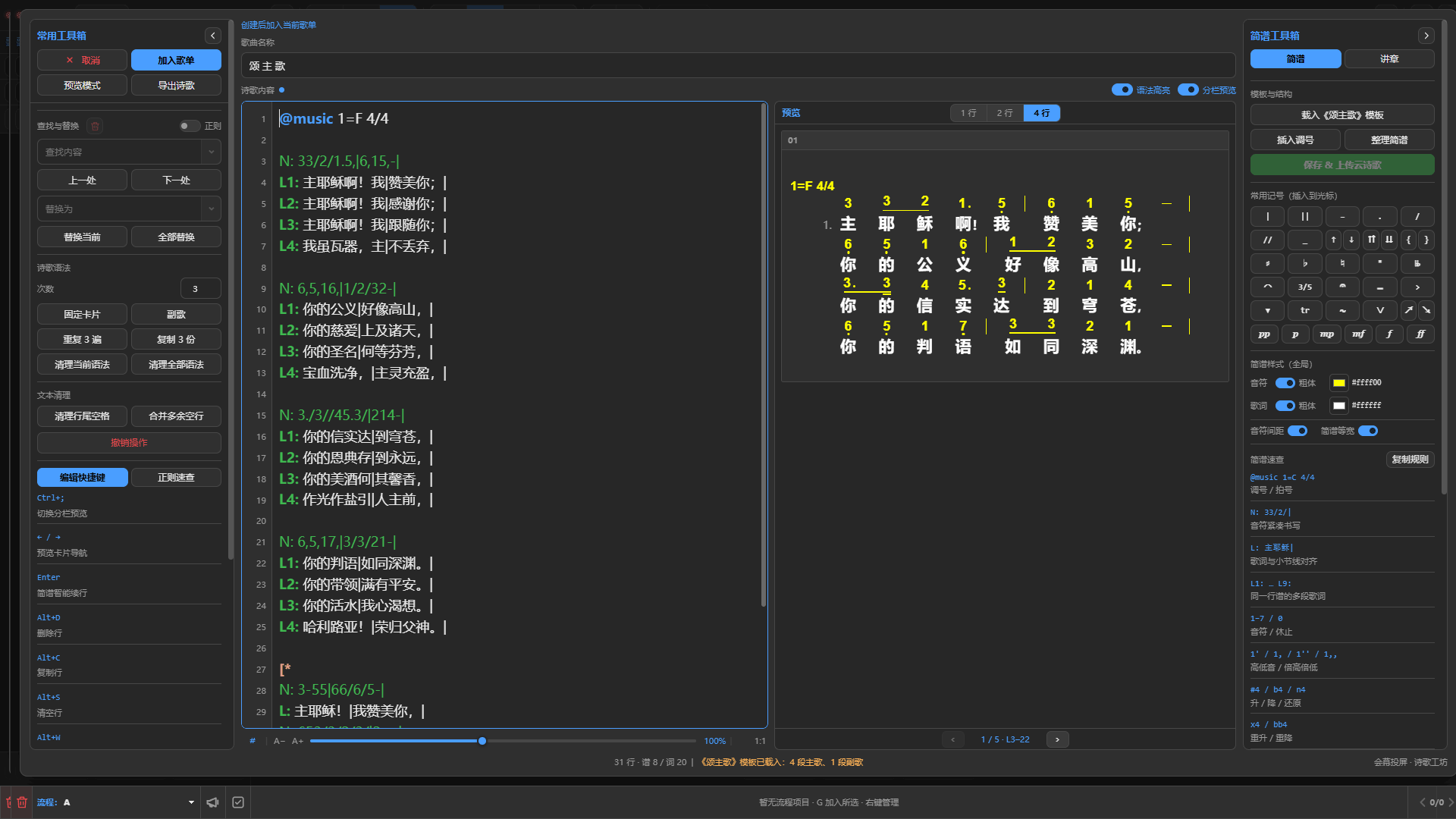
Numbered notationEnter numbered music notation with lyrics, check note-to-word alignment, and display it clearly from the Mishkan Dock console.