Mishkan Dock sends scripture, hymns, sermons, and galleries to an OBS browser source. Use the console to control content and the display page for broadcast output.
Add the display
- Copy the Mishkan Dock display URL.
- Add a Browser source in OBS and enter the URL.
- Match its dimensions to the broadcast canvas and set its layer position.
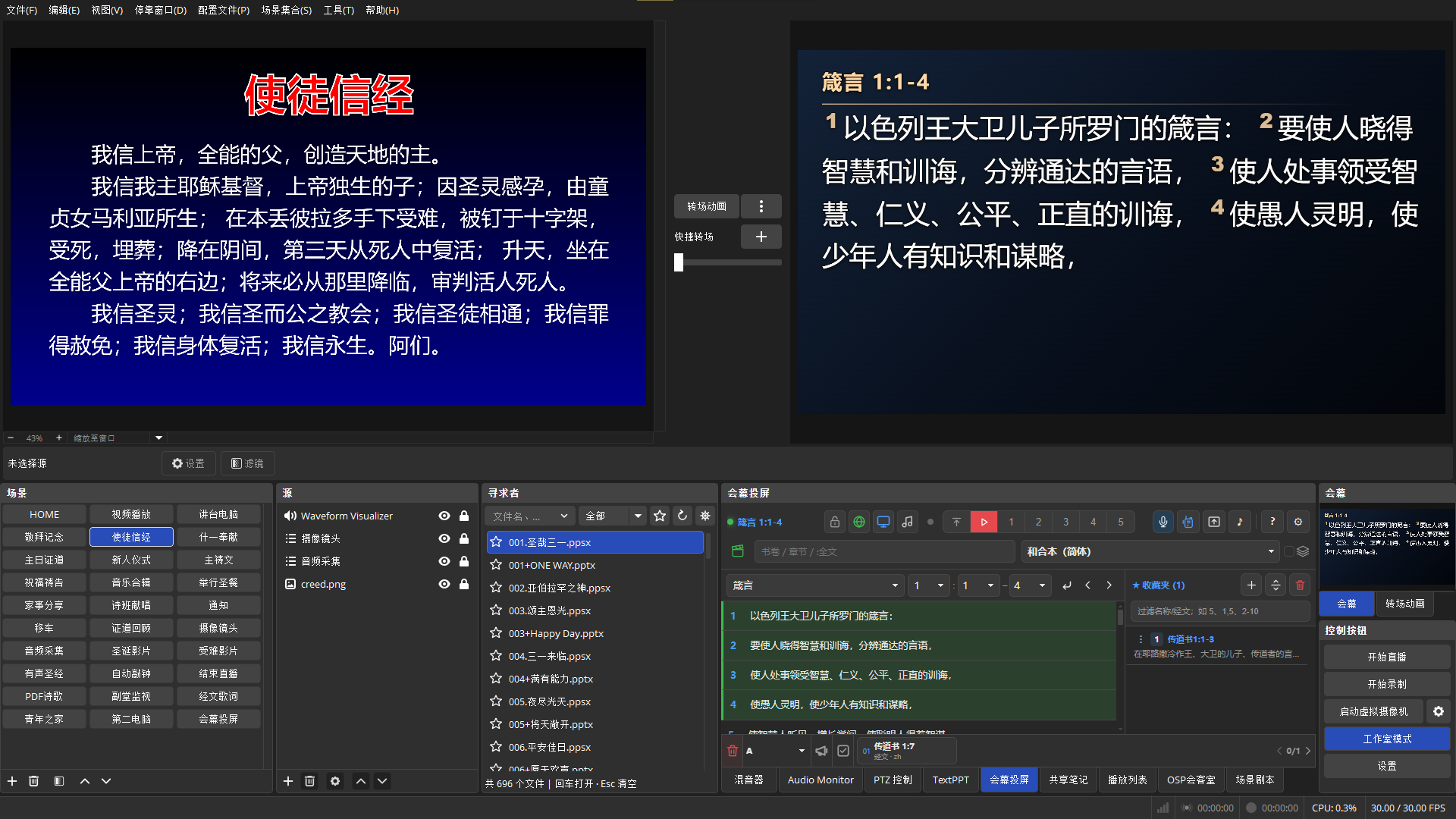
Use a transparent or chroma-key-friendly style over camera video. Adjust fonts, shadows, and animation in Mishkan Dock display settings.
Dock the console
Add the scripture console as an OBS custom browser dock for automatic layout. Append ?obs=1 to force Dock mode or ?obs=0 for the regular layout. Use &obs=1 or &obs=0 if the URL already has query parameters.
Bible versions, search, and verse ranges stay together. Tools collapse as the dock narrows; the smallest layout keeps search, favorites, and the rundown. The hymn console uses one responsive layout.
OBS scene switching
This feature is off by default. Enable it under Settings → OBS scene link in the scripture console. Both consoles share the settings.
- Enable the server under Tools → WebSocket Server Settings in OBS. Keep password authentication enabled.
- Enter the address, port, and password in Mishkan Dock. On the same computer, use
ws://127.0.0.1; the default OBS port is4455. - Click Connect OBS or Refresh scenes and select a scene.
- Choose Switch preview or Switch program. Preview is the default and requires OBS Studio Mode.
Activating the console switches to the selected scene. A clapperboard appears before search when connected; click it or press Alt+X to switch manually. Restoring scripture projection from blackout also triggers the link.
Show on scene switch is off by default. Enable it and choose a browser source to make it visible before switching. It can also restore a hidden source in the current scene. The list includes only browser sources directly in the target scene.
Scene and source lists follow the OBS panel order. Renames sync while connected. Check your selection after changing scene collections or deleting a source.
The console browser makes the connection. If OBS runs on another computer, use that computer's LAN address. HTTPS pages must also satisfy browser security rules when connecting to a local WebSocket.
Connection checks
- Check that the OBS server is enabled and the address, port, and password match.
- If preview is unavailable, enable Studio Mode or explicitly select program output.
Local and cloud use
Desktop consoles, Bible databases, and displays run locally and support offline projection. The cloud edition runs online; use the display URL for your cloud instance in OBS.