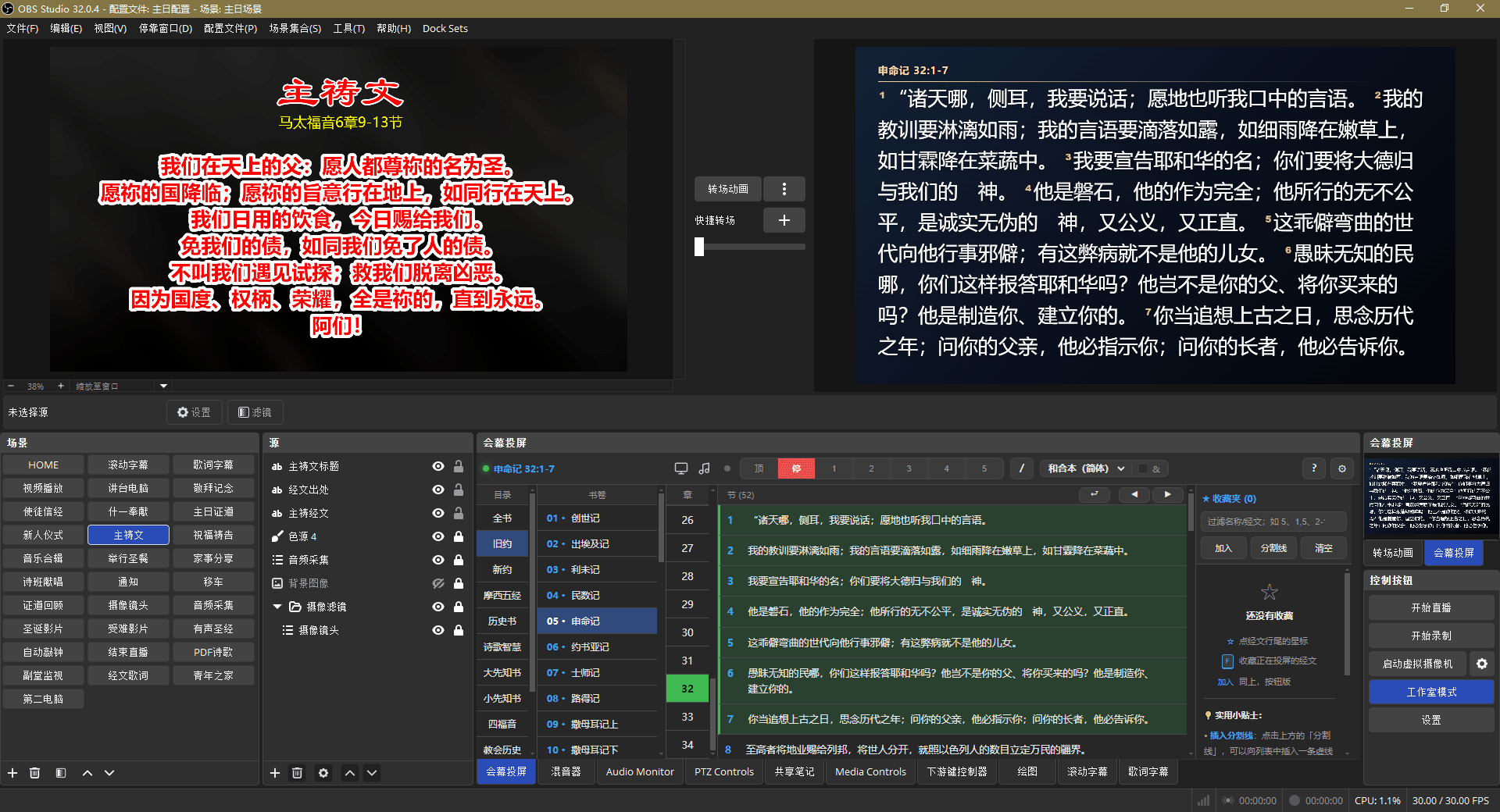
The Mishkan Dock display is a local web page, so you can add it directly as an OBS Studio browser source without screen capture or another plugin. OBS Studio 32.0.4 or later is recommended.
Add a browser source
- Click Add in the OBS Sources panel.
- Choose Browser.
- Enter the display address provided by Mishkan Dock.
- Set the width and height to match your broadcast canvas.
- Save and place the source on the appropriate layer.
Suggested display settings
| Setting | Suggestion |
|---|---|
| Size | Match the OBS canvas |
| Background | Use transparency or a chroma-key-friendly style when overlaying camera video |
| Font size | Check readability from the farthest viewing position |
| Animation | Use a fade or no animation for live broadcasts |
| Shadow | Adjust for the background's brightness |
Dock the console
Open the console as an OBS browser dock or in a regular browser on another computer, phone, or tablet. The display updates regardless of which device controls it.
The console handles controls; the display handles output. Do not use the console page itself as the broadcast source.
Offline and online use
The Windows console, Bible database, and display run locally. Without internet access, OBS can still load the display through its local address. The cloud edition runs on a deployment server, and OBS uses its online display address.