Hymns and scripture share the same Mishkan Dock display. Switch between their consoles during a service without adding another OBS browser source.
1. Open the hymn console
Click “Hymn PPT” at the top of the scripture console. The playlist is on the left, all pages of the current song appear in the center, and the top controls adjust page layout, columns, font size, and scrolling.
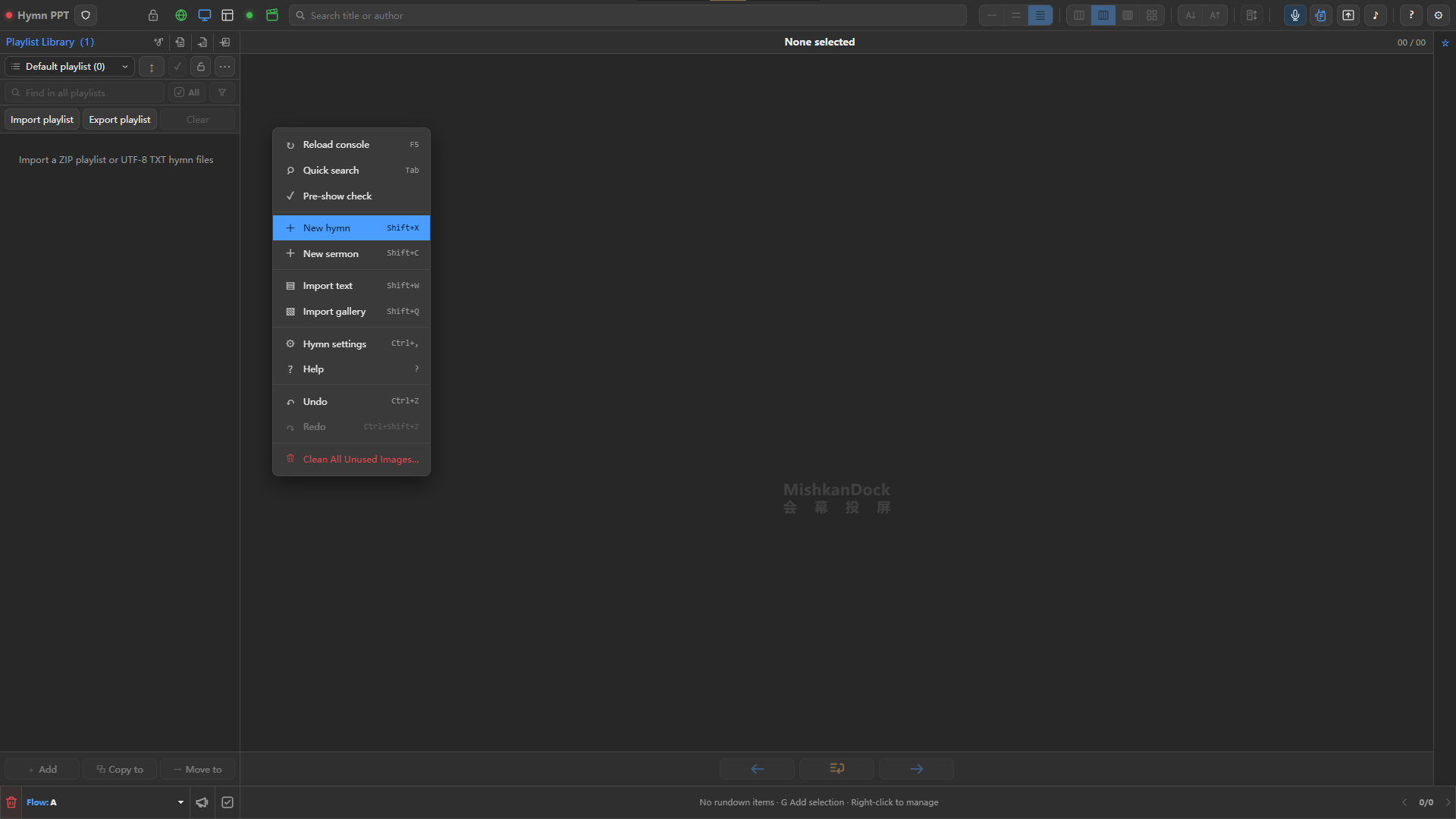
Import UTF-8 TXT files with “Import playlist.” Use Tab for local hymns or / for Cloud Hymns (not in the Store edition).
2. Choose a song and display it
Click a song to select and preview it. Click a card or press Enter to project. Double-click a song to edit.
Use Previous/Next buttons or these keys:
←: previous page;→orSpace: next page;Home/End: first or last page;PgUp/PgDn: previous or next song;- a page number on the numeric keypad, then
Enter: jump to that page.
Check playlist order, page breaks, and font sizes before the service.
3. Adjust rows and preview columns
Row and column icons adjust pages and preview layout. Hover for help.
Settings save per song. Use A↓ and A↑ to change font size.
4. Jump to the chorus
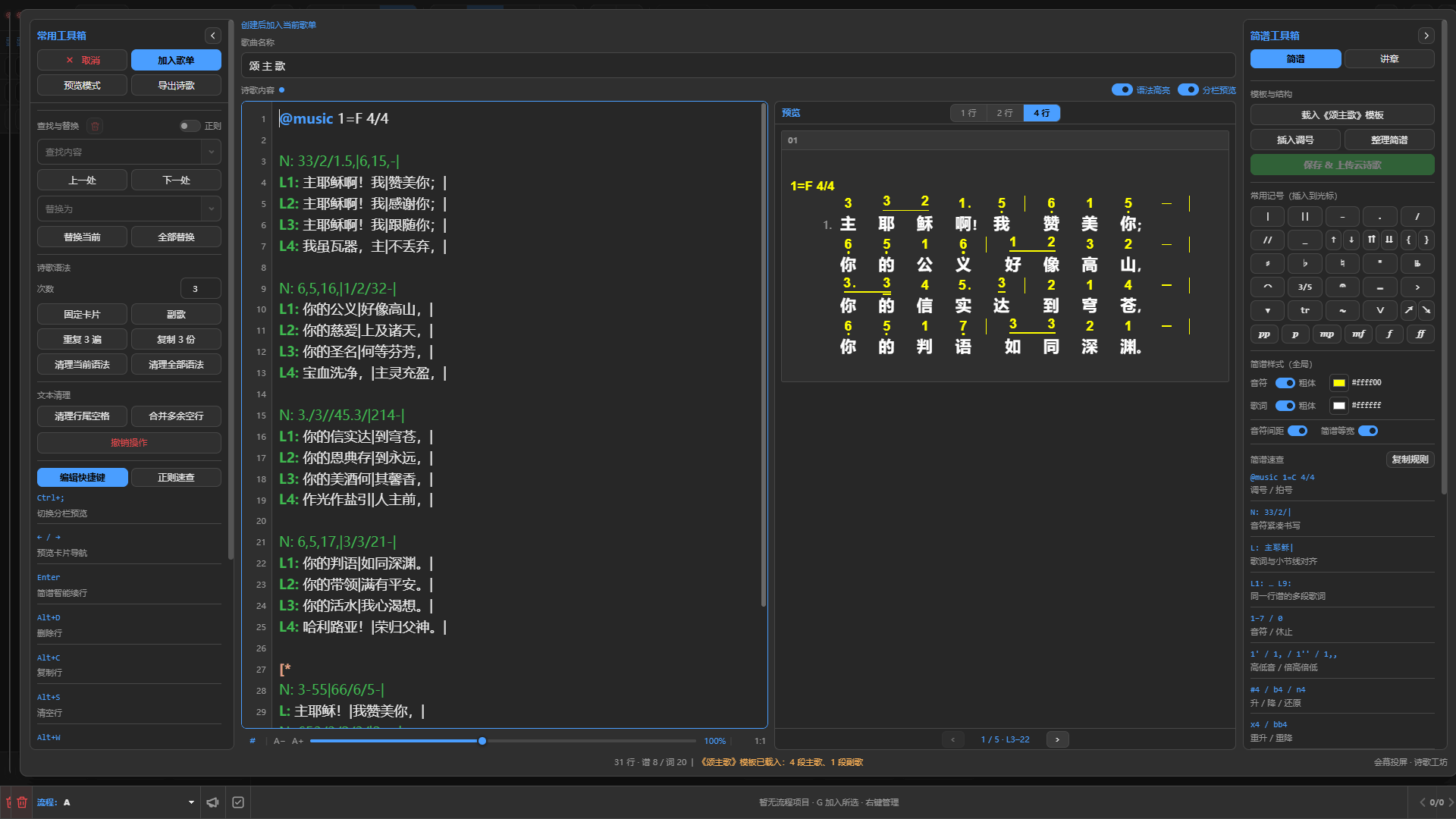
Mark choruses with [* and *]. The paragraph-and-bent-arrow icon jumps to the next chorus.
↓: next chorus;↑: previous chorus.
This reduces repeated page changes for songs that alternate verses and choruses.
5. Use scrolling mode
Click the page-and-vertical-arrow icon or press backtick ` to switch page/scroll mode.
In scrolling mode:
1–5: choose a speed and start;0orSpace: pause or resume in place;.: pause and return to the beginning;- click any preview card: pause and jump there.
Page mode suits line-by-line or section-by-section changes. Scrolling suits continuous lyrics with a steady pace. The chosen mode is saved independently for each song.
6. Set the hymn appearance
Click the gear or press Ctrl+, to set fonts, colors, position, transitions, and background.
Hymn settings save automatically and do not change scripture styles. Use transparent or translucent backgrounds over camera video, or a dark gradient for direct projection.
7. Control from a phone or tablet
With LAN control enabled, open the same hymn console from a phone or tablet. Playlists, pages, and display status stay synchronized.
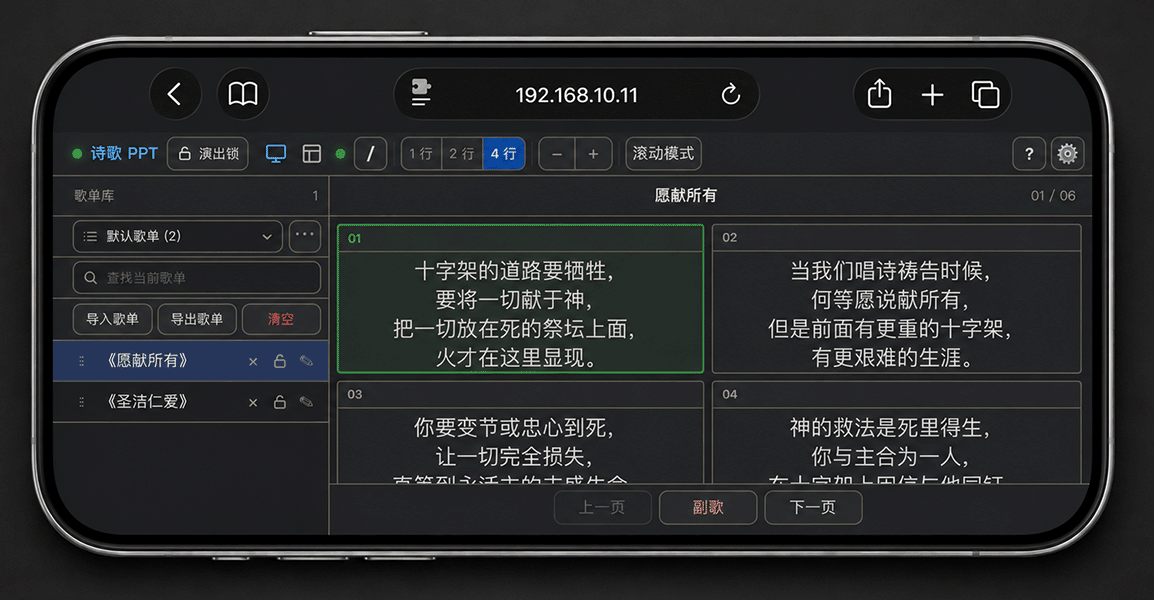
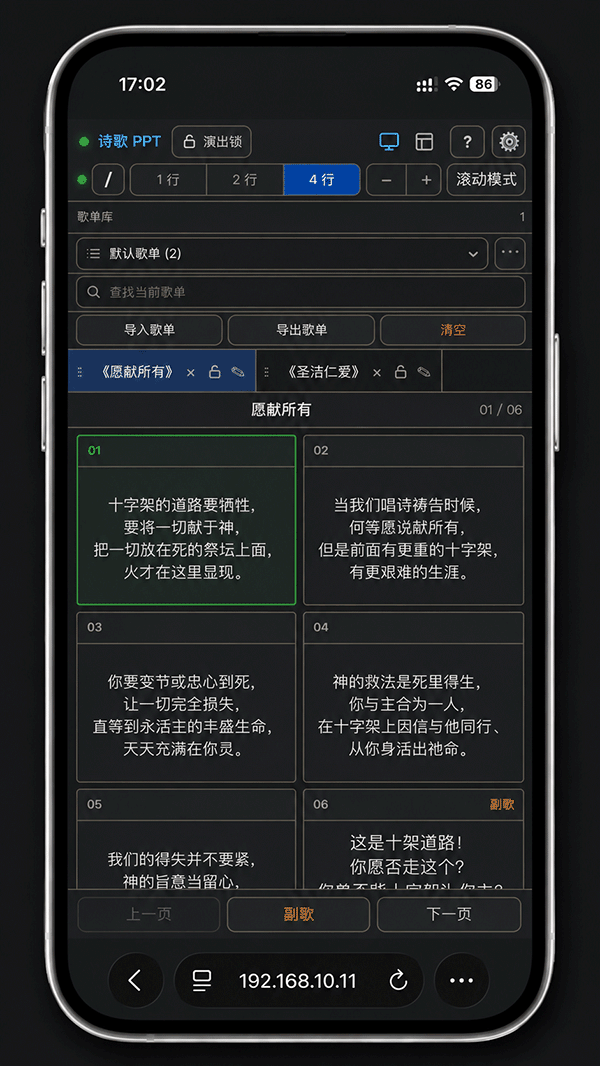
Landscape mode shows playlists and page previews together. Portrait mode is useful for quick song changes, page turns, and scrolling. See Remote control from a phone or tablet for connection instructions.
Before the service
- Open the display or OBS browser source.
- Arrange songs in service order.
- Check page breaks, chorus markers, and font sizes for every song.
- Confirm page or scrolling mode.
- Test the first page, last page, and next song.
- Export the playlist to save the complete service setup.
For TXT formats, playlist ZIPs, and markup, read Prepare and manage hymn playlists.