Hymns and scripture share the same Mishkan Dock display. Switch between their consoles during a service without adding another OBS browser source.
1. Open the hymn console
Click “Hymn PPT” at the top of the scripture console. The playlist is on the left, all pages of the current song appear in the center, and the top controls adjust page layout, columns, font size, and scrolling.
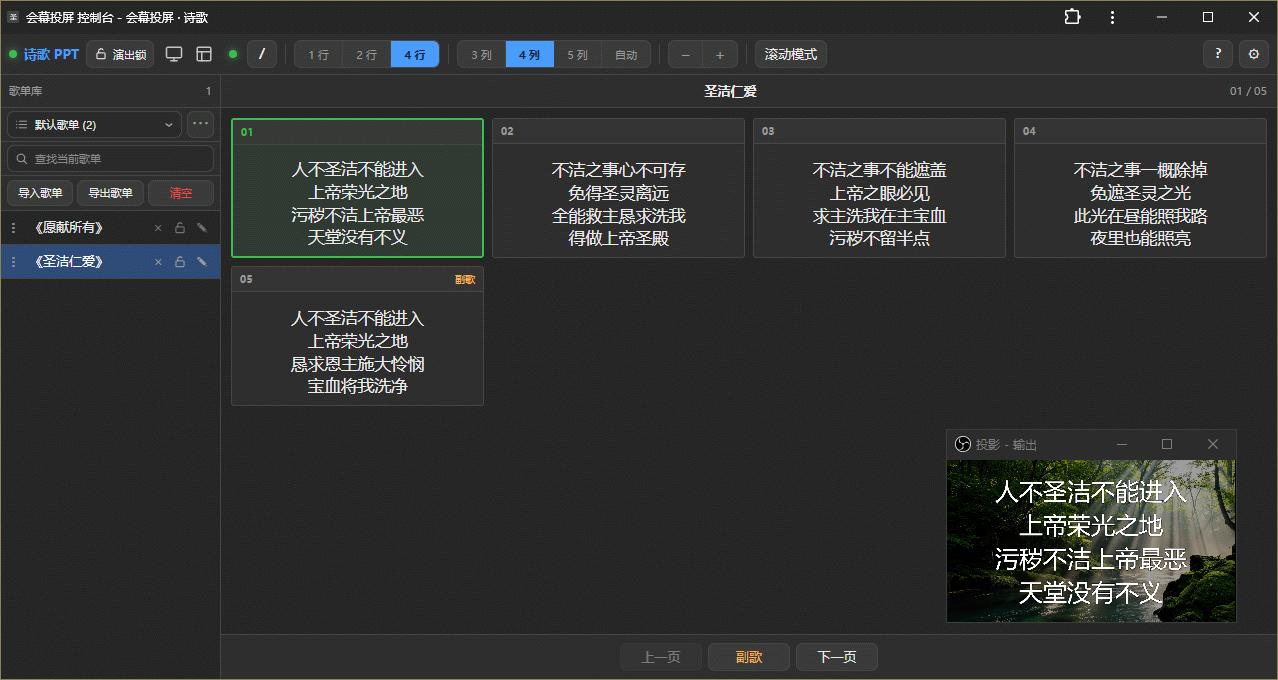
For an empty playlist, click “Import playlist” and select UTF-8 TXT hymn files. Alternatively, press / or Tab to search the local hymn library and add songs.
2. Choose a song and display it
Click a song in the left playlist to switch the display to hymn mode and start at its first page. The center preview shows all pages and the current page position.
Use Previous/Next buttons or these keys:
←: previous page;→orSpace: next page;Home/End: first or last page;PgUp/PgDn: previous or next song;- a page number on the numeric keypad, then
Enter: jump to that page.
Clicking a song changes the display immediately. Before a service, open the display or OBS preview and check playlist order, the first page, and font size.
3. Adjust rows and preview columns
The 1-, 2-, and 4-row options determine the lines on each song card. The 3-, 4-, and 5-column options, or Auto, control the arrangement of preview cards.
Settings are saved per song: use two rows for short choruses and four for longer lyrics. Click + or − to adjust the current song's font size independently.
4. Jump to the chorus
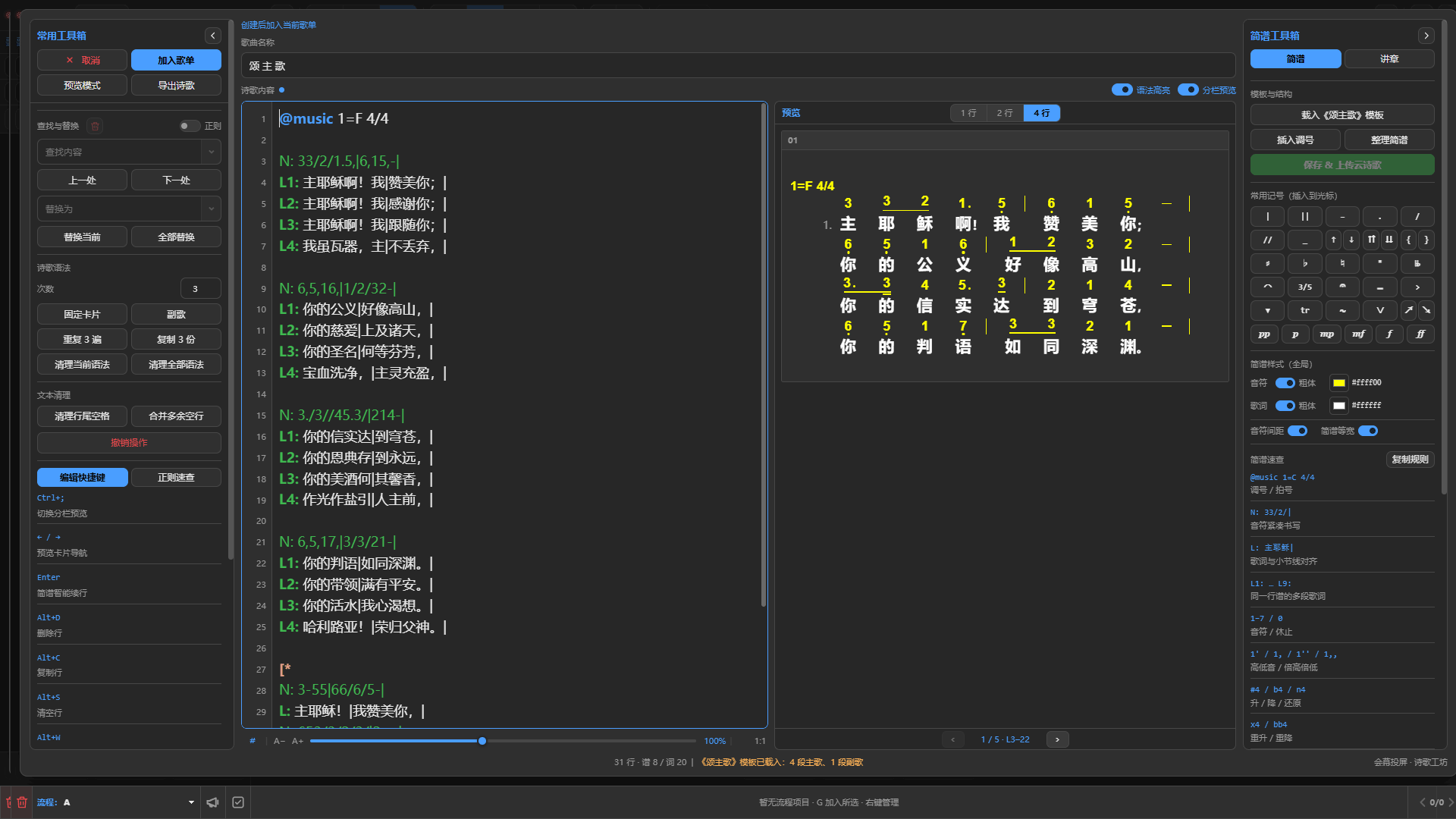
When [* and *] mark a chorus in the hymn file, the Chorus button jumps to the next marked section.
↓: next chorus;↑: previous chorus.
This reduces repeated page changes for songs that alternate verses and choruses.
5. Use scrolling mode
Page mode is the default. Click Scrolling Mode or press the backtick key ` to scroll the current song continuously.
In scrolling mode:
1–5: choose a speed and start;0orSpace: pause or resume in place;.: pause and return to the beginning;- click any preview card: pause and jump there.
Page mode suits line-by-line or section-by-section changes. Scrolling suits continuous lyrics with a steady pace. The chosen mode is saved independently for each song.
6. Set the hymn appearance
Click the gear at the upper right to set the font, default size, weight, color, position, transition, background, and opacity.
Hymn settings save automatically and do not change scripture styles. Use transparent or translucent backgrounds over camera video, or a dark gradient for direct projection.
7. Control from a phone or tablet
With LAN control enabled, open the same hymn console from a phone or tablet. Playlists, pages, and display status stay synchronized.
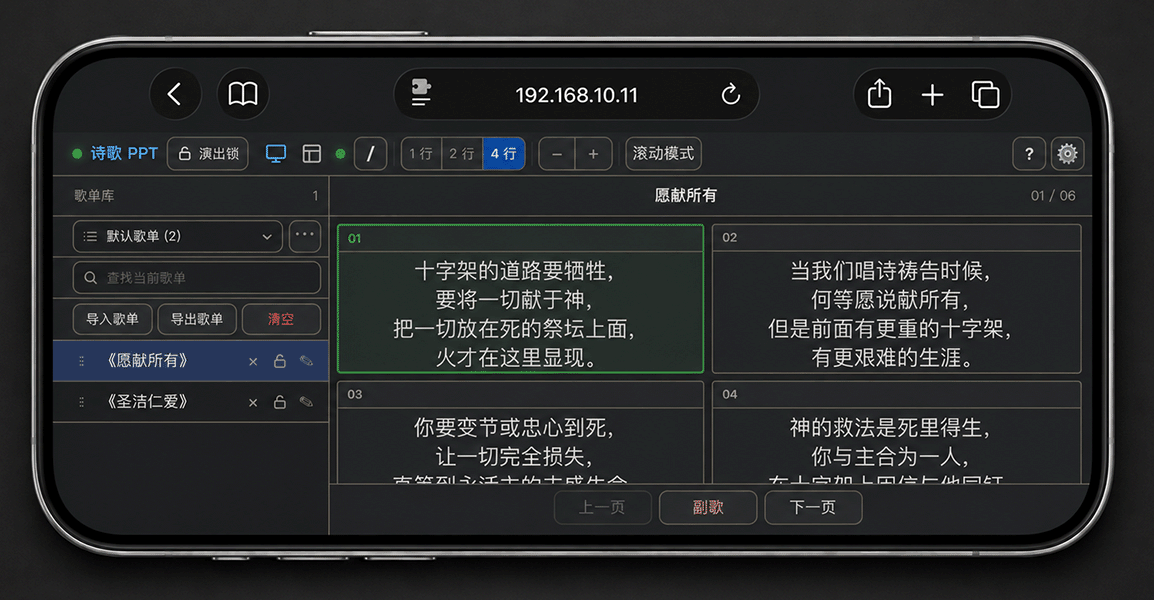
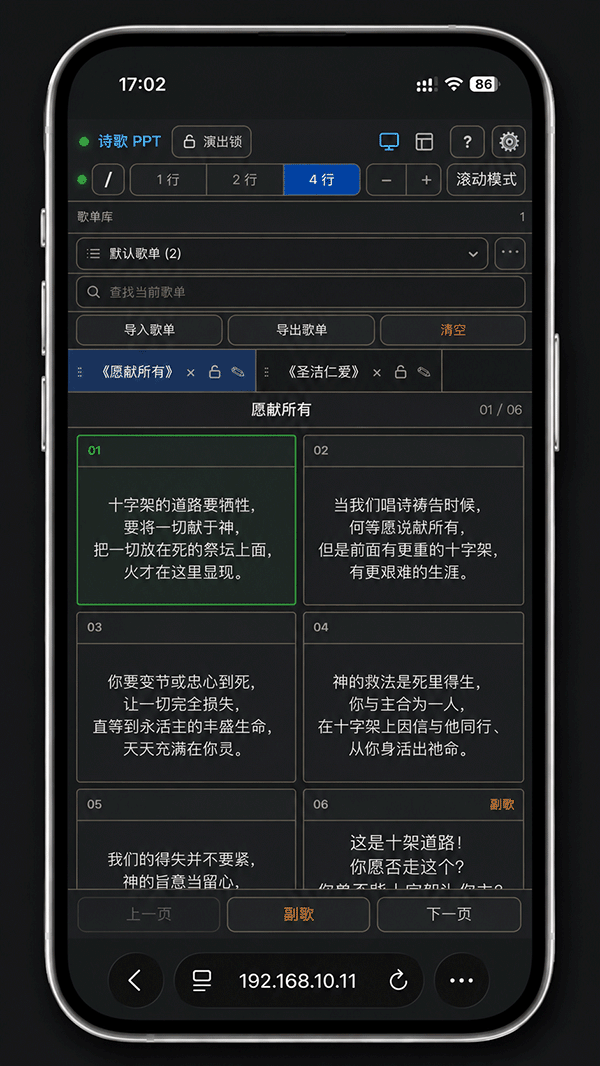
Landscape mode shows playlists and page previews together. Portrait mode is useful for quick song changes, page turns, and scrolling. See Remote control from a phone or tablet for connection instructions.
Before the service
- Open the display or OBS browser source.
- Arrange songs in service order.
- Check page breaks, chorus markers, and font sizes for every song.
- Confirm page or scrolling mode.
- Test the first page, last page, and next song.
- Export the playlist to save the complete service setup.
For TXT formats, playlist ZIPs, and markup, read Prepare and manage hymn playlists.