Enable LAN control to access the Mishkan Dock console from phones, tablets, and other computers on the same network. No additional app is required.
Enable LAN access
Turn on LAN control in the console settings, confirm the port, and set an access password. The software shows the address to open on other devices.
Remote access requires the password to help prevent unintended changes. The local console remains available.
Use a phone
Enter the control address in a phone browser to open the portrait-optimized interface.
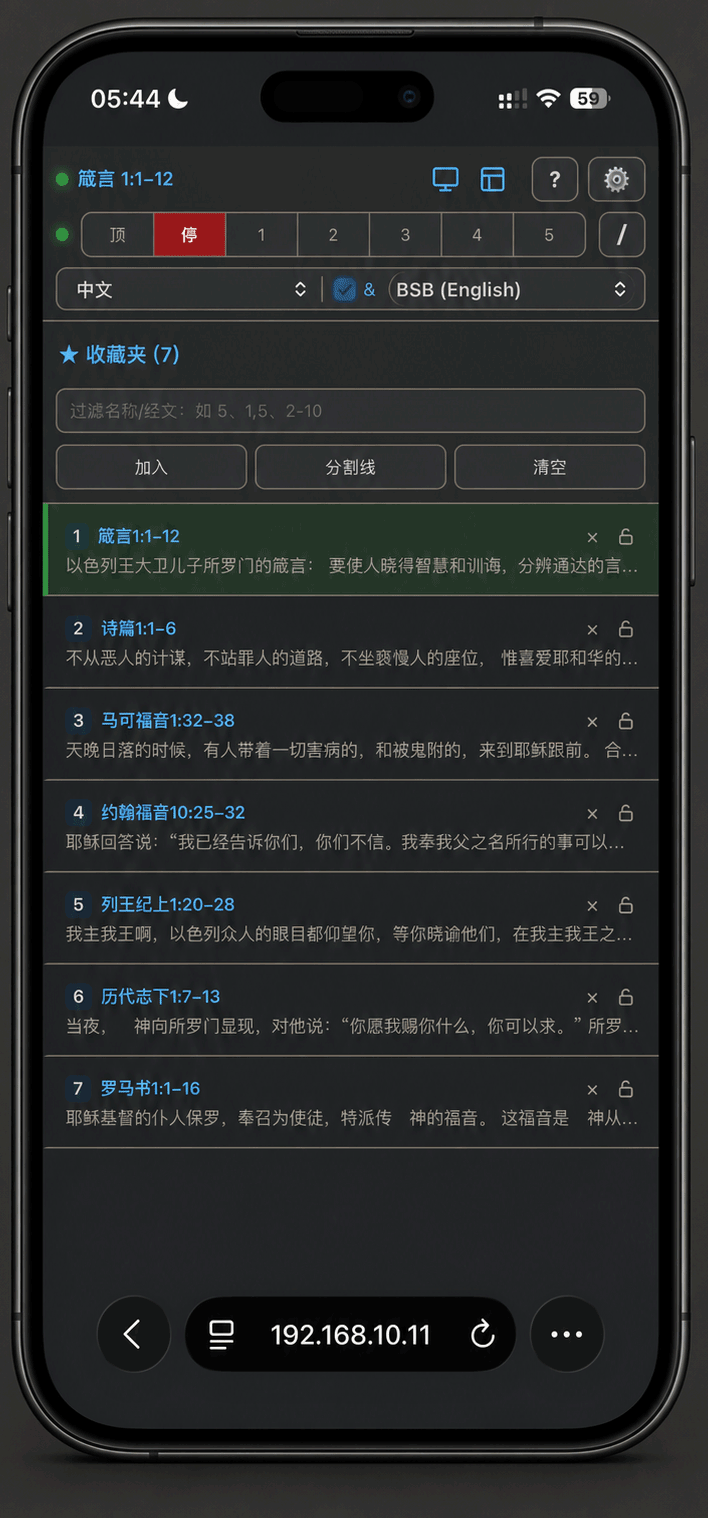
From the phone, you can:
- switch the current passage;
- display saved favorites;
- adjust scrolling speed;
- change Bible translations or bilingual display;
- black out or clear the display;
- open display settings.
Use landscape mode or a tablet
A tablet in landscape mode shows more of the book, chapter, verse, and favorites layout, suitable for use beside the platform or control desk.
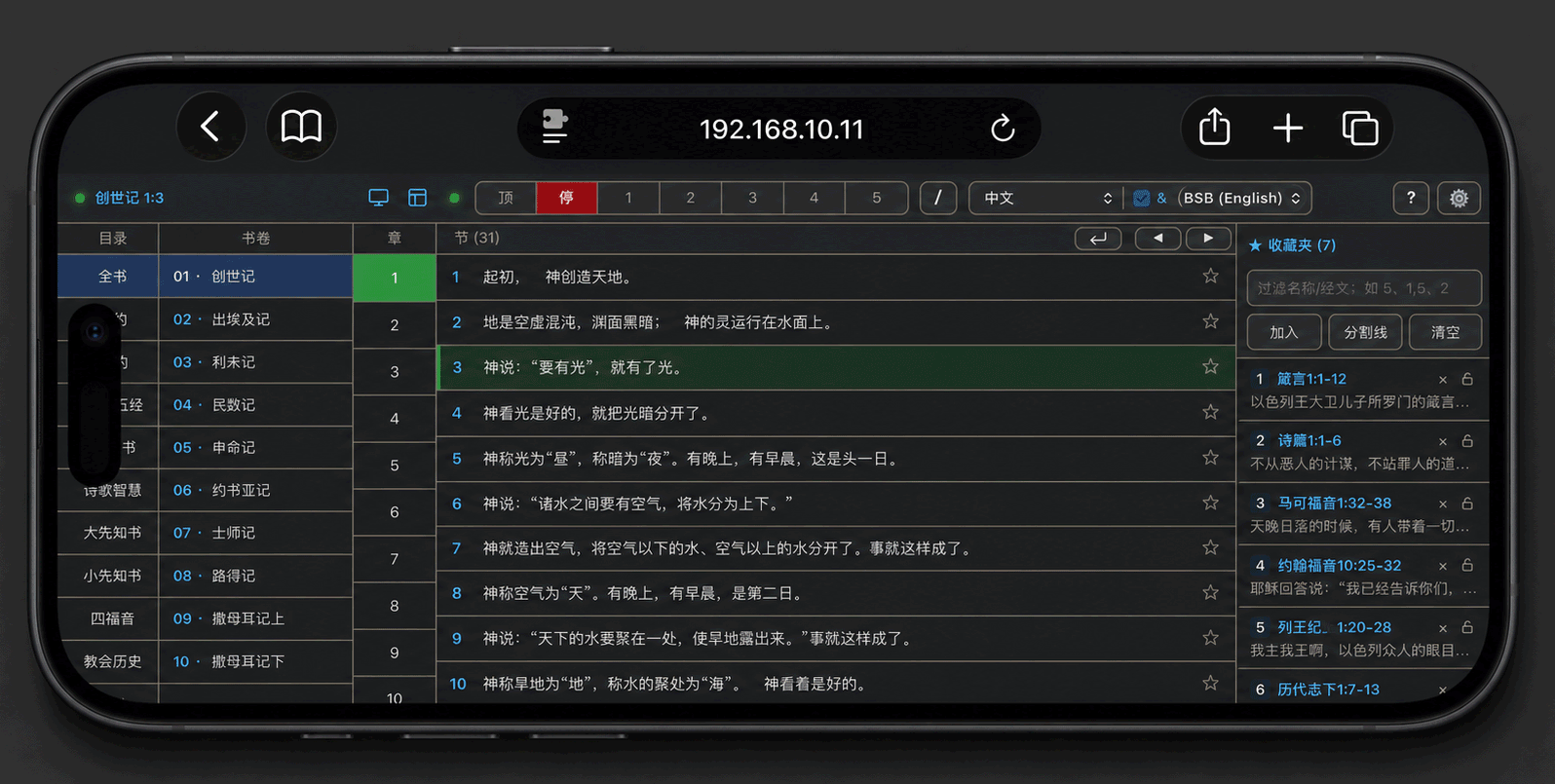
Synchronize favorites
Adding, deleting, sorting, separators, and lock states synchronize with other open consoles. Prepare content on a computer, then operate it from a phone or tablet during the service.
Open the console only on a trusted church LAN, and replace the default password with your own.