AIRPLAY · OBS STUDIO 32+
OBS-Air Screen mirroring
Your screen,
live in OBS.
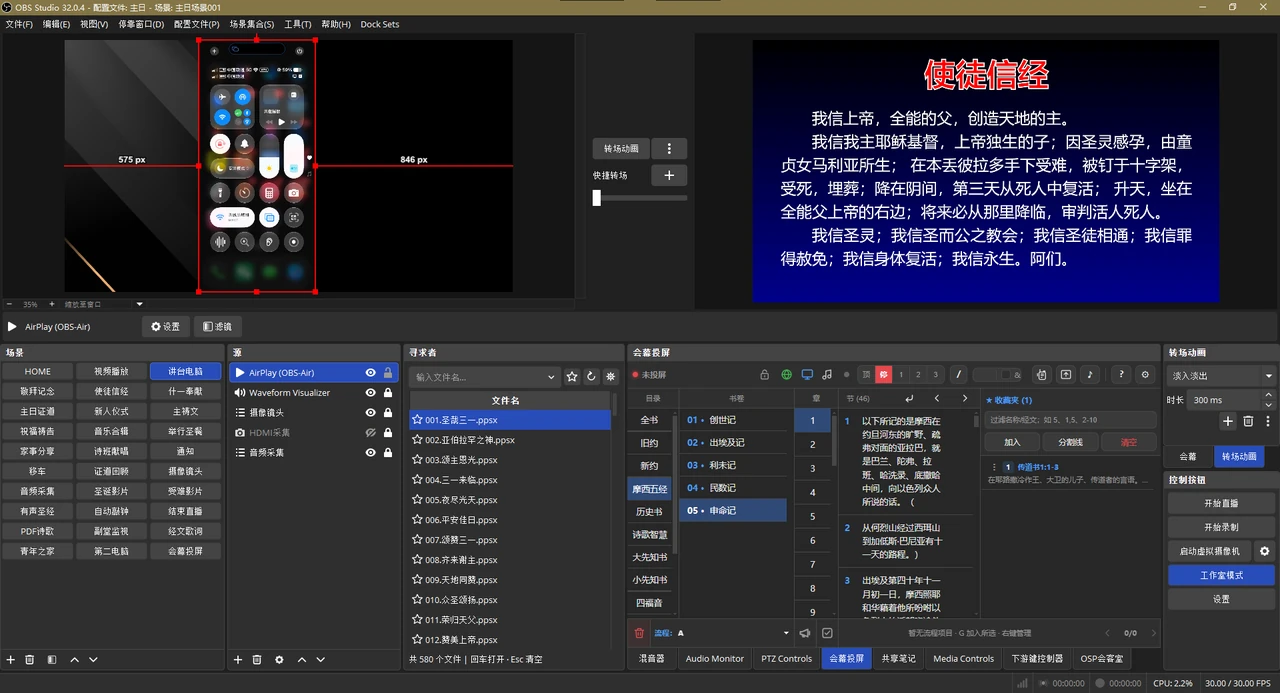
Wirelessly mirror iPhone, iPad, and Mac screens for presentations, streaming, and recording, with portrait, landscape, and audio support.
- Version
- 2.0.0
- OBS
- 32 or later
- Platforms
- Windows x64 · Apple silicon Mac
- Languages
- Simplified Chinese · Traditional Chinese · English
Start mirroring
Connect in three steps
- Install the plugin
Fully extract the ZIP, close OBS, and run the installation script.
- Add a source
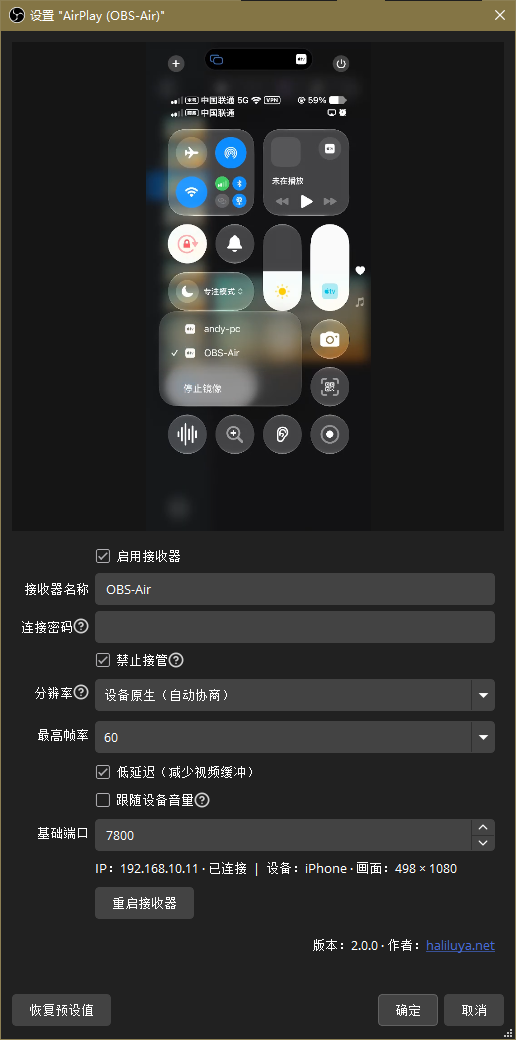
Restart OBS, add an AirPlay (OBS-Air) source, and enable the receiver.
- Connect your device
Connect the device and computer to the same LAN, then choose Screen Mirroring → OBS-Air.

Receiver settings
Ready with the defaults
Notes
One receiver and one connected device per OBS instance. Reuse the existing source across scenes.
Enable OBS audio monitoring for local playback. For audio only, connect from the device's AirPlay audio menu.
No separate Bonjour installation is needed on Windows or Mac.
Protected video (DRM), HLS, HEVC, Bluetooth discovery, and peer-to-peer AirPlay are not supported.
Free download · 2.0.0
Choose your platform
Requires OBS 32+. Fully extract the ZIP and close OBS before installing.
Windows x64
Windows ZIP ↓Right-click install_obs-air.bat and choose “Run as administrator.” OBS must be installed in its default location.
Automatically allows inbound OBS connections on private networks and the local subnet only.
macOS Apple silicon · arm64
Mac ZIP ↓Open a terminal in the extracted folder and run:
bash ./install_obs-air.sh
Installs for the current user and removes quarantine attributes. Allow OBS local network access when prompted.