OBS-TextPPT Text slides

Text slides.
Controlled in OBS.

For sermon notes, lyrics, and cues, with line or point reveal and autoplay.

Version
5.0.0
OBS
32
Platforms
Windows x64 · Apple silicon Mac
Languages
Simplified Chinese · Traditional Chinese · English
Download plugin ↓
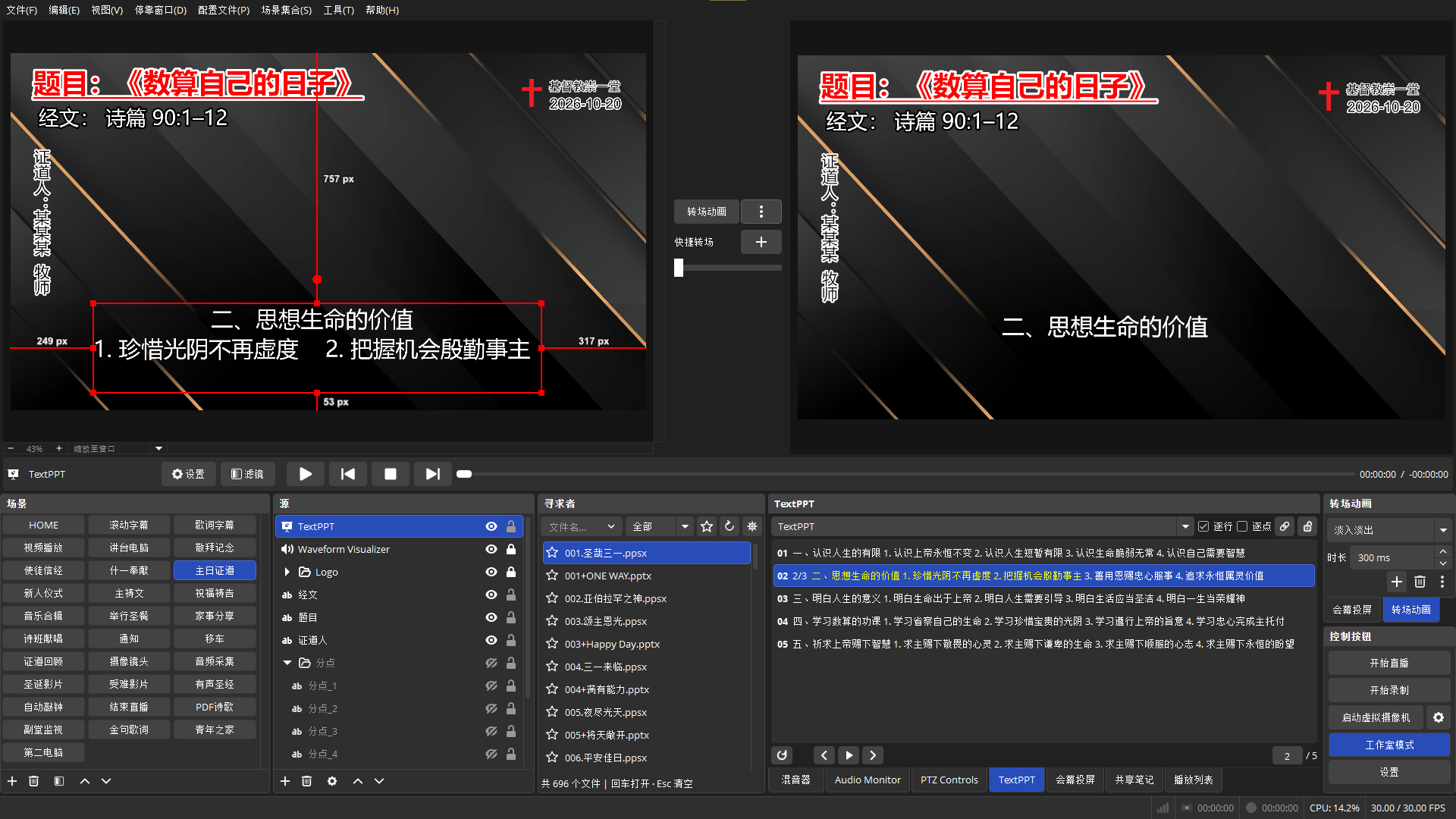
TextPPT in OBS Studio Mode with line reveal, yellow highlighting, and separate preview and program displays
Change slides or reveal lines and points from the dock. Click for the original image.

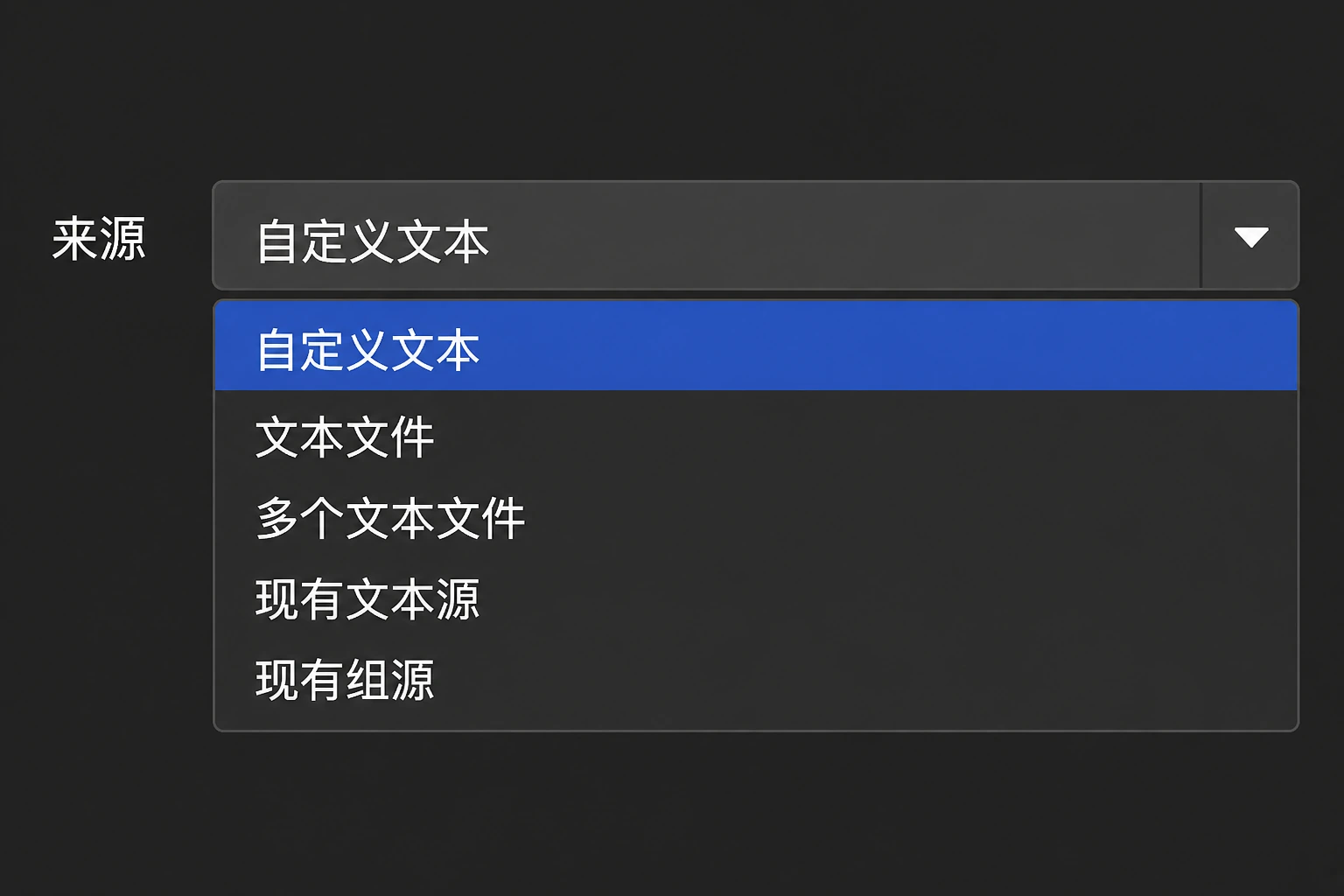
Five source types

Source menu with custom text, a text file, multiple text files, existing text sources, and existing groups
Source menu preview
Custom text
Type directly; blank lines separate pages.
Text file
Read UTF-8 text; blank lines separate pages.
Multiple text files
One page per file, with adjustable order.
Existing text sources
One source per page, preserving its styles.
Existing groups
Reference scene groups, one group per page.

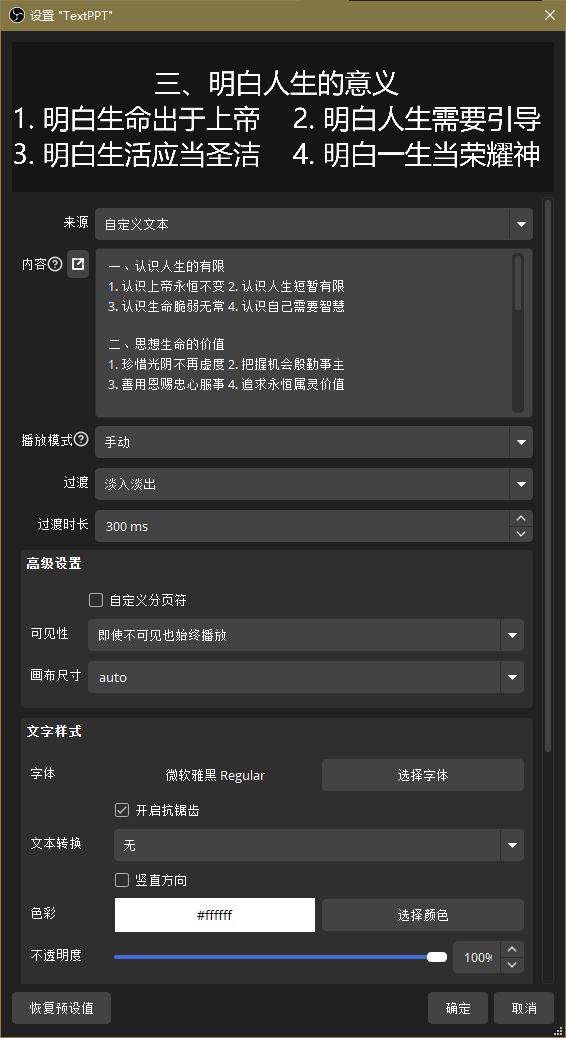
Write content. Set the style.

TextPPT properties with content, a separate editor, playback, transitions, canvas size, and text styles
TextPPT properties.
Separate editor
A large 16:9 window with a reading-size slider that does not affect projection.
Ctrl/Command + wheel or plus/minus; +0 resets the size.
Text styles
Fonts, colors, and outlines use the native OBS text style.
Playback and transitions
Manual or automatic playback, with repeat and shuffle.
Choose cut, fade, slide, or fly-in transitions.
Slides and transitions
Click a page or enter its number and press Enter.
Studio Mode: click to preview, double-click to transition.
Assign page hotkeys under OBS Settings → Hotkeys.
Follow scenes
Use the link icon to toggle following. Enabled by default and saved per source.
Line / Point reveal
Lines use line breaks; points use tabs or line breaks. The two modes are mutually exclusive.
Blank lines separate pages; consecutive tabs skip empty items. Disabled by default and saved per source.
Keeps a full-page preview with projected content marked yellow. Manual horizontal layout only.
Studio Mode
Click to preview across scenes; choose a scene for shared sources.
Enable scene and source duplication to keep page and reveal progress independent.
Uses OBS transitions; referenced text, groups, and media remain shared.
Theme
Numbers, progress, icons, and scrollbars follow the OBS theme.
Tab alignment
Use tabs for approximate columns; left alignment is recommended.
Lock source
The lock icon pins the current source. Unlock to resume scene following.
Images within groups
Image controls appear when a group contains a visible image slideshow.
Choose the target; set its slideshow mode to “Manual” for manual navigation.
Context menu
Open source properties, use the separate editor, or reload files.

After changing a UTF-8 file, right-click and choose “Reload.”

Download and install

Close OBS, fully extract the ZIP, then run the installation script.

Windows x64

Windows ZIP ↓

After fully extracting, run as administrator:

install_obs-textppt.bat

macOS Apple silicon · arm64

Mac ZIP ↓

Open a terminal in the extracted folder and run:

bash ./install_obs-textppt.sh

Restart OBS, add a “TextPPT” source, and open “TextPPT” under Docks.