Mishkan Dock adds lightweight numbered music notation to hymn slides. Notes and lyrics use corresponding cells, keeping notes, words, barlines, and section numbers aligned. Ordinary lyrics keep their existing workflow, and scripture controls are unaffected.
The notation display
The display places notation above lyrics and scales to the page width. Set note and lyric colors and boldness independently. Titles, keys, time signatures, barlines, octave dots, augmentation dots, and duration lines are laid out together.
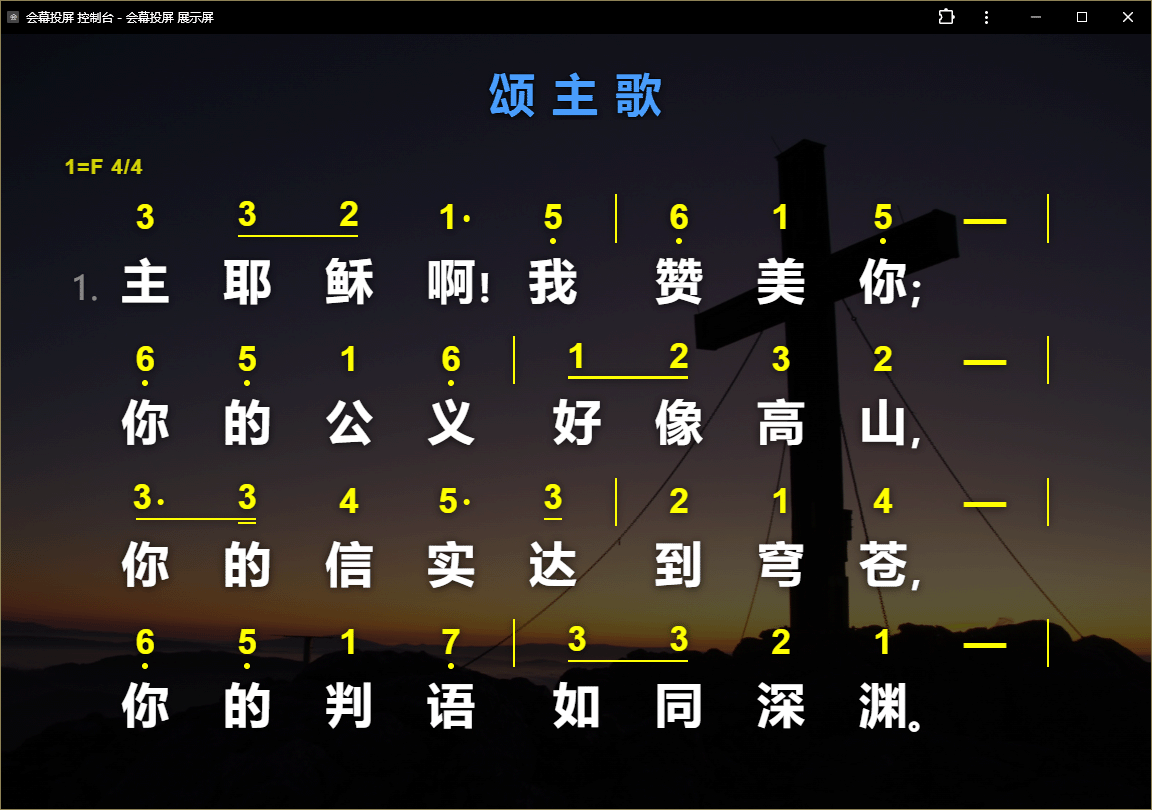
The screenshot shows yellow notation above matching white lyrics. Note and lyric cells stay aligned, and punctuation does not shift the text center. Use a custom background for direct projection or an OBS overlay on camera video.
The notation console
Notation uses the hymn console's playlists, pages, and live controls. Manage songs on the left and preview all pages in the center; a border identifies the active page.
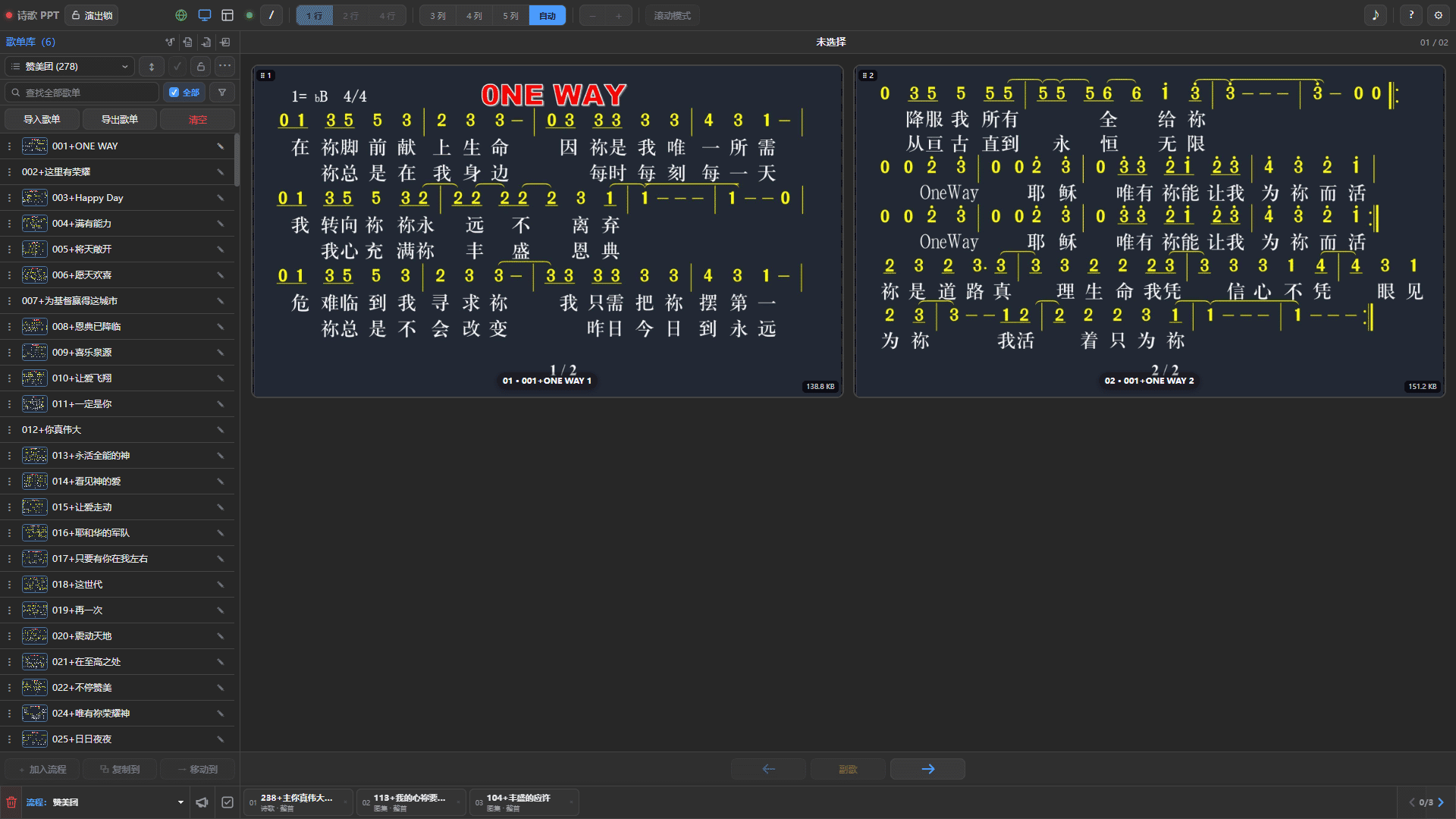
The console lets you:
- click a page card to display it;
- use Previous, Next, or arrow keys;
- show one, two, or four rows per song;
- adjust font size, scrolling mode, and preview columns;
- jump to marked choruses;
- synchronize playlists and pages across phones, tablets, and computers.
Notation and ordinary lyrics can share a playlist. Switching songs automatically selects the appropriate display mode.
Editor and toolbox
Right-click a song and choose Edit Hymn, or create one from empty console space. The notation toolbox inserts common symbols, cleans formatting, and checks note/lyric cells.
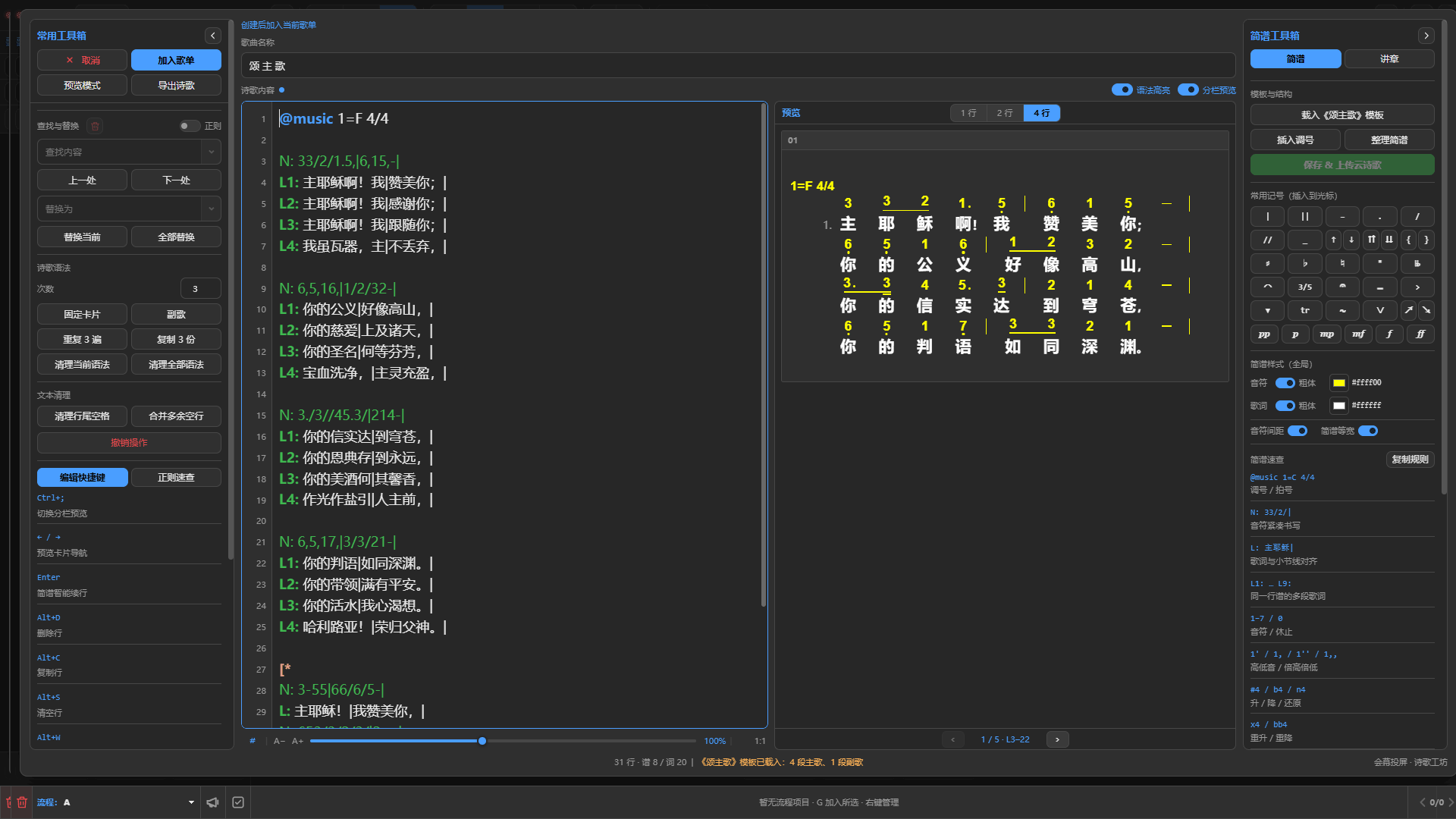
Tools include:
- a Hymns of Praise notation template;
- keys, time signatures, empty lyric cells, and formatting;
- barlines, repeat barlines, ties, and duration lines;
- octave dots, accidentals, grace notes, slurs, triplets, and quintuplets;
- fermatas, tenuto, accents, breath marks, glissandi, trills, and mordents;
- note and lyric colors and boldness;
- notation checks, a quick reference, and Copy Rules.
Results appear at the bottom of the editor. Yellow indicates ordinary notices; red indicates syntax errors or alignment problems, helping you find issues before saving.
Basic input
Use @music for key and meter, N: for notes, and L: for the matching lyrics. This example retains Chinese lyrics to show cell alignment:
@music 1=F 4/4

N: 33/2/1.5,|6,15,-||
L: 主耶稣啊!我|赞美你;||
Input rules:
- Keep exactly one space after the colon in
N:,L:,L1:–L9:, andD:. Write note sequences and Chinese lyrics without internal spaces; keep spaces between English words. - Barlines must occur at matching cells in notes and lyrics.
- Punctuation follows the preceding lyric character or word without occupying a separate cell.
- The extension mark
-takes no lyric cell. Use_for rests or notes without lyrics; missing lyrics can be padded by measure. - For multiple verses on one melody, write
N:once followed byL1:,L2:,L3:, and so on. - Leave a blank line after lines beginning with
@. Leave a blank line between a numbered lyric line (L1:–L9:) and a newN:orD:. PlainL:needs no extra blank line. - Enter triplets and quintuplets only when explicitly marked in the score; do not infer them from note count.
Insert more complex symbols from the toolbox instead of memorizing their syntax. Run Check Notation and resolve errors before saving.
Suggested workflow
- Create or open a song.
- Enter its title, key, and time signature.
- Enter each
N:line with its matchingL:line. - Insert octave, duration, and performance marks from the toolbox.
- Run Format Notation and Check Notation.
- Save, add the song to a playlist, and check page breaks.
- Open the display or OBS to verify size, colors, background, and note/lyric alignment.
For a score supplied as an image, use Copy Rules and provide both the rules and image to an OCR tool for assistance. Always compare its result with the score measure by measure, especially octave dots, augmentation dots, duration lines, tuplets, and barlines.
For ordinary hymn import, pages, and saving, see Get started with hymn slides and Prepare and manage hymn playlists.