The rundown bar brings prepared scripture, hymns, sermons, and galleries together at the bottom of the console. Activate items in order instead of searching different lists during the service. It does not change favorites or playlists and can be hidden at any time.
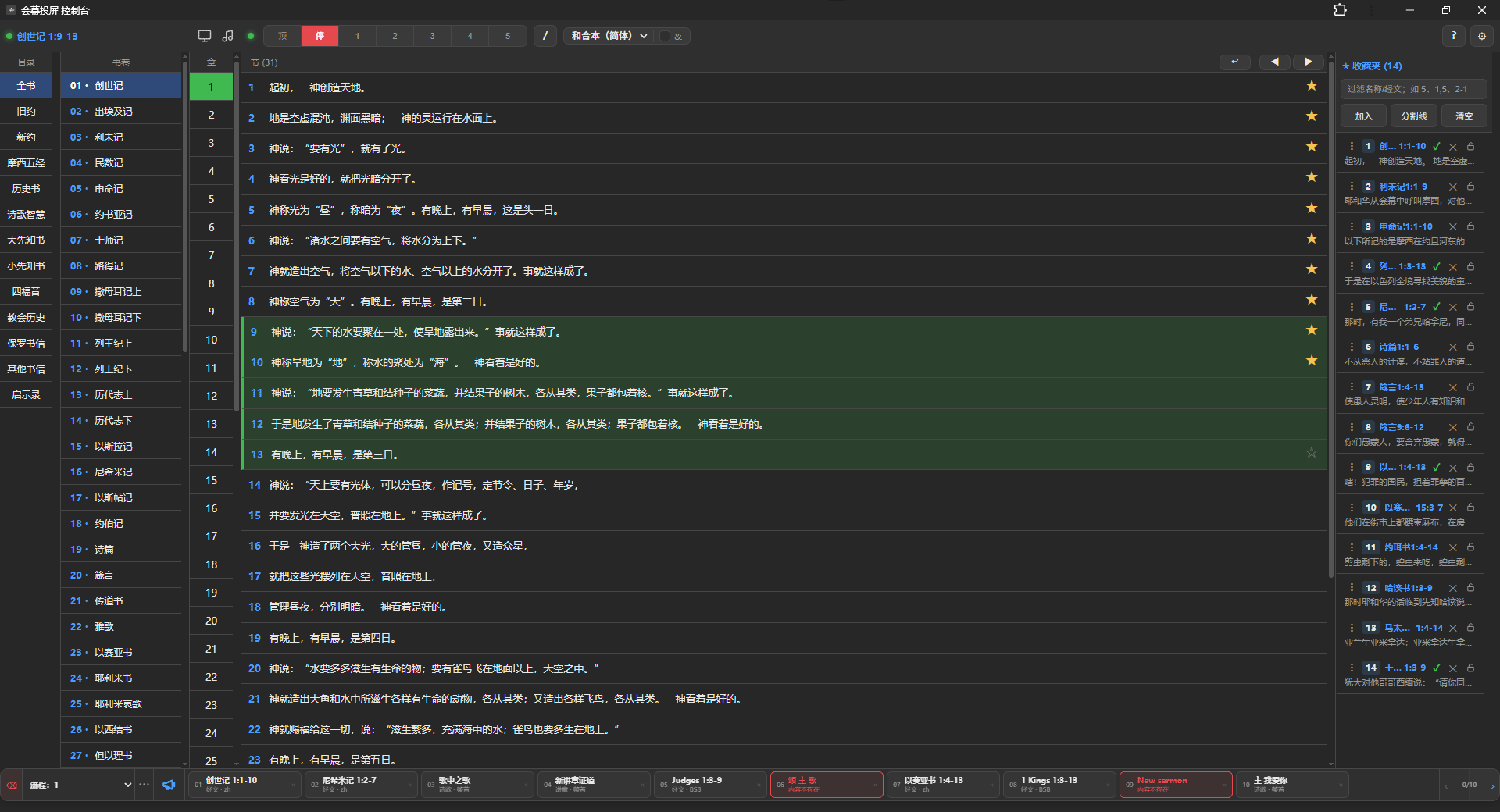
Build a service rundown
Three independent rundowns are provided by default; add more as needed, up to 12. Choose the current rundown on the left, then add content:
- Select scripture or a favorite in the scripture console, or a hymn, sermon, or gallery in the hymn console.
- Press
Gto add the selection; press it again to remove it. - Or right-click an item and choose its target rundown directly.
- Drag the number at the left of a rundown card to reorder it.
A ✓ beside scripture, favorites, or playlist items means they occur in at least one rundown. Numbers show how often they occur; hover for their rundown locations. Right-click empty rundown space to add, rename, annotate, or manage backups.
Multiple selected passages or playlist items are added as a group. Single items and groups have distinct markers.
Project items in order
Click a rundown card to activate it and locate its matching favorite, passage, playlist, and item in the current console. It does not automatically switch between scripture and hymn consoles. The active item is green. Deleted source content appears red; delete those cards directly or use Clean Up to remove every invalid item from the current rundown.
Common keys:
Shift+F: enable, show, or hide the rundown bar;Shift+G: add a rundown;Shift+←/Shift+→: previous / next item;Shift+↑/Shift+↓: beginning / end;Shift+wheel: scroll the bar horizontally;G: add or remove the selected item;Delete/Backspace: remove the current card;Shift+N: open a temporary notice or countdown.
Scripture items remember the Bible translation used when added. Hymns, sermons, and galleries remember their card page. After activation, use normal page controls before proceeding to the next rundown item.
Save and restore
Right-click empty rundown space to rename, add notes, back up, or load a rundown. ZIP backups contain items, notes, tasks, and referenced hymns, sermons, galleries, and images. Save one before the service or load it on another device.
ZIP loading reuses existing songs and their playlists where possible. A matching rundown name updates that rundown; otherwise it loads into the current rundown. A rundown ZIP does not change the device's monitor, font, color, or other local settings.
Versions with folder backups let you choose backup and load folders per rundown. A repeated backup updates the matching ZIP; a matching rundown can also load automatically at startup.
Name backups by date and service, for example:
2026-08-16-Sunday-Worship.zip
Temporary notices and countdowns
Use the rundown notice button for live messages that do not need long-term storage. Shift+N opens the panel directly.
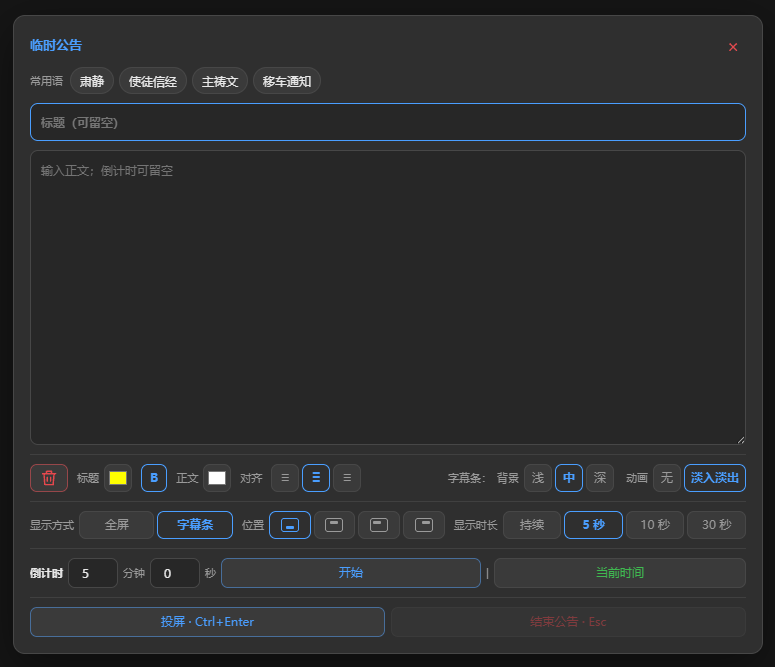
The panel includes common notices, the Apostles' Creed, the Lord's Prayer, and parking announcements. Enter your own heading and text, adjust their colors, make the heading bold, and choose alignment. Countdown headings and descriptions are optional; the final ten seconds turn orange-red, and zero stays red.
Ctrl+Enter: display the current notice;Esc: close the panel; press again to end an already displayed notice;- End Notice: immediately clear the current notice or countdown.
Drafts and styles stay in the current browser. Recent notices clear on refresh; active notices clear when the program restarts. Temporary notice data is not included in rundown ZIPs.
Before the service
- Check that every passage, hymn, and sermon opens normally.
- Reorder cards to match the actual service.
- Check for red missing-content cards.
- Rehearse hymn pages, sermon cards, and Bible translation changes.
- Save a rundown ZIP before going live.
For initial display or OBS setup, read Project your first scripture passage. For hymn pages and playlists, see Get started with hymn slides and Prepare hymn playlists.